Running the clinic
Settings, the team, the reports, practitioner pay, and the messages that go to patients. This page is for the clinic administrator. The administrator also does everything on the Front desk and Billing pages.
The team
Team in the menu.
- Invite staff: their name, work email and employee number. Mova emails them an invitation to set up the authenticator app and a password, as in Your first sign-in.
- Assign a role to a staff member, at a branch, with a reason. Remove a role the same way; past roles are kept on their page. You cannot change your own roles, and you can only grant the roles your own role allows.
- Deactivate account when someone leaves. They are signed out at once and can no longer sign in. Their name stays on everything they wrote.
Inviting, changing roles and deactivating ask you to confirm it is you first.
Resetting a lost authenticator
When a staff member loses their phone, open the sign-in administration at auth.clinic-dev.sentianx.com/admin, sign in with the administrator account for it, choose the mova-staff realm, then Users, find the person, open Credentials, and delete their authenticator (OTP). At their next sign-in they set up the app again. The same page can send a new password-setup email.
Settings
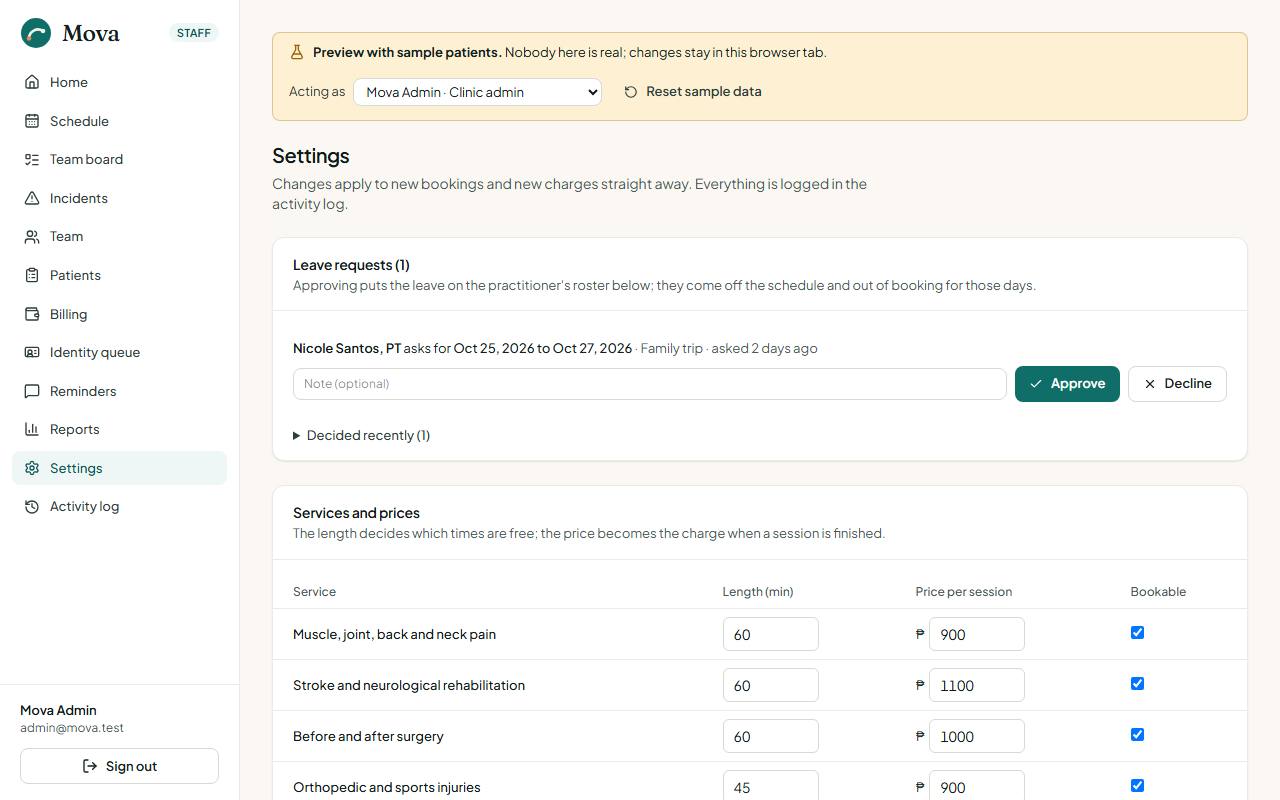
Settings in the menu. Changes apply to new bookings and new charges straight away, and every save is recorded in the activity log.
| Section | What it changes |
|---|---|
| Leave requests | Practitioners asking for time off: approve or decline, with a note. Approved leave takes them off those days, and a task to rebook their patients appears if they had visits. |
| Services and prices | Each service's length in minutes (which decides the free times), its price per session (which becomes the charge), and whether it can be booked. |
| Practitioners' hours, leave and services | For each practitioner: the days they work and the hours within the clinic's, their leave, and the services they take. Booking offers only the practitioners who take a service. |
| Closures | Days the clinic is closed beyond its regular week: holidays, maintenance. Nothing can be booked. |
| Treatment rooms | The rooms patients are called to from the waiting room, one to twelve, in the order the desk sees them. |
| Check-in kiosk | Lets patients check themselves in on a tablet at the door. Off until the clinic has a tablet. |
| Late arrivals | Minutes past the booked time before an arrival counts as late; 15 by default. |
| Confirmations | The hour from which a task to ring tomorrow's unconfirmed bookings appears; 3:00 PM by default. |
| Practitioner pay | How each practitioner is paid per visit. Off until the clinic settles it. See Practitioner pay. |
| Receipts | The business name and TIN on receipts, the receipt prefix, and the next number. |
| Re-evaluation | How often a course is re-evaluated: every so many sessions or days, whichever comes first. |
| Clinic | The clinic's name, address, phone and hours, as on the website. |
Messages to patients
Reminders in the menu has the templates on the right. Only the administrator changes them.
| Template | Sent when | Placeholders |
|---|---|---|
| SMS and Viber reminders | The set number of hours before each visit, 24 by default | {name} {day} {time} {practitioner} {service} {phone} |
| Running late, and its Tagalog version | When the desk texts the patients still to come | {name} {practitioner} {minutes} {time} {newtime} |
| Questionnaire reminder | Once, a week after a course ends with no answer | {name} {therapist} |
Each template shows a preview on a real upcoming visit. Saving re-queues reminders that have not gone out yet. Patients whose message language is Tagalog get the Tagalog version where one exists.
Reports
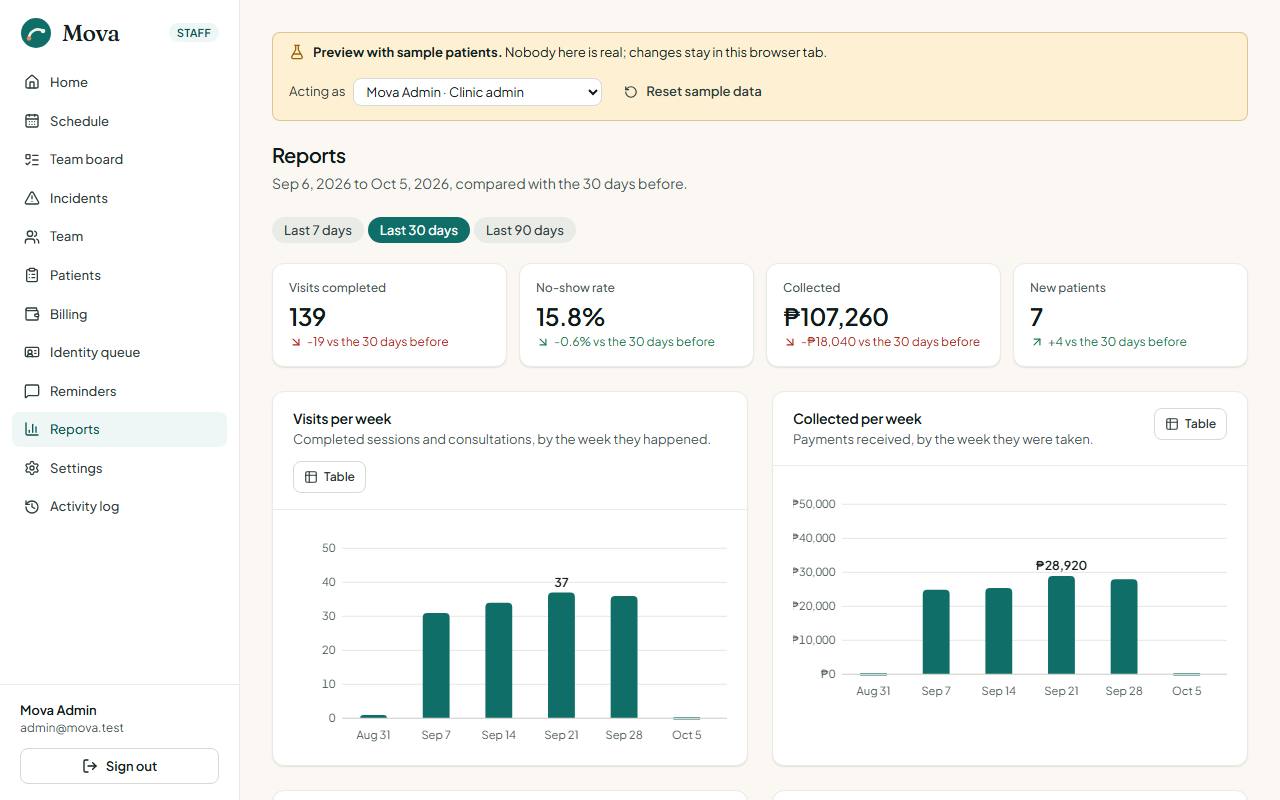
Reports in the menu. Everything follows the period chosen at the top, the last 7, 30 or 90 days, compared with the period of the same length before it. Every chart has a table view.
The headline
Visits completed, the no-show rate, money collected, and new patients, each against the previous period. Then visits per week, money collected per week, visits by service, and how busy each practitioner was as a share of their working hours.
Outcomes
How patients moved on the scales recorded in signed notes, across patients, never by name: how many were measured twice or more, the share who improved meaningfully, courses completed and the share of goals met, and the average change per scale.
What patients said
The questionnaire patients answer in the portal after a course ends: responses, the average rating out of 5, the share who would recommend the clinic, how many asked for a call, how the problem was at the end, the ratings, the average by therapist, and the comments in the patients' own words, without their names. A patient who asked for a call is a task for the desk.
Pay owed
Shown only when practitioner pay is switched on. See Practitioner pay.
Operations and safety
- Money: collected, paid out and the net, and spending by category.
- The board and the waitlist: tasks created and finished, the median days to finish, waitlist entries added, booked and removed.
- Documents, contacts and incidents by kind.
- Day closes: every close with who closed it, the cash expected against the cash counted, and the difference.
- Where patients came from: visits by referring physician.
- Senior citizen and PWD discounts: the record the accountant needs, with the patient, the kind, the ID number, the date, the receipt, the list price, the discount and the net, with totals.
Practitioner pay
Off by default. When the clinic has settled how each practitioner is paid, switch it on in Settings, Practitioner pay.
The arrangements
For each practitioner, one of:
- Per session: a fixed amount for each completed visit.
- Share of the visit: a percentage of what the visit was worth.
- Not paid per visit: salaried, or the owner.
Each arrangement applies from a day. To change a rate from next month, set the new rate with that day: visits before it keep the old rate, so past statements do not change.
What a visit is worth: its charge before any senior or PWD discount; a package visit, its share of the package price; an HMO visit, the amount billed; a waived visit, nothing.
Statements and payouts
In Reports, the Practitioner pay section shows what is owed to each practitioner for the period, with a Statement link.
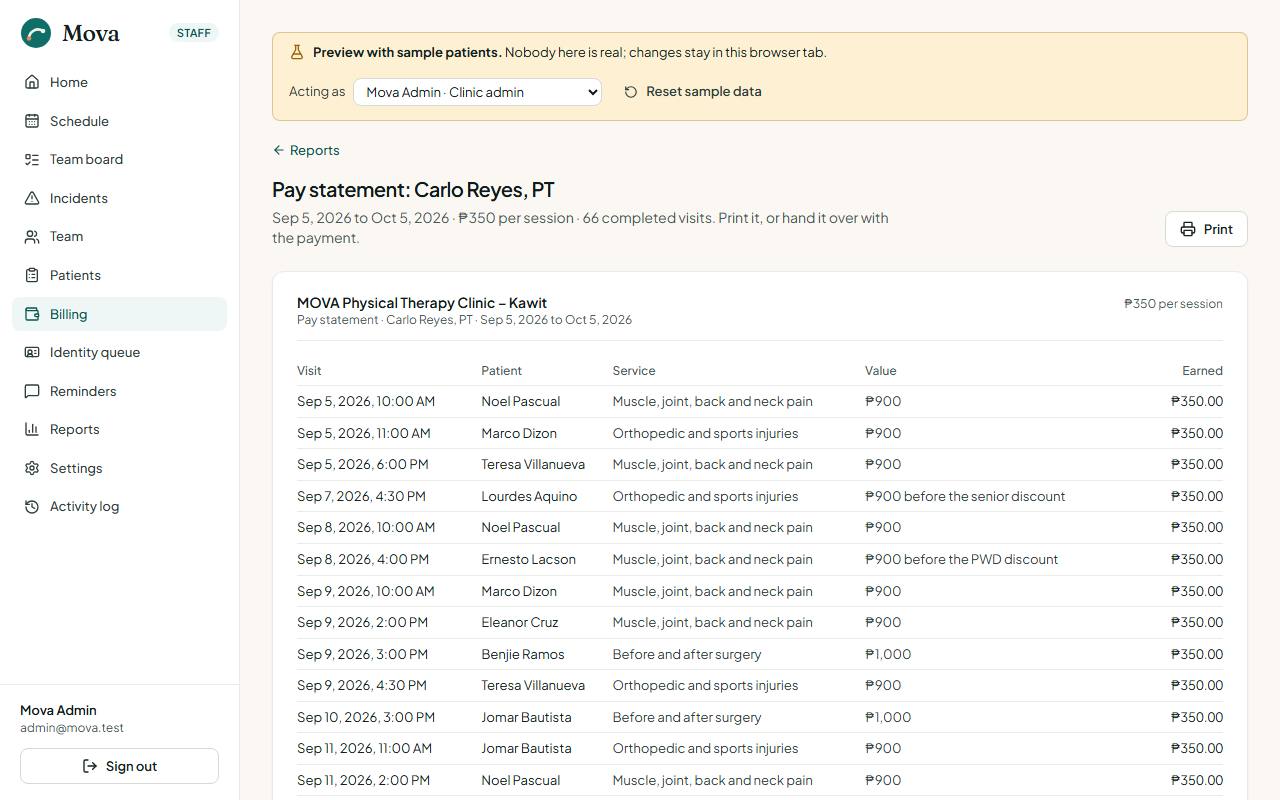
- The statement lists every completed visit in the period, with the patient, the service, how the value was arrived at and what it earned, and the total. Print it, or hand it over with the payment.
- Mark as paid, under the statement, records the day it was paid, how (bank transfer, GCash, cash) and a note. The reports then show the period as paid.
It is not payroll: tax and contributions are the clinic's to apply.
Incidents
Incidents in the menu, for physicians and the administrator. Every reported incident with its kind, severity and what happened. Review each with a statement; the reports show the share reviewed.