Mova user guide
Mova is the clinic's system for Mova Physical Therapy Clinic in Kawit: the schedule and the front desk, the clinical record, billing, messages to patients, the reports, and a portal where patients book and follow their treatment. This guide explains how to use every part of it, screen by screen.
The four addresses
| Address | What it is | Who uses it |
|---|---|---|
clinic-dev.sentianx.com | The public website: services, the team, booking | Everyone |
portal.clinic-dev.sentianx.com/portal | The patient portal | Patients |
staff.clinic-dev.sentianx.com/staff | The staff app | Clinic staff only |
docs.clinic-dev.sentianx.com | This guide | Everyone |
Staff sign-in happens on a fourth page, auth.clinic-dev.sentianx.com, which the staff app opens for you. You never need to type it.
Who sees what
Mova shows each person only what their role needs. The menu on the left of the staff app changes with your role, and a screen you are not allowed to use says "Not available with your roles".
| Role | Day to day | Does not see |
|---|---|---|
| Physician | Consultations, notes, prescriptions, countersigning, documents, incident reviews | Billing, settings, reports |
| Physiotherapist | Sessions, session and progress notes, home programmes, treatment summaries | Billing, settings, reports |
| Nurse | Pre-session checks and vital signs, the intake, acknowledging prescriptions, the schedule | Billing, settings, reports |
| Front desk | The schedule, check-in, registration, payments, receipts, reminders, the board | Clinical notes and prescriptions |
| Clinic administrator | Everything the desk does, plus settings, the team, reports, refunds and pay | Clinical notes and prescriptions |
The desk and the administrator never read clinical notes. They see what they need to run the day: who is booked, for what service, whether a course still has sessions to book, and what is owed. Reports show clinical results only as totals, never by patient.
Start here
- Front desk: Signing in, then Front desk and Billing and the cash drawer.
- Physicians and physiotherapists: Signing in, then Clinical work.
- Nurses: Signing in, then the nurse sections of Clinical work.
- The clinic administrator: all of the above, then Running the clinic.
- Patients: The patient portal.
- Everyone: The staff home, the board and the log and Questions and troubleshooting.
A day at the clinic, in Mova
- Before opening, the desk prints the day sheet in case the screens go down, and looks at the tiles on the staff home.
- Patients arrive and the desk checks them in. The nurse sees who to check before their session.
- The therapist starts the session from the waiting room. Mova shows a Before the session screen with anything that should stop or change the treatment.
- The therapist writes the note, starting from the last one, and signs it.
- Finishing the session creates the charge. The desk takes the payment and prints the receipt.
- During the day, the desk calls patients to a room, tells waiting patients if a therapist is running late, and rings tomorrow's patients who have not confirmed.
- At closing, the desk closes the day: counts the drawer and checks it against what was taken.
About this trial
The copy at clinic-dev.sentianx.com lets the clinic try Mova before it runs on the clinic's own computers. It looks and behaves like the real system, with one big difference: most of what you see is sample data that lives in your browser.
What is real and what is sample
| Part | In this trial |
|---|---|
| Staff sign-in, with the authenticator app | Real. Accounts, passwords and the six-digit codes work exactly as they will at the clinic. |
| The team list, roles and the activity log | Real. Kept on the server. |
| The schedule, patients, notes, prescriptions, billing, reminders, reports | Sample data. Fictional patients, kept in your browser tab only. |
| The patient portal | Sample data. Any email and password open the sample patient, Andrea Villanueva. |
| Text messages and Viber reminders | Not sent. "Send now" marks a message as sent so you can see the flow; nothing leaves the system. |
| Payments | Nothing is charged. Payments and receipts are recorded in the sample data only. |
Every page carries a "development copy" mark and is kept out of search engines.
Why my changes disappeared
The sample data belongs to the browser tab you are working in.
- Changes stay while you keep working in the same tab, even if you reload the page.
- A new tab starts fresh with the original sample day, and does not see what you did in the other tab.
- Closing the tab throws the changes away.
- Reset sample data, the button on the yellow ribbon at the top of clinical screens, puts everything back to the start.
This matters for the waiting-room display, which opens in a new tab: in the trial it shows the original sample day, not the check-ins you just made. To see the display react, check a patient in, then open the display's address in the same tab.
The sample clinic
Six practitioners and staff, and about a dozen patients, all fictional:
| Person | Role in the sample |
|---|---|
| Maria Ocampo, MD | Physiatrist |
| Paolo Garcia, MD | Physician |
| Carlo Reyes, PT | Physical therapist (does not take children) |
| Nicole Santos, PT | Physical therapist (does not take the post-surgery programme) |
| Grace Lim, RN | Staff nurse |
| Ana Mercado | Front desk |
| Mova Admin | Clinic administrator |
A few patients are set up to show particular features on a fresh start:
- Ernesto Lacson is checked in for 4:00 PM with Nicole, whatever the time, with a blood pressure that blocks exercise, so the session safety check shows straight away.
- Rosa Mendoza has had a knee replacement, a long course of therapy, and is due a re-evaluation.
- Lourdes Aquino has a senior citizen ID on file and reads the clinic's messages in Tagalog.
- Eleanor Cruz and Jomar Bautista are covered by an HMO.
- Andrea Villanueva is the patient you are in the portal, with a package of six sessions.
Test accounts
Each trial user gets their own staff account: an email address, a password, and an authenticator secret to add to an authenticator app on your phone. The accounts match the sample people above, so signing in as Carlo Reyes shows Carlo's view.
Your account details come from the person running the trial, never from this guide. See Signing in for setting up the authenticator app.
Seeing another role
While signed in, the Acting as list on the yellow ribbon switches the clinical screens to another sample person, so you can see the front desk's view and a therapist's view from one account. The menu changes with the person you act as. This is a trial feature only: at the clinic, you are always yourself.
Turned off in this trial
- The check-in kiosk is built but switched off until the clinic has a tablet for the door. See The check-in kiosk.
- Practitioner pay is built but switched off until the clinic settles how its practitioners are paid. See Practitioner pay.
Telling us what you think
Note the screen, what you did, and what you expected. A screenshot helps. Send it to the person running the trial.
Signing in
Every staff sign-in needs two things: your password, and a six-digit code from an authenticator app on your phone. This keeps patient records safe even if a password leaks.
Your first sign-in
The clinic administrator invites you from the Team page. You receive an email from Mova Physical Therapy Clinic.
- Open the link in the email and choose Click here to proceed.
- Set up the authenticator app. Install one on your phone if you do not have one: Google Authenticator, Microsoft Authenticator, Aegis and 1Password all work. Scan the QR code on the screen, or choose to enter the key by hand.
- Type the six-digit code the app shows, give the device a name such as "My phone", and save.
- Choose a password. At least 12 characters, not your email, and not one of your last five. A short sentence you can remember works well.
- The page says your account has been updated. Go to the staff app and sign in.
Signing in every day
- Go to
staff.clinic-dev.sentianx.com/staffand choose Sign in. - Type your work email and password.
- Type the six-digit code from your authenticator app. Codes change every 30 seconds; if one is refused, wait for the next.
- You arrive on the staff home.
Staying signed in, and signing out
- After 30 minutes without activity Mova signs you out, so a computer left on at the desk does not stay open. Three minutes before, a message offers Stay signed in.
- After 12 hours you sign in again, whatever you were doing.
- Sign out is at the bottom of the menu. It also signs you out of the sign-in page, so the next person cannot use your session. On a shared computer, close the browser afterwards.
"Confirm it is you"
Some changes need you to have entered your password and code in the last ten minutes: inviting staff, changing roles, deactivating an account. Mova asks you to confirm it is you before the form opens, and brings you back to the same page afterwards, so nothing you typed is lost.
If something goes wrong
| Problem | What to do |
|---|---|
| The code is refused | Check the phone's time is set automatically. Wait for the next code. |
| Too many wrong tries | After five, the account locks for a minute, and longer if it continues, up to 15 minutes. Wait, then try again. |
| A new phone, or a lost one | Ask the clinic administrator to reset your authenticator. You set up the app again at the next sign-in. |
| Forgot the password | Ask the clinic administrator to send a new setup email. |
| "Not available with your roles" | Your role does not include that screen. If you need it, ask the administrator. |
Patients signing in
Patients use the portal, with their own accounts. See The patient portal. Staff accounts and patient accounts are separate: a staff account does not open the portal.
The staff home, the board and the log
Three screens everyone uses, whatever their role: the staff home that says what is waiting for you, the team board where tasks and handovers live, and the activity log.
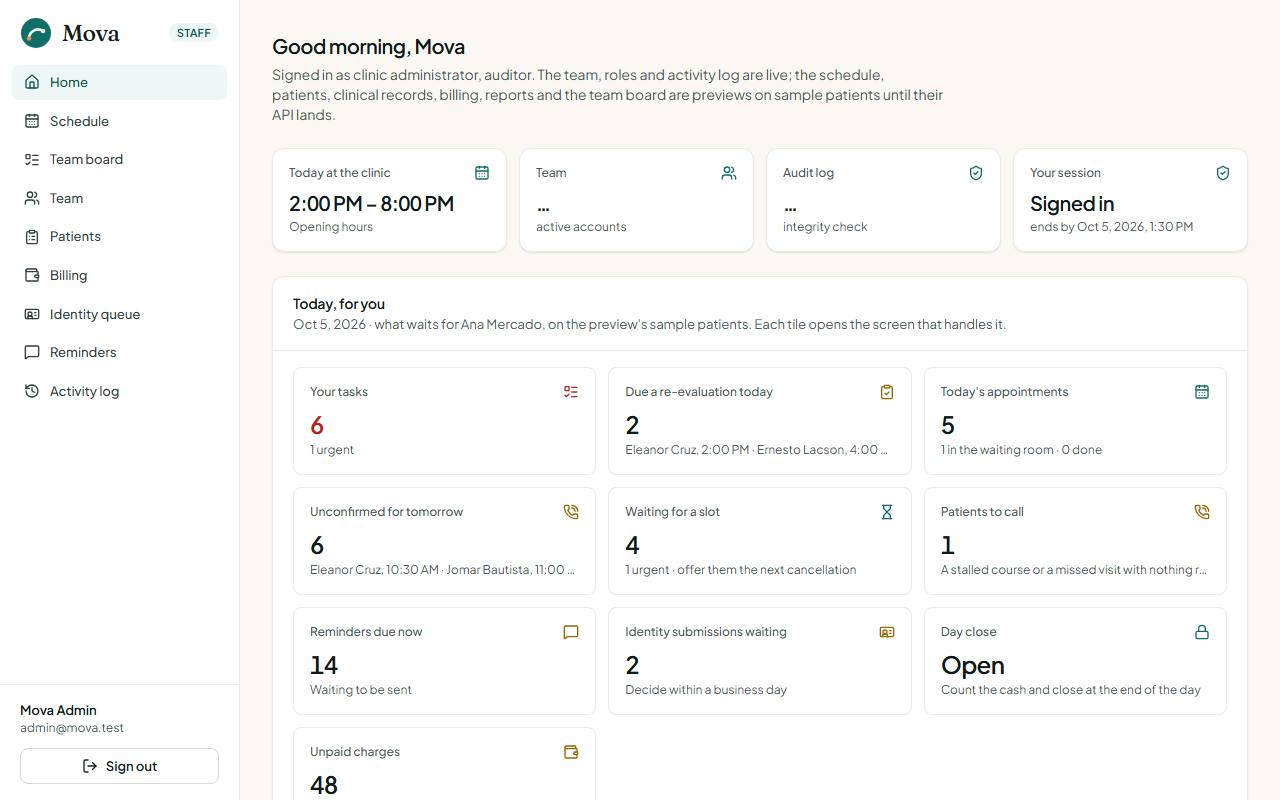
The staff home
The home opens after you sign in. Its main panel, Today, for you, is a row of tiles, one for each queue that belongs to your role. Each tile shows a count and a short hint, and opens the screen that handles it.
| Tile | Who sees it | What it counts |
|---|---|---|
| Your tasks | Everyone | Tasks on the board for you by name or for your role, with the urgent ones counted |
| Your appointments today | Physicians, physiotherapists | Your own visits today, done and still to go |
| Due a re-evaluation today | Clinicians, the desk | Patients seen today whose course is past its re-evaluation point |
| Awaiting your countersignature | Physicians | Notes waiting for you to countersign |
| Prescriptions to acknowledge | Nurses, physiotherapists | New prescriptions you have not seen yet |
| To check before their session | Nurses | Patients arrived or due within the hour with no check today |
| Today's appointments | The desk | The clinic's day: who is waiting, who is done |
| Unconfirmed for tomorrow | The desk | Tomorrow's bookings nobody has confirmed yet, with the first two names |
| Waiting for a slot | The desk | People on the waitlist |
| Patients to call | The desk | Patients whose course has stalled or who missed a visit |
| Reminders due now | Desk, administrator | Messages waiting to be sent |
| Identity submissions waiting | Desk, nurse, administrator | Patients who sent their ID from the portal |
| Unpaid charges | Desk, administrator | What is still owed, with the amount |
| Day close | Desk, administrator | Whether today is closed yet |
| Leave requests waiting | Administrator | Practitioners asking for time off |
Below the tiles, clinicians see their next few appointments and everyone sees their own tasks.
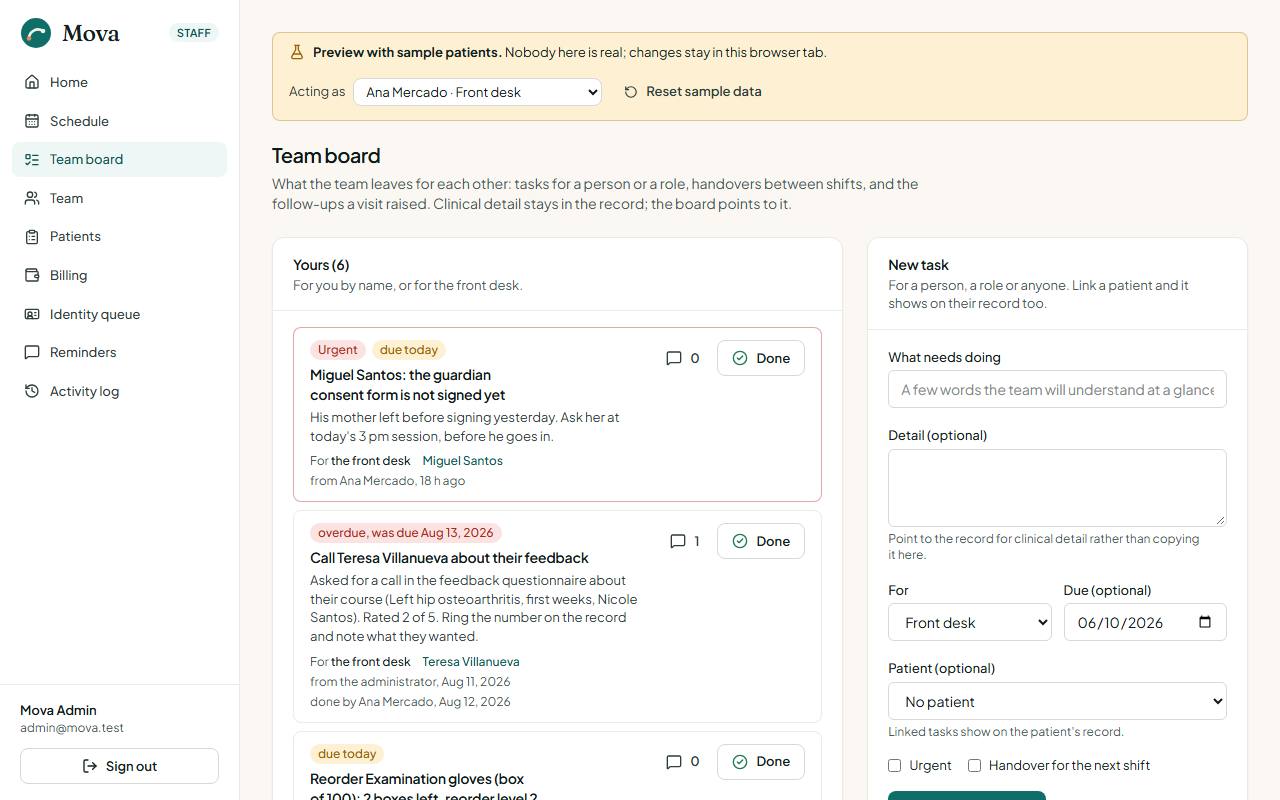
The team board
Team board in the menu. It is where the clinic leaves itself notes that need doing: a report to chase, a patient to call back, a supply to reorder, a handover for the next shift.
Adding a task
- Choose New task on the board, or New task about this patient on a patient's Tasks tab to tie it to that patient.
- Give it a title and, if useful, a few lines of detail. Keep clinical detail in the notes; the task can point to them.
- Choose who it is for: one person, everyone in a role (whoever is at the desk, the nurse on duty), or anyone.
- Add a due day if it has one, and tick Urgent if it cannot wait.
- Tick Handover for something one shift leaves for the next. Handovers carry a chip so they stand out in the morning.
Working through tasks
- Yours lists what is for you by name or for your role. Across the team lists the rest, with filters for urgent, due today or overdue, handovers, and tasks for anyone.
- Comments stay with the task, so whoever picks it up sees the whole story.
- Done and Reopen are one press each. The card says who finished it and when.
Tasks Mova adds for you
Some tasks appear on their own, so nothing falls through the cracks:
- Reorder a supply that has reached its reorder level.
- Call a patient who missed a visit, from the day close.
- Call a patient whose HMO claim was denied, to collect or appeal.
- Call a patient who asked for a call in the feedback questionnaire.
- Call a patient who replied that they want to move their visit.
- Ring the unconfirmed for tomorrow, from 3:00 PM by default.
- Rebook patients when approved leave or a closure lands on their visit.
Reporting an incident
Anyone on duty can report an incident: a fall, an injury, a reaction to treatment, a broken piece of equipment, or a near miss. Open the patient's record and choose Report an incident, or report one without a patient. Give the kind, how serious it was, what happened and what was done. Physicians and the administrator review incidents on the Incidents page and write a statement.
The activity log
Activity log in the menu. Every sign-in and every change in the system is recorded, newest first, and cannot be edited or deleted. Everyone sees their own actions. The clinic administrator and anyone with the auditor role see the whole log, can filter it by category and outcome, and can run the integrity check, which recomputes the chain that links each entry to the one before it and shows that none was changed or removed.
Each patient record has its own Activity tab for clinicians, with every opening of the record and every change to it. Patients see who opened their record in the portal, under Record access.
Front desk
Everything the desk does through the day: the schedule, booking, registering patients, checking them in, running the waiting room, confirming tomorrow's visits, the waitlist, the call list and the messages that go to patients. Nurses and the administrator can do all of it too. Billing has its own page.
The schedule
Schedule in the menu. Today opens by default.
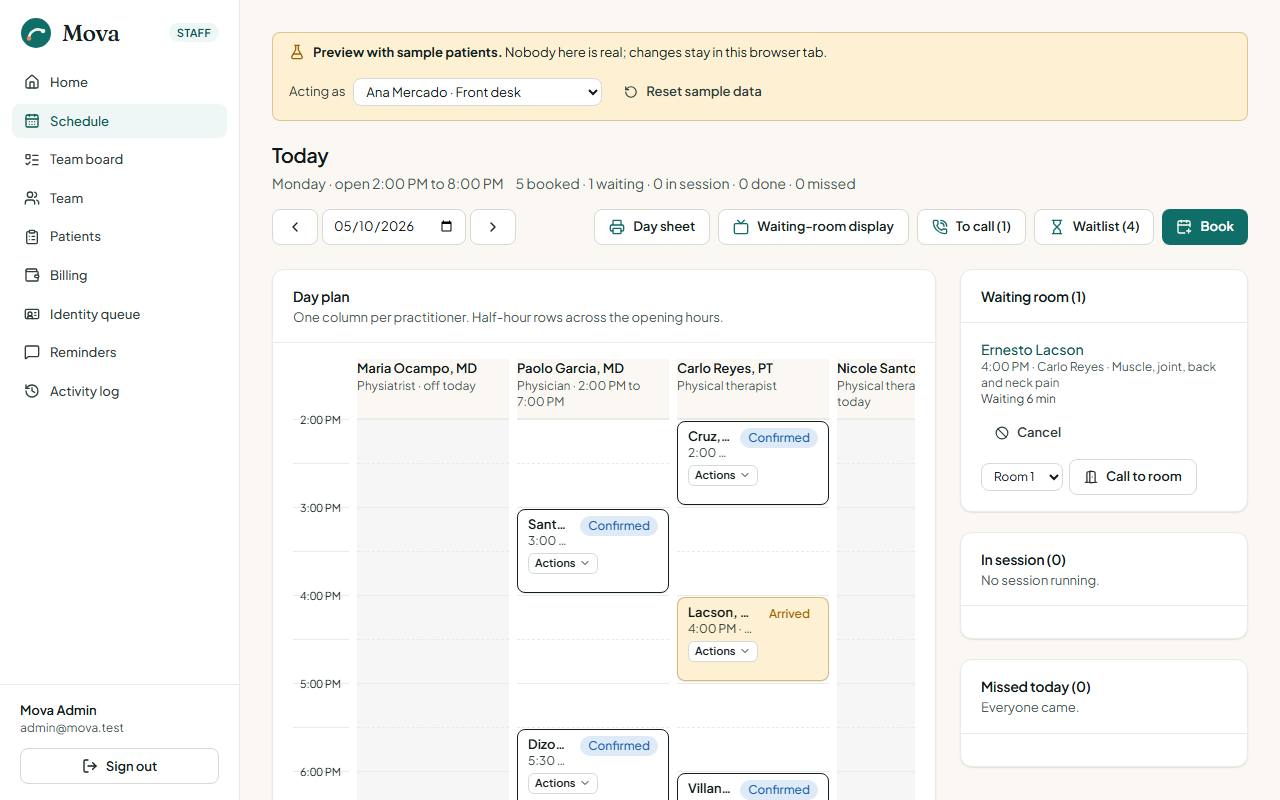
- The day plan has one column per practitioner and half-hour rows across the opening hours. Each appointment is a card spanning its length, with the patient, the time, the service and its status. A line marks the current time. Hours a practitioner does not work are shaded, and a practitioner on leave says "off today".
- Moving between days: the arrows go a day back or forward, the date box jumps to any day, and Today comes back.
- Physicians and physiotherapists open on their own column. Mine and Everyone switch between that and the whole clinic.
- On a phone, the plan becomes a list per practitioner.
- The buttons above the plan: Day sheet, Waiting-room display, To call with its count, Waitlist with its count, and Book.
What the statuses mean
| Status | Meaning |
|---|---|
| Booked | In the book, but the patient has not confirmed yet |
| Confirmed | The patient said they will come, or it was booked within the last two days |
| Arrived | Checked in and waiting |
| In session | With the practitioner now |
| Done | The session is finished and the charge is made |
| No-show | The time passed and the patient did not come |
| Cancelled | Cancelled, with the reason kept |
Acting on an appointment
Each card has an Actions button. What it offers depends on the status and your role:
- Check in when the patient arrives.
- Confirmed by reply when a Booked patient answers the reminder. See Confirmations.
- Wants to move when the patient asks to change the time.
- Move opens booking with the same service, to pick a new time.
- No-show once the time has passed and they did not come.
- Cancel asks for the reason. Afterwards, Offer this slot to the waitlist finds who could take it.
- Physicians and physiotherapists see Start on a checked-in patient, and Done during a session.
Every action is recorded on the patient's record.
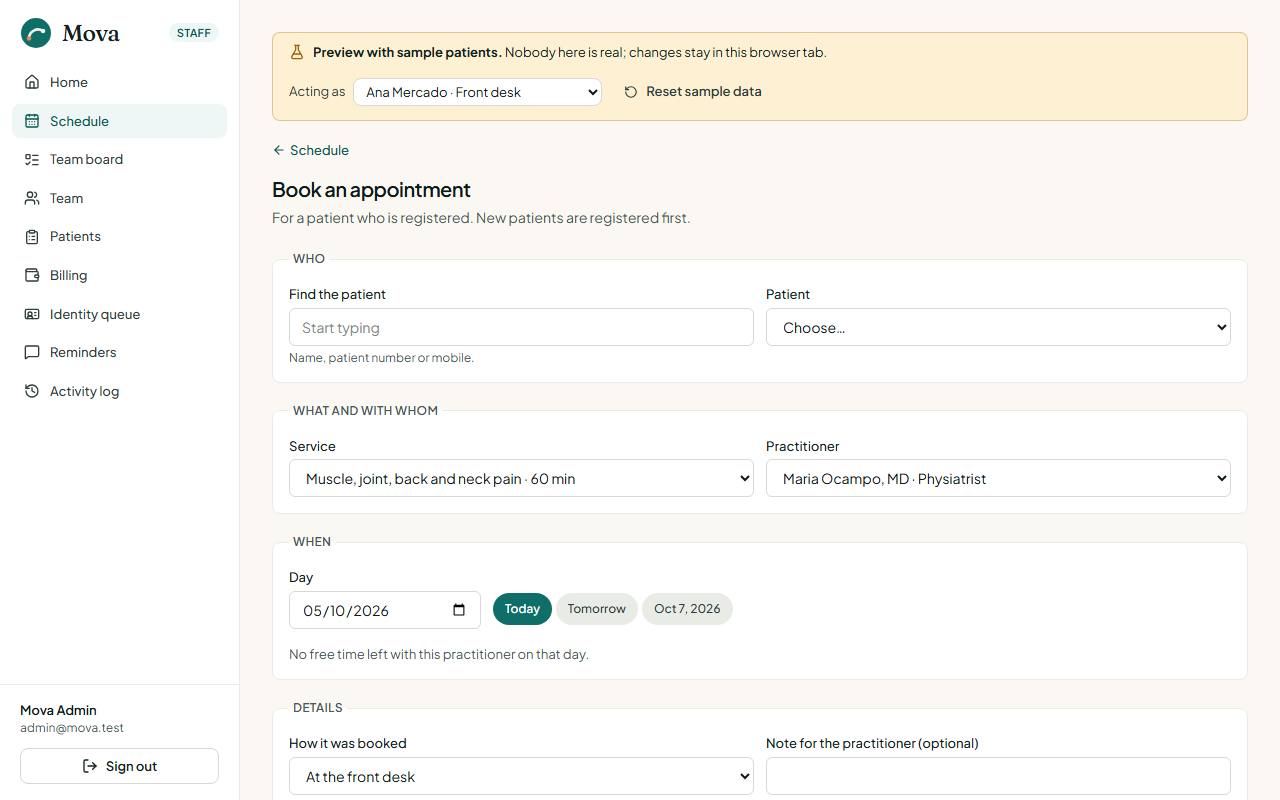
Booking an appointment
- Choose Book on the schedule, or Book from a patient's record, the waitlist or the call list, which fills in the patient.
- Find the patient by name or number. A new patient is registered first.
- Choose the service. The list of practitioners shows only those who take it.
- Choose the practitioner and the day. The free times come from that practitioner's hours and the length of the service. Days the clinic is closed show no times.
- Pick a time and book. If the patient's identity is not verified yet, the screen says so; the booking still goes through.
A visit booked within two days is Confirmed straight away. Further out it starts as Booked and the reminder asks the patient to confirm.
Booking a whole course
When a physician prescribes a course of therapy, the desk books it in one go.
- Open the patient's record, Appointments tab. Each course shows how many sessions a week for how many weeks, how many are done, how many are booked ahead, and how many are still to book. No diagnosis is shown to the desk.
- Choose to book the course. Pick the days of the week, the time, the practitioner, the start day and how many sessions.
- Find times walks the calendar: the wanted time where it is free, the nearest free time that day where it is taken, and a skip with the reason where the clinic is closed or the practitioner is full. Skipped days do not count.
- Untick any you do not want and book the rest together. Reminders are queued for each.
Registering a new patient
Patients, then New patient.
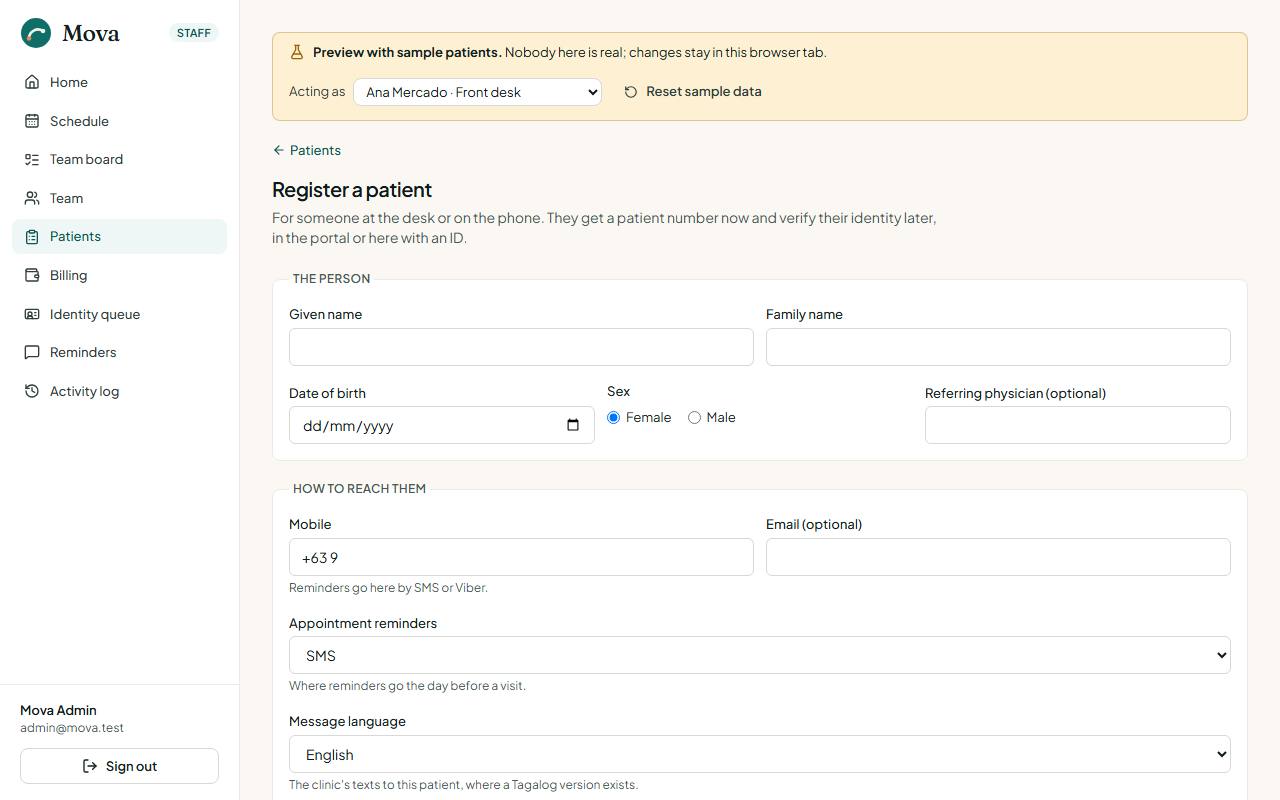
- Name, date of birth, sex. A patient under 18 needs a parent or guardian.
- Mobile in the Philippine format, and email if they have one.
- Address, emergency contact, referring physician if any.
- HMO, if covered: the HMO, the member number and until when.
- Senior citizen or PWD ID, if they have one. Their charges then carry the 20% discount from the start.
- Appointment reminders: SMS, Viber, both, or no reminders.
- Message language: English or Tagalog, for the messages that have a Tagalog version.
- The privacy notice: explain it and tick that the patient agreed.
As you type, Mova compares the name, date of birth and mobile with everyone already registered. If someone may be the same person, it shows them with their number and a link. Open their record instead, or tick that this is a different person and register anyway. The patient gets a number straight away, such as MV-2026-0042; it is on every receipt.
Changing a patient's details
The record's Details tab, for the desk, the nurse and the administrator. It also shows how they registered, whether their identity is verified, and where each consent stands.
Checking in
When the patient arrives, find their card on the schedule and choose Actions, then Check in. They move to the Waiting room panel beside the plan.
Late arrivals
A patient who arrives more than 15 minutes after their time (the administrator can change this) is checked in as late:
- The waiting room tags them Arrived 25 min late.
- They are served after those who came on time, in the order they turned up, so a latecomer does not push everyone back. The display shows the same order without saying who was late.
- The therapist sees it on the Before the session screen, to shorten the session or rebook rather than run into the next patient.
The waiting room
The panel beside today's plan.
- Waiting room lists who is checked in, in the order they will be seen, with how long each has waited. When a therapist is running behind, each row adds when they will likely start.
- In session lists who is with a practitioner now and since when.
- Missed today lists the no-shows, with a Call link to their mobile.
Calling a patient to a room
- In the waiting room, pick the room beside the patient's name. The administrator names the rooms in Settings.
- Choose Call to room. The row says "Called to Room 2 at 4:05 PM", and the waiting-room display shows Please go to: Ernesto L. → Room 2 for ten minutes.
- Call again changes the room. Once the session starts, the row says "In Room 2".
The desk, the nurse and the clinicians can all call patients.
When a therapist is running late
Mova works out how far behind each practitioner is, from the session running over its time and the patients queued after it.
- From ten minutes behind, the waiting room says, for example, "Nicole Santos is running about 20 min behind", and the display tells the waiting room the same, with an apology.
- Text the 3 patients still to come with Nicole Santos queues a message to everyone booked with her later today, each with their own likely new time, in their language. A patient with no reminder channel is counted, not texted; nobody is texted twice within an hour.
- The messages wait in Reminders, marked Running late, ready to send.
Confirmations
Bookings more than two days ahead start as Booked. The reminder the day before asks the patient to reply 1 to confirm, or 2 or call to move or cancel.
- When they reply 1, or confirm by phone: Actions, then Confirmed by reply. The card turns Confirmed.
- When they reply 2 or ask to move: Actions, then Wants to move. A task to call them appears on the board, and the card notes the request. Their slot stays theirs until you rebook it.
- Patients can confirm in the portal with Yes, I'll be there. The card turns Confirmed.
- The staff home shows Unconfirmed for tomorrow with the first names, or for the next clinic day when tomorrow is closed.
- From 3:00 PM, a task Ring the 3 unconfirmed for Monday appears on the team board, naming who has not answered. The administrator can change the hour.
The day sheet
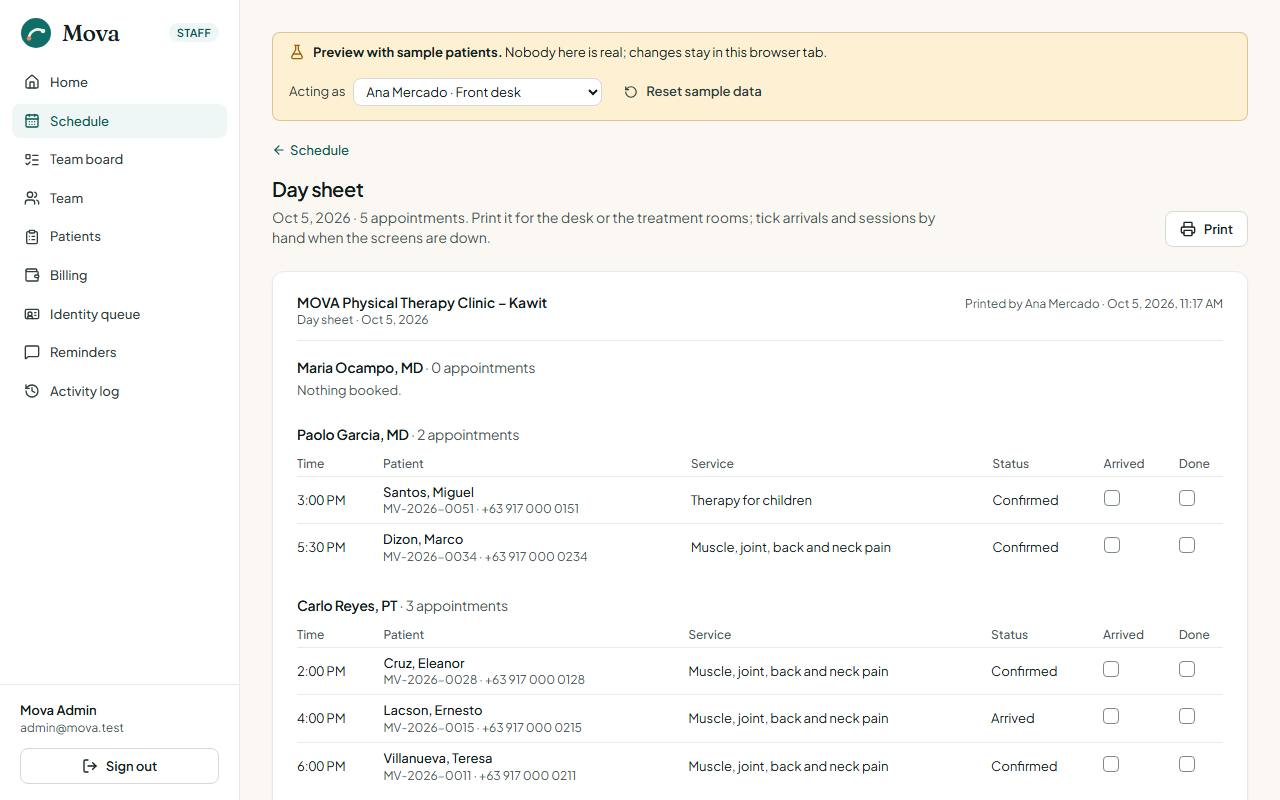
Day sheet on the schedule prints the day on paper: one block per practitioner, a line per appointment with the time, patient, number, service and status, and boxes to tick arrivals and finished sessions by hand if the screens go down. The desk's sheet includes mobile numbers; a clinician's does not. Print it each morning.
The waiting-room display
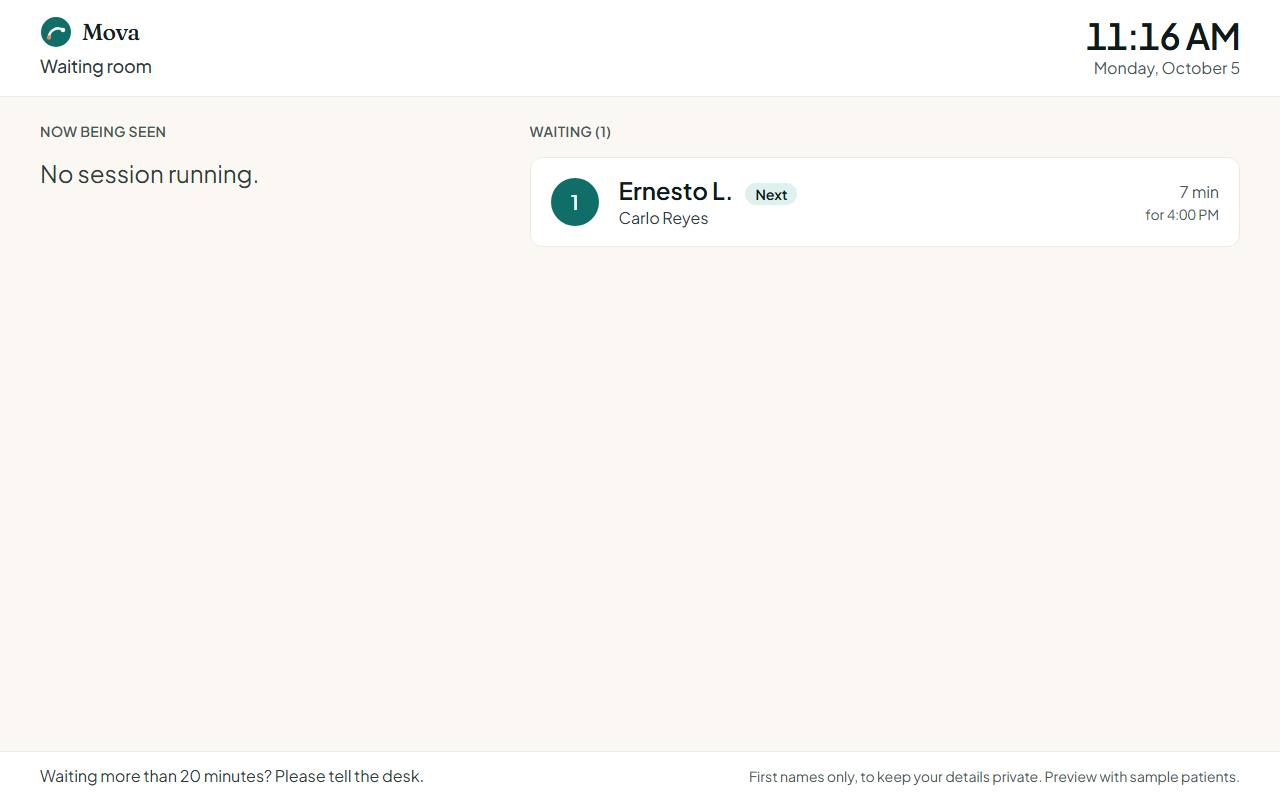
A screen facing the waiting room that says who is being seen and who is next.
- On the computer connected to the waiting-room TV, sign in to the staff app.
- On the schedule, choose Waiting-room display. It opens in a new tab; drag it to the TV and make it full screen.
The display shows the time, Now being seen with each practitioner, and Waiting in the order patients will be seen, the first marked Next. A wait over 20 minutes turns amber, and the footer asks patients to tell the desk. When a therapist is running late, an amber line says so. It refreshes every 15 seconds.
Privacy: the display shows first names and an initial only, never the service, a diagnosis or a number.
The check-in kiosk
A tablet at the door where patients with a booking check themselves in with their patient number and birthday. It is switched off until the clinic has a tablet; the administrator turns it on in Settings. When it is on:
- On the tablet, sign in to the staff app and choose Check-in kiosk on the schedule.
- The patient types their patient number and picks their birthday. Mova checks them in for today's visit, greets them by first name, and asks them to take a seat.
- A wrong number or birthday gets one message that names nobody. No visit today, or a first visit, sends them to the desk.
Kiosk check-ins are tagged Checked in at the kiosk in the waiting room.
The waitlist
Waitlist on the schedule. People waiting for a slot: the patient, the service, a particular practitioner or whoever is free first, the days and times that suit, a note, and urgent or not. Urgent comes first, then whoever has waited longest.
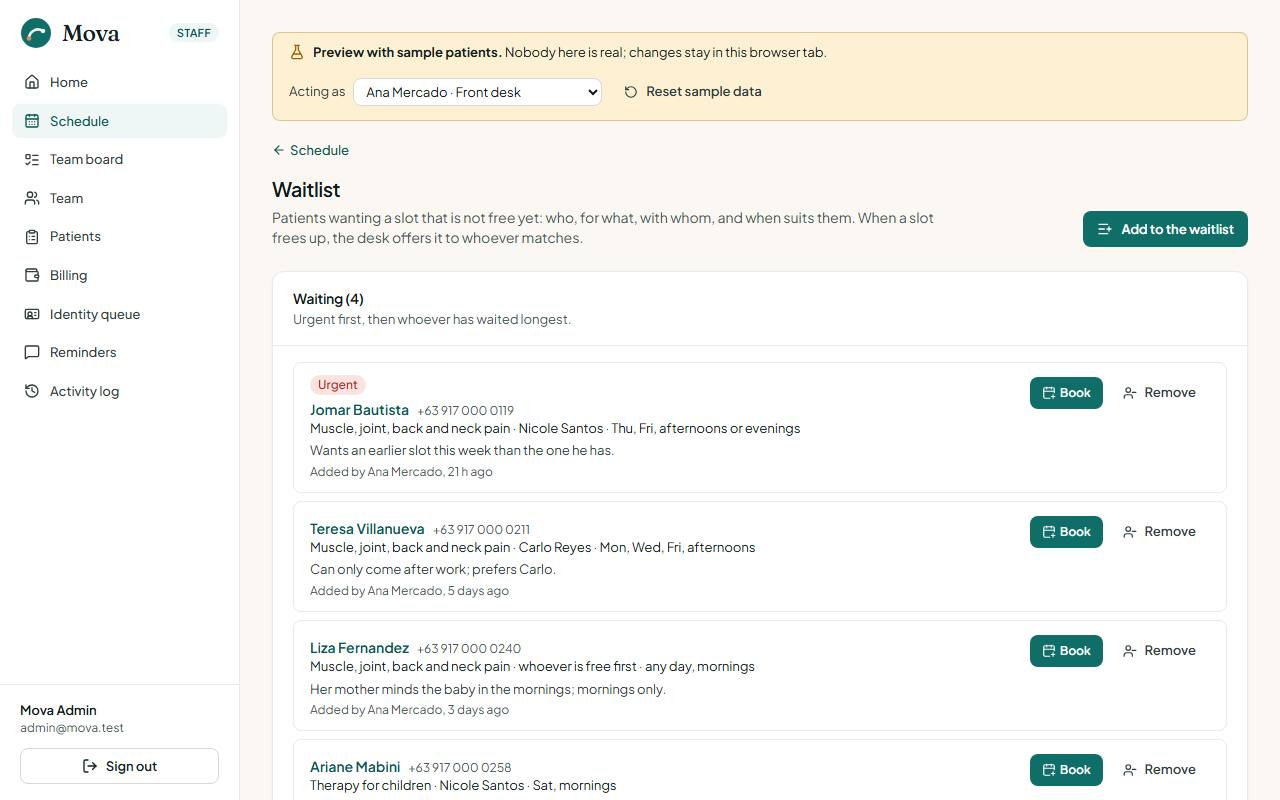
- Adding: choose the patient, the service and when suits them. The same patient cannot be on the list twice for the same service.
- Offering a cancelled slot: after cancelling, choose Offer this slot to the waitlist. The freed slot is on top and the people it suits are marked.
- Book fills in the patient; once booked they leave the list. Remove asks for a reason.
Patients to call
To call on the schedule. Patients whose course of therapy has had no visit for two weeks with nothing booked, and patients who missed a visit this week with nothing rebooked, longest gap first.
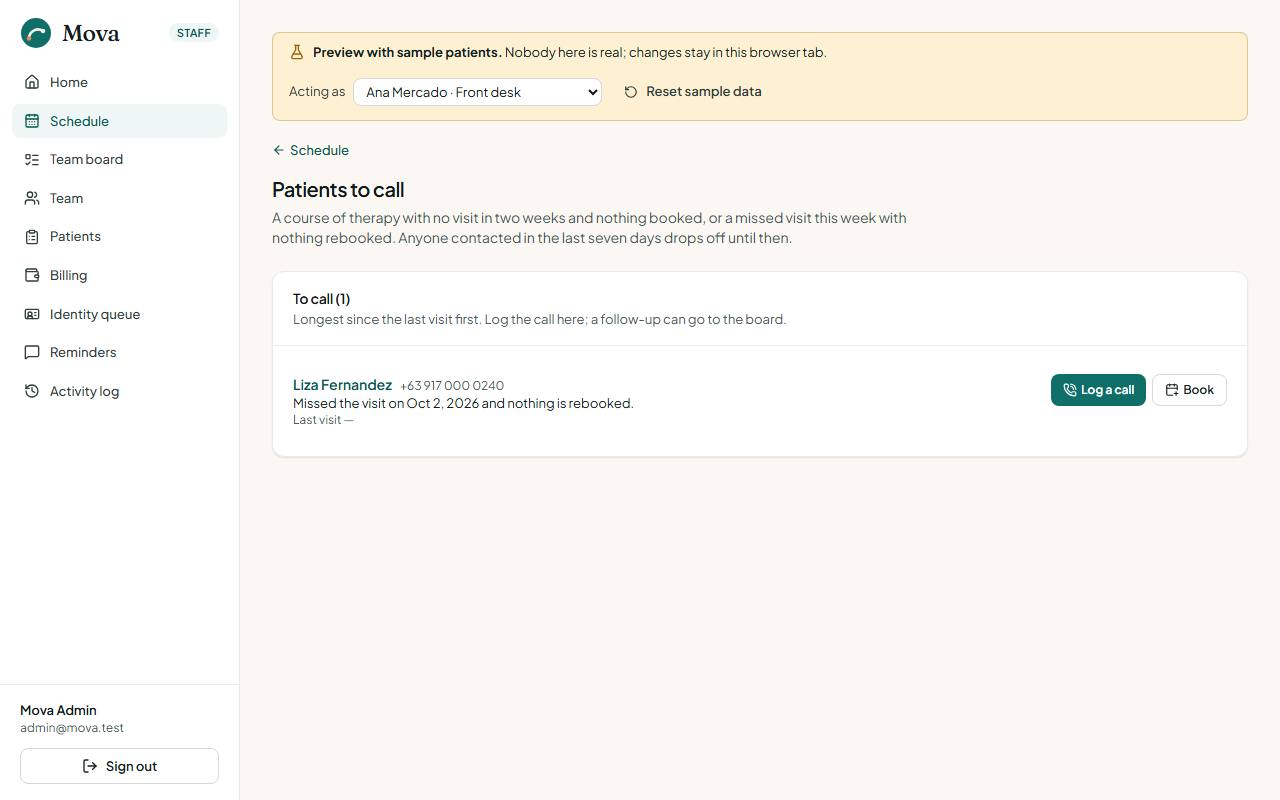
- Book fills in the patient.
- Logging a call takes the patient off the list for seven days.
Logging a contact
The patient's Contacts tab, or from the call list: Log a contact. The channel (phone, Viber, SMS, email, in person), which way it went, the outcome (reached, no answer, left a message, will call back) and a line on what was said. Keep clinical detail in the notes. You can put a follow-up on the board for tomorrow in the same step.
Reminders
Reminders in the menu, for the desk and the administrator.
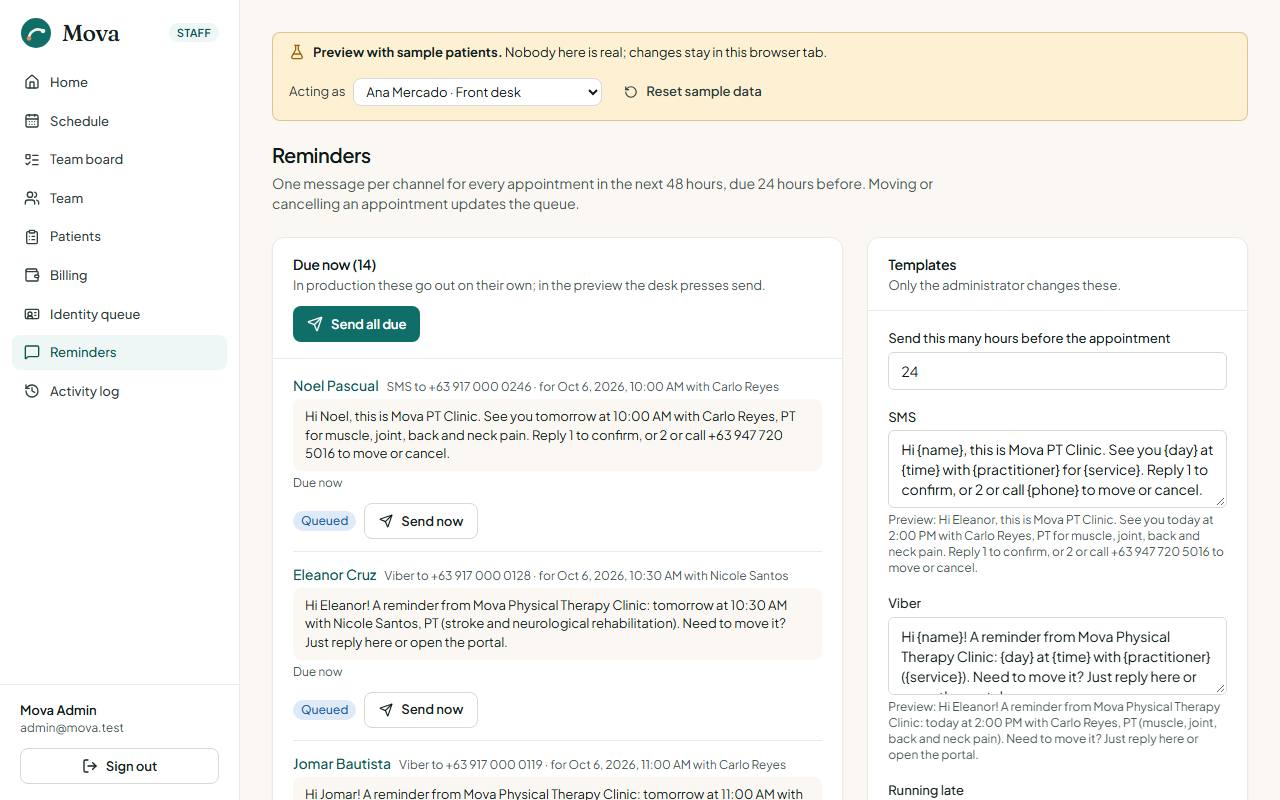
- Due now, Scheduled, Sent. One message per channel for every booked or confirmed visit in the next two days, due 24 hours before by default, or at once when booked later than that. Each shows the text, the mobile and the visit.
- Send now sends one; Send all due sends the lot. Each is recorded on the patient's record.
- The queue follows the schedule: booking adds reminders, moving replaces them, cancelling cancels them.
- Running late and Questionnaire messages sit in the same outbox, marked.
- Templates are the administrator's: see Messages to patients.
A patient who chose no reminders gets none. Reminders are about their visits only; the clinic never uses them for marketing.
Identity verification
Identity queue in the menu. Patients verify their identity in the portal before they can book freely.
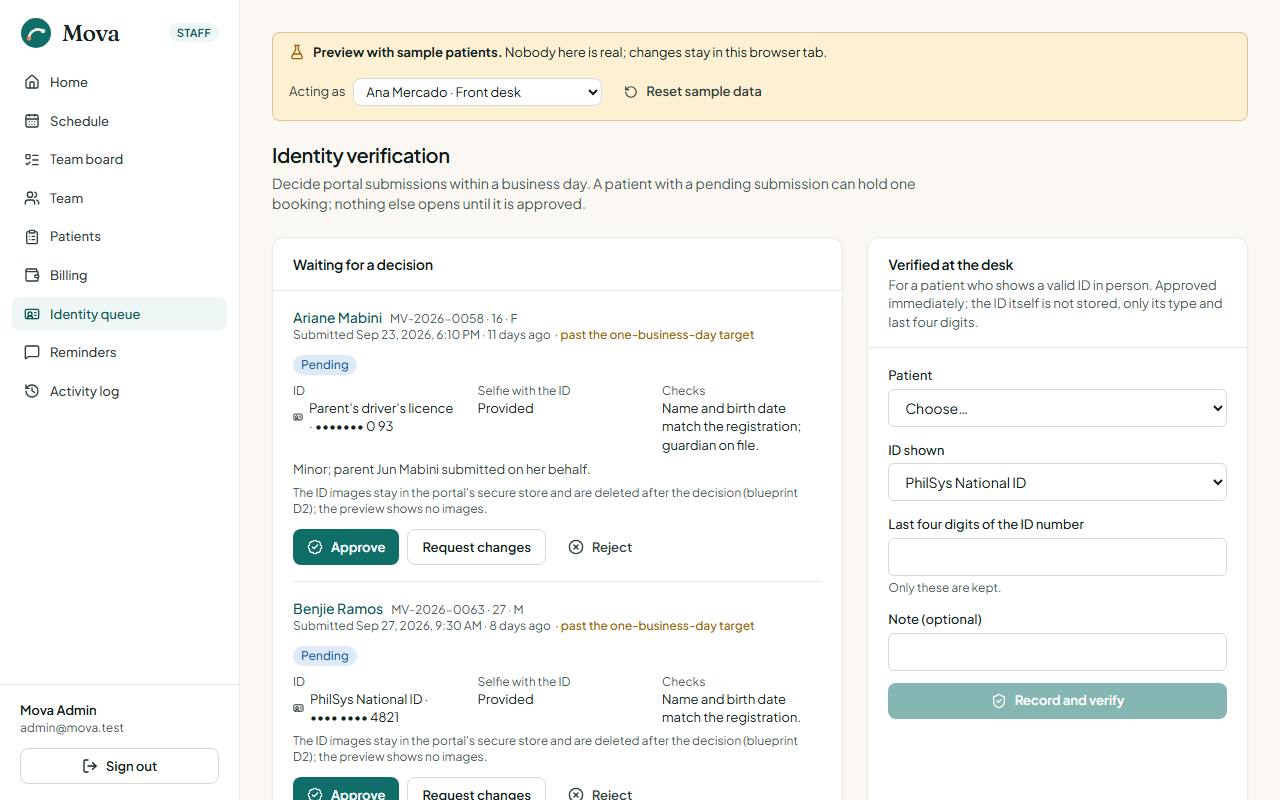
- Waiting for a decision: the ID type and a masked number, whether a selfie with the ID was sent, the registration checks, and how long it has waited. Aim to decide within one business day. Approve in one press; request changes or reject with a reason the patient reads in the portal.
- Verified at the desk: for a patient who shows a valid ID in person, record the ID type and the last four digits, and they are verified at once.
- Decided: every decision, with who made it and when.
Consents
The record's Details tab, for everyone. Four consents, each with a version:
| Consent | Needed |
|---|---|
| Privacy notice (Data Privacy Act of 2012) | Everyone |
| Assessment and treatment | Everyone |
| Parent or guardian | Patients under 18 |
| Photos and video for the clinical record | Optional |
Each shows whether it is current, on older wording, withdrawn, missing or not asked, with who gave it, when, how, who witnessed it and who recorded it. A required consent that is missing, withdrawn or on older wording shows as a red chip at the top of the record for everyone, so the clinician sees it before treating.
- Record a consent the patient signed. For a minor, the guardian is filled in from the record.
- Withdraw keeps the record and asks for the patient's reason.
- Print the form on the clinic's paper for the patient to sign.
Leave and closures
Physicians and physiotherapists ask for leave from the schedule: the days and a reason. The administrator approves or declines in Settings. Approved leave takes them off those days and out of booking, and if they had visits booked, a task to rebook those patients appears on the board. Clinic closures, such as holidays, are set by the administrator and work the same way.
Billing and the cash drawer
Charges, payments and receipts, discounts, HMO billing and claims, packages, money paid out, supplies, and closing the day. Billing is for the front desk and the clinic administrator; clinicians and the nurse do not see it.
The billing page
Billing in the menu.
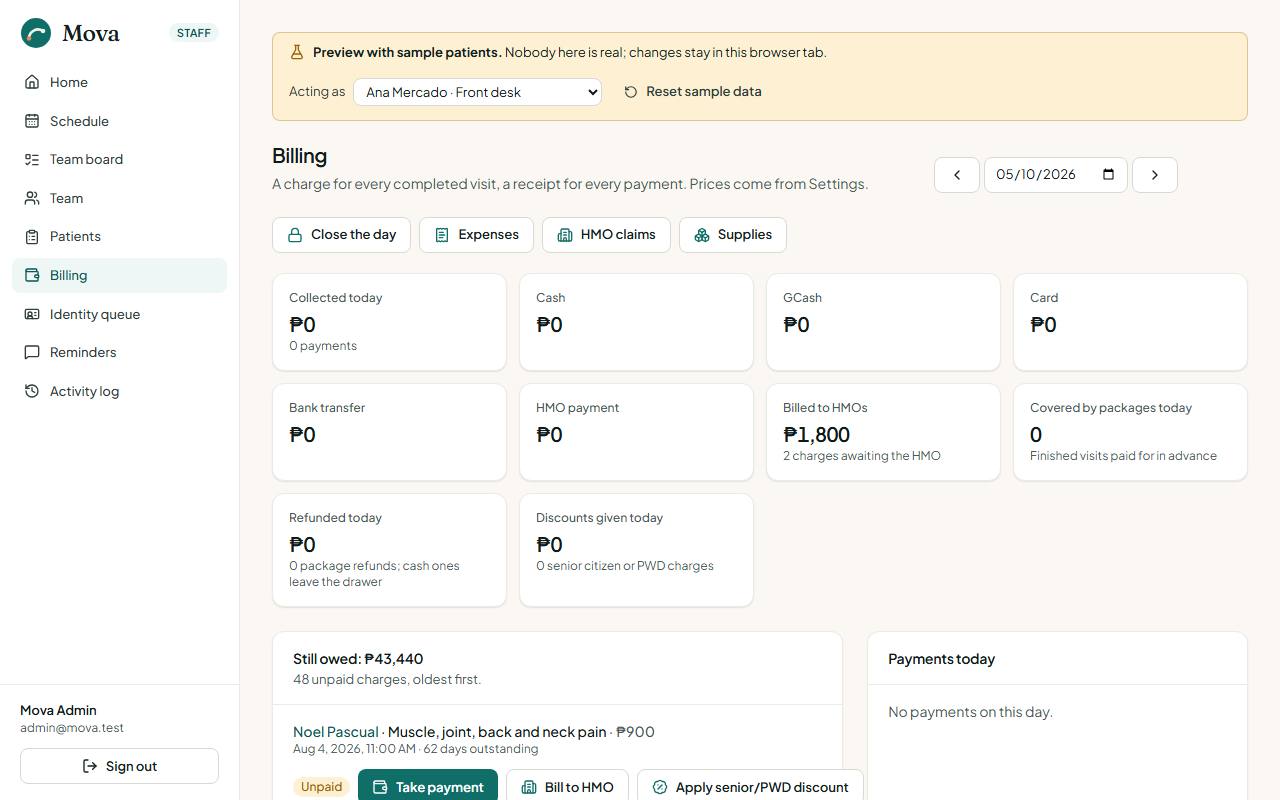
It shows a day at a time: what was collected by method (cash, GCash, card, bank, HMO), the payments of that day with their receipts, the charges created that day, discounts given and visits covered by packages, and everything still owed, oldest first, with payment right there. Links at the top go to HMO claims, Expenses, Supplies and Close the day.
Each patient's record also has a Billing tab with their charges, payments, packages and balance.
Charges
- A charge is made when a session is finished, at the service's current price from Settings.
- Add a charge on the patient's Billing tab for anything else: a brace, a report, a missed-visit fee.
- Waiving: the administrator can waive a charge with a reason. It stays on the record.
Taking a payment
- Find the charge in everything still owed on the billing page, or on the patient's Billing tab, and choose Take payment.
- Enter the amount and the method: cash, GCash, card or bank transfer. GCash, card and bank need the reference number.
- Choose Record payment and issue receipt. The payment gets the next official receipt number.
- Print the receipt. It carries the clinic's business name and TIN, the patient's number, the amount, the method and who took it.
A charge can be paid in parts; the balance stays on the list until it is settled.
Senior citizen and PWD discounts
The 20% discount is applied against the ID the patient shows.
- Record the ID on the patient's details (Senior citizen or PWD, with the ID number). Every charge for a finished visit then carries the discount from the start.
- On an unpaid charge with nothing paid on it yet, the desk can apply the discount there, against the ID shown. The ID is kept on the details too.
- A senior citizen discount needs the patient to be 60 or over.
- A discounted charge cannot be billed to an HMO, and an HMO charge cannot be discounted.
- The administrator can remove a discount, with a reason, while nothing has been paid.
- The receipt shows the list price, the "Less 20%" line with the law and the ID number, the net amount, and a line for the patient or their representative to sign.
- The accountant's record of every discount is in the reports, under Operations and safety.
HMO billing
For patients covered by an HMO, recorded on their details.
- On an unpaid charge, choose to bill it to the HMO. The HMO is filled in from the details; enter the letter of authorisation (LOA) number.
- The charge now waits for the HMO, not the patient. In the portal, the patient sees it as billed to their HMO and it stays out of what they owe.
- When the HMO pays, record a payment with HMO payment as the method and the HMO's reference. A receipt is issued.
HMO claims
HMO claims, from the billing page. Where every charge billed to an HMO stands.
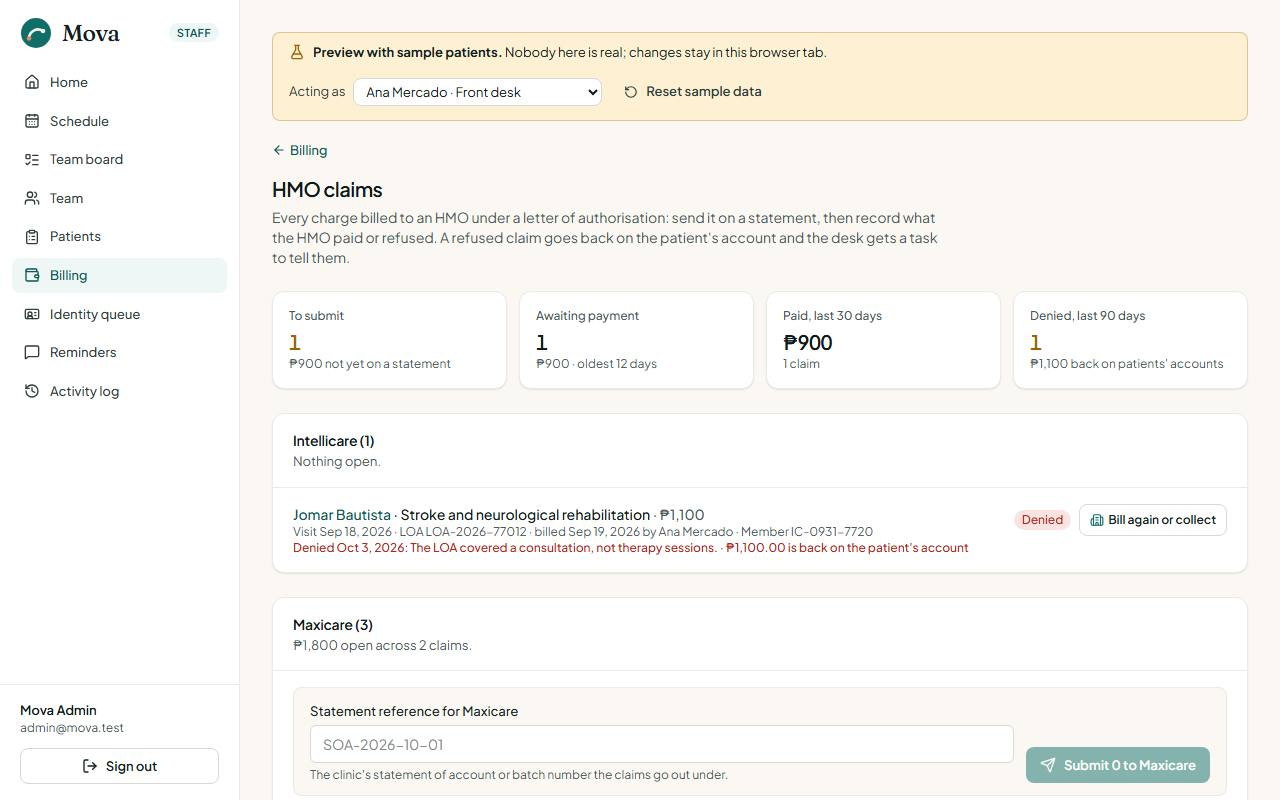
| Stage | Meaning |
|---|---|
| To submit | Billed, not yet sent to the HMO on a statement |
| Submitted | On a statement, waiting for payment, with how many days it has waited |
| Paid | The HMO's payment settled it |
| Denied | The HMO refused it, with their reason |
- Submitting: tick the claims for one HMO, enter the statement of account reference, and submit them together.
- Ageing: a claim waiting more than 45 days is flagged for a follow-up call, and the tile turns red.
- Denied: enter the HMO's reason. The charge goes back on the patient's account and a task to call the patient, to collect or appeal, appears on the board.
Packages
A package is a number of sessions of one service, paid up front at a saving.
Selling a package
- On the patient's Billing tab, choose Sell a package.
- Choose the service and the size: 6 sessions at 10% off, or 10 sessions at 15% off the single-session price. A senior citizen or PWD ID on file takes its 20% off as well.
- The package is one charge. Take the payment as usual.
A package is valid for 90 days. A patient can have one open package per service at a time.
Using a package
Once the package is paid, each finished visit of that service uses one session: the visit's charge is ₱0, already settled, and marked "covered by a package, session 2". The package shows what is left. Sessions not used within the 90 days lapse.
In the portal, the patient sees their package, how many sessions are left and booked, and "Covered by your package" on their next visit. A late cancellation in the portal uses one session.
Refunding unused sessions
The administrator refunds a paid package's unused sessions, active or expired: their share of what was actually paid, by cash from the drawer or by GCash, with a reason. Visits already covered stay covered. A cash refund leaves the drawer, so the day close expects that much less cash.
Money paid out
Expenses, from the billing page.
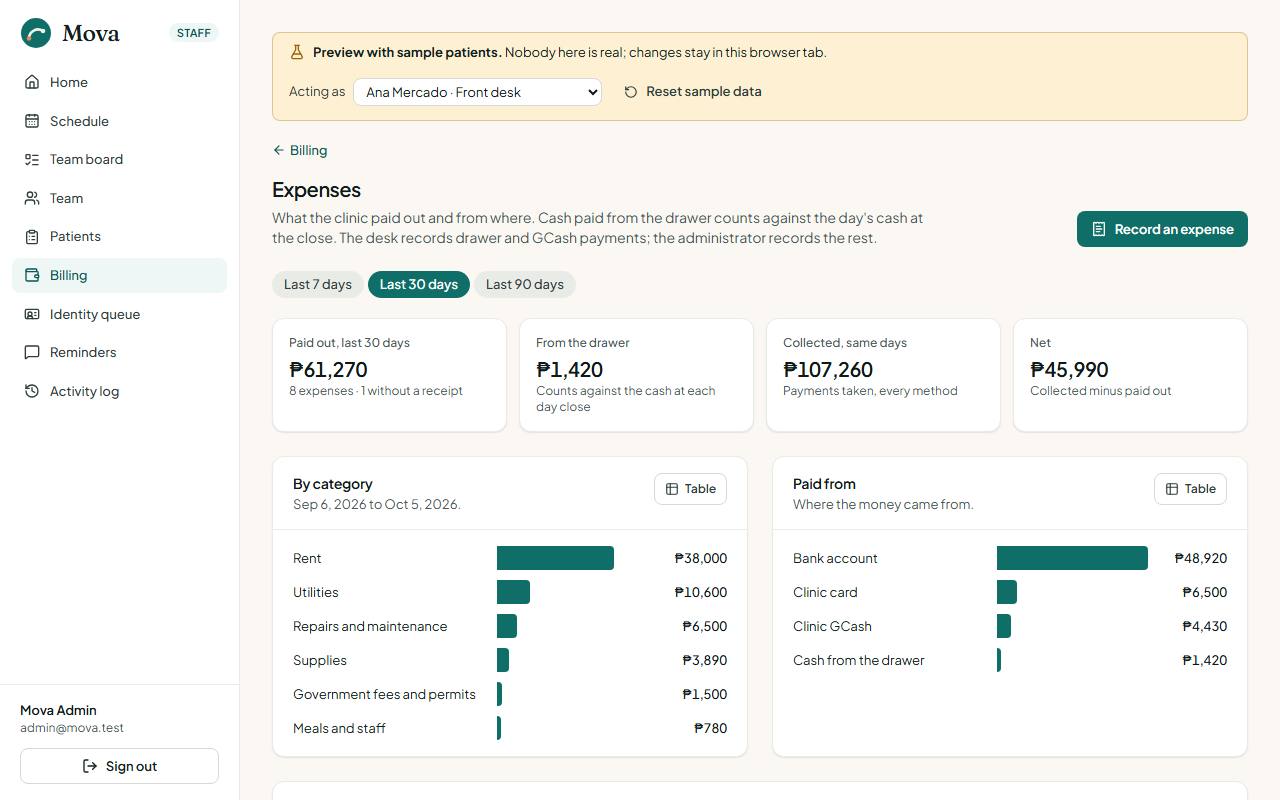
- Choose Record an expense.
- The day, the category (supplies, utilities, rent, equipment, repairs, transport, meals and staff, professional fees, government fees, other), who was paid, what for, and the amount.
- Where it was paid from: the drawer, the bank, the clinic's GCash or card, or the owner. A reference, and whether the receipt is filed.
The desk records payments from the drawer and GCash. The administrator records everything and voids a mistaken entry with a reason; it stays on the list, struck through.
The page shows the period at a glance: paid out, paid from the drawer, collected, and the net, by category and by source.
Supplies
Supplies, from the billing page. The consumables on the shelf: electrodes, gloves, tape, gel.
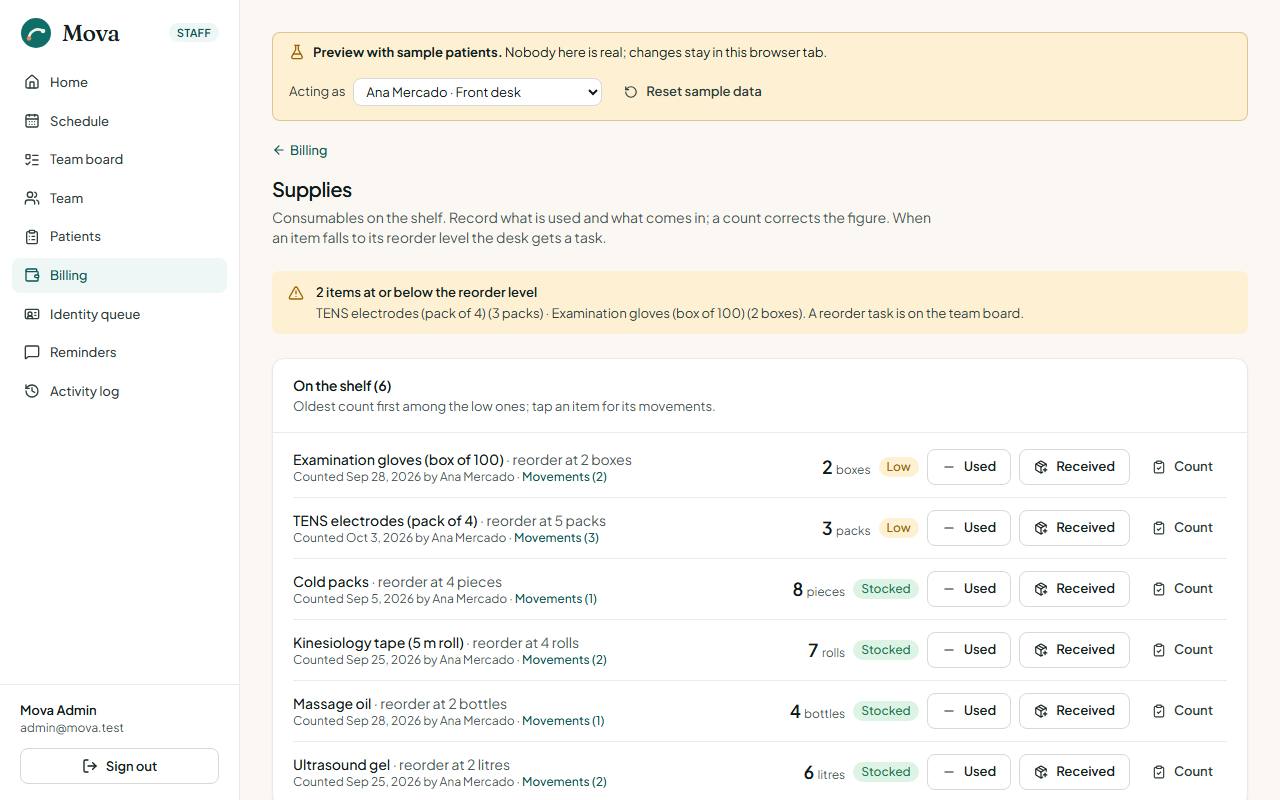
- Each item has a unit, what is on hand, a reorder level, and when it was last counted and by whom.
- Record a movement: received (supplier and invoice in the note), used, wasted or expired.
- Count replaces the figure with what is on the shelf and keeps the difference on the list.
- When an item falls to its reorder level, a Reorder task appears on the board, urgent at zero. Stock received above the level closes it.
The desk and the administrator record movements and counts; the administrator adds new items.
Closing the day
Close the day, from the billing page, at the end of each day.
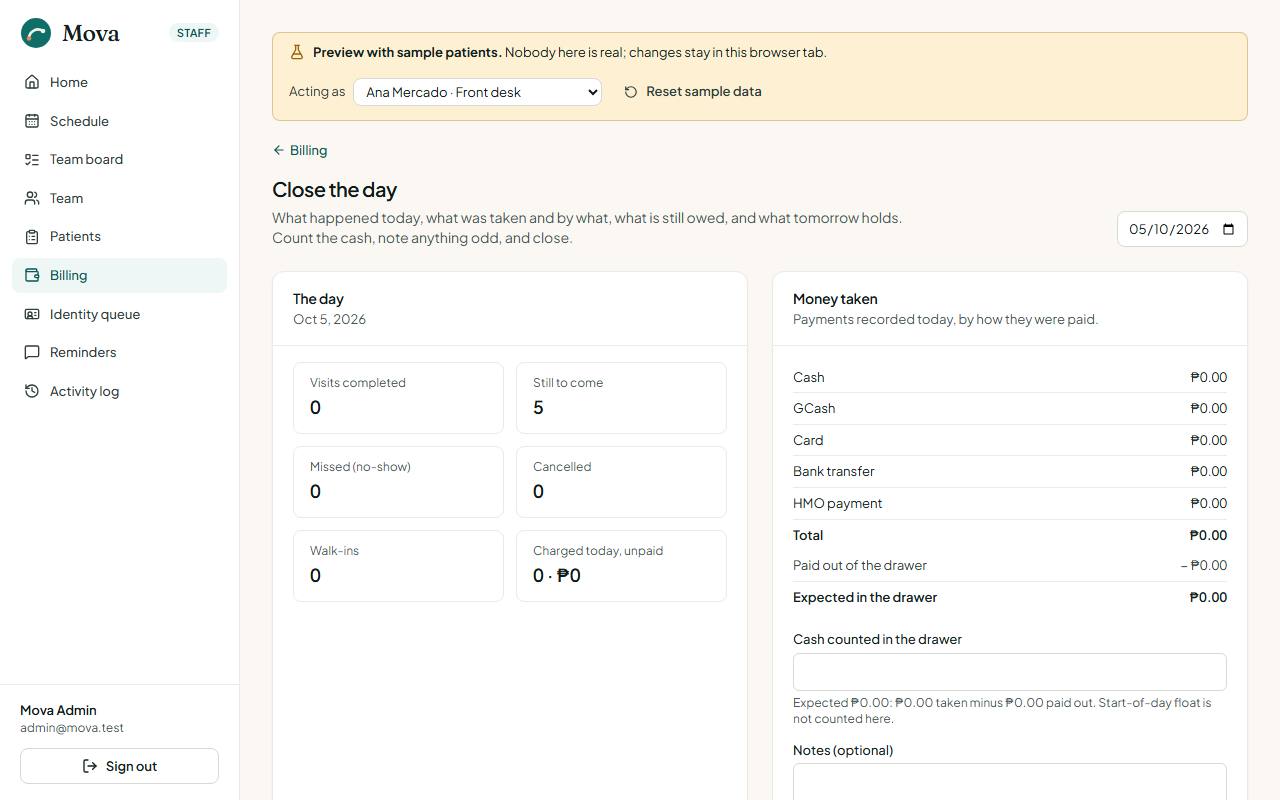
- The day's numbers: visits done, still to come, missed, cancelled, walk-ins, and what was charged today but not paid, with who to chase.
- The money: what was taken by each method. The cash expected is cash taken, minus cash paid out of the drawer for expenses and refunds.
- Count the drawer and enter the cash. The difference shows as balanced, over or short before anything is saved.
- Add notes for the morning shift or the administrator.
- Close the day. The count, the difference and the day's numbers are kept with who closed it and when.
From the same screen, each missed visit can become a task to call the patient tomorrow. Tomorrow shows the appointments per practitioner, the reminders still queued, and who is waiting for a slot.
A closed day can be amended with a reason, which is kept with the close. A drawer expense cannot be recorded against a day already closed. The staff home's Day close tile says whether today is open or closed.
Clinical work
The patient record, starting a session safely, writing and signing notes, prescriptions and home programmes, progress and re-evaluation, completing a course, documents, and the nurse's checks. This page is for physicians, physiotherapists and nurses. The front desk and the administrator do not see clinical content.
Who can do what
| Physician | Physiotherapist | Nurse | |
|---|---|---|---|
| Read the record and notes | Yes | Yes | Yes |
| Write notes | Consultation, progress | Session, progress | No |
| Countersign notes | Yes | No | No |
| Prescribe medicines and therapy | Yes | No | No |
| Acknowledge prescriptions | Yes | Yes | |
| Stop a prescription | Yes | No | No |
| Start and finish sessions | Yes | Yes | No |
| Pre-session check and vital signs | Yes | Yes | Yes |
| Add allergies and precautions | Yes | Yes | Yes |
| Retire allergies and precautions | Yes | Yes | No |
| Issue documents | All three kinds | Treatment summaries | No |
| Complete a course | Yes | Yes | No |
| Review incidents | Yes | No | No |
Finding a patient
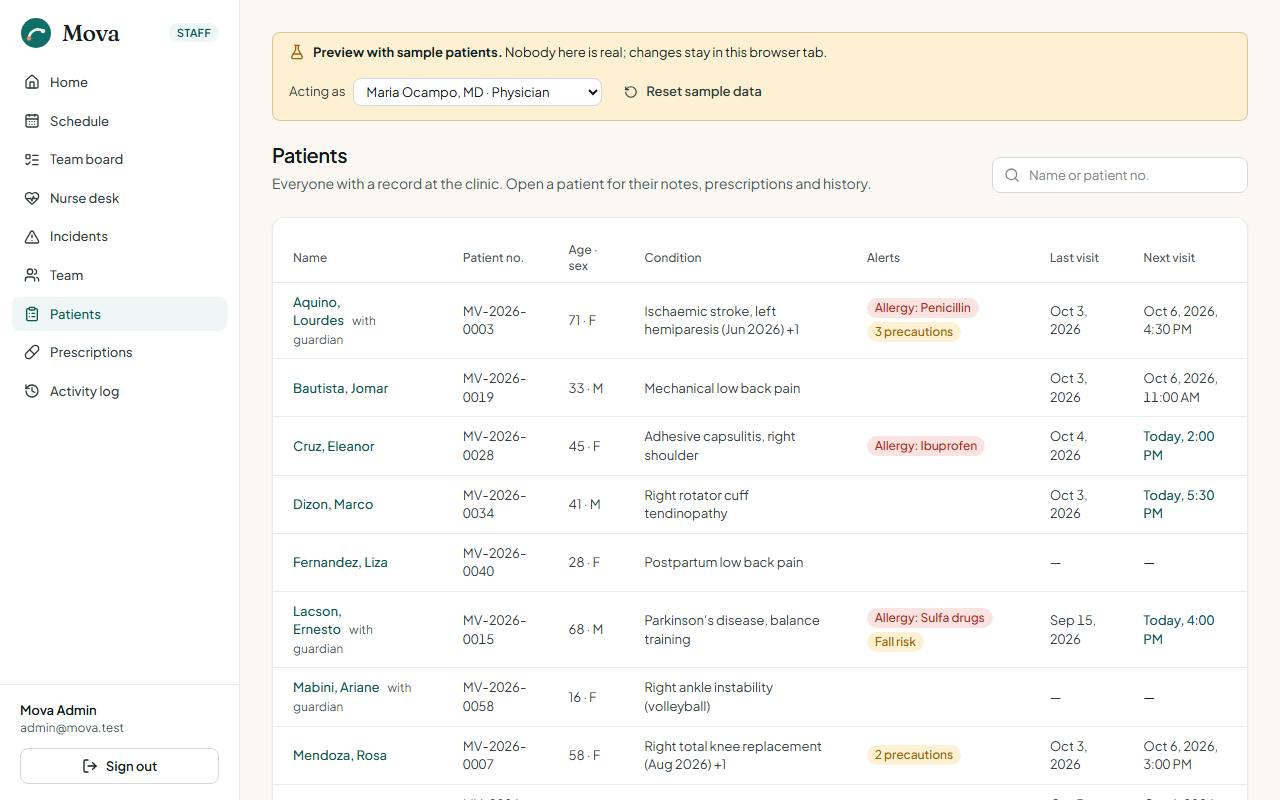
Patients in the menu: search by name or number. The list shows each patient's alerts and today's visits. Opening a record is logged on it.
The patient record
The header
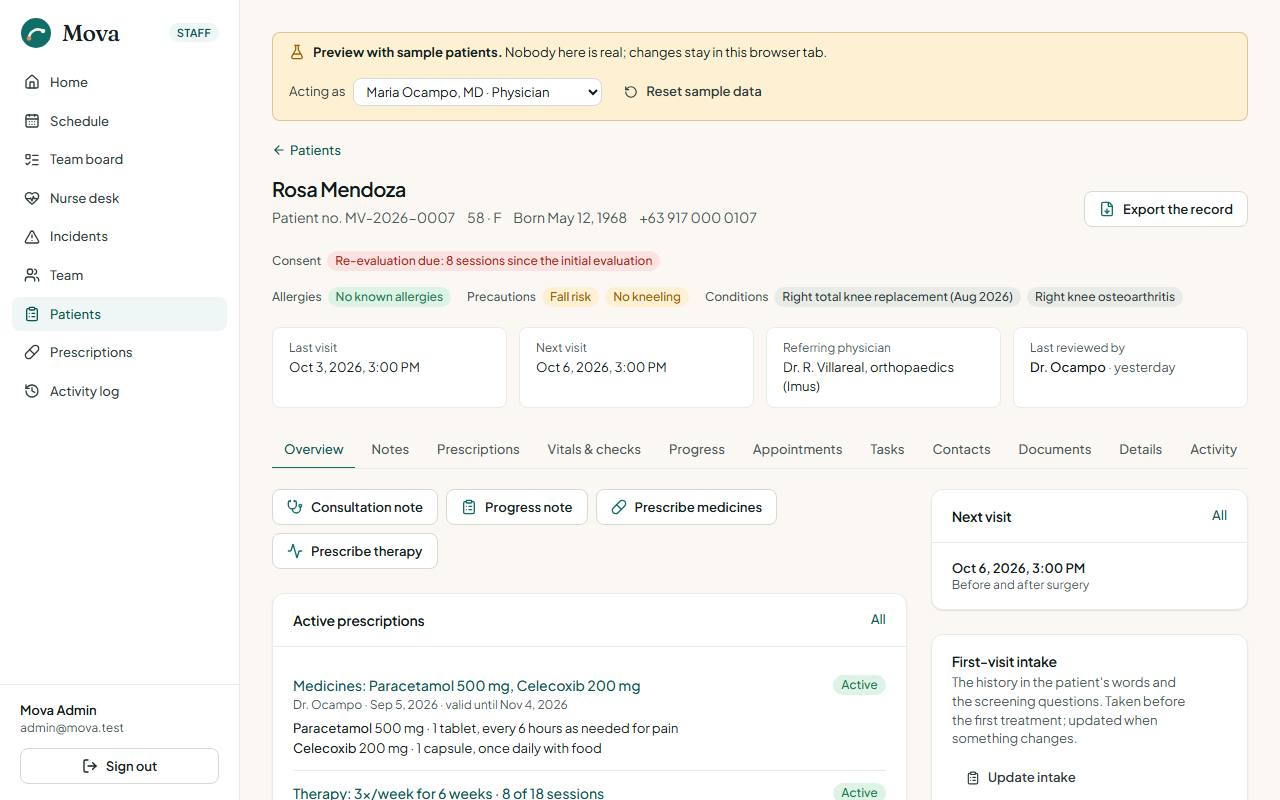
The top of every record, for everyone who opens it, carries what must not be missed:
- Consent warnings: a required consent missing, withdrawn or on older wording, in red.
- Allergies, or "Allergies not asked" until a clinician has asked and recorded the answer.
- Red flags from the intake.
- Re-evaluation due, with how many sessions and days since the last one.
- Who last reviewed the record.
The tabs
| Tab | What is there | Who sees it |
|---|---|---|
| Overview | Active prescriptions, the latest note, what needs attention, allergies, precautions and conditions, the intake, the latest nurse check | Clinicians |
| Notes | Every note, newest first, with its status | Clinicians |
| Prescriptions | Medicines and therapy plans, active and past | Clinicians |
| Vitals & checks | Every pre-session check, vital signs over time, incidents | Clinicians |
| Progress | Pain, range of motion and outcome measures over visits | Clinicians |
| Appointments | Upcoming and past visits, and each course as scheduling facts | Everyone |
| Tasks | Follow-ups about this patient | Everyone |
| Contacts | Calls and messages with the patient | Everyone |
| Documents | Certificates, letters and summaries issued | Everyone |
| Details | Contact details, HMO, discount ID, consents | Everyone |
| Billing | Charges, payments, packages | Desk, administrator |
| Activity | Every opening of the record and every change | Clinicians |
Allergies, precautions and conditions
On the Overview. Each is an entry with who added it, when, where it came from (the patient, the referral, the prescription, or the clinician's own finding) and a note.
- Add one. Nurses, physiotherapists and physicians can add.
- Retire one that no longer applies, with a reason. Only physicians and physiotherapists retire; the entry stays on the past list, struck through.
- No known allergies is an answer you record, not a blank. Until a clinician asks and records it, every clinical screen says "Allergies not asked", and prescribing and the session screen warn.
The first-visit intake
On the Overview: Record intake. The nurse or a clinician records the complaint in the patient's words, when it started and how it has gone, the pain pattern, previous treatment, medicines, past history and the patient's goals.
Eight screening questions follow: night or rest pain, unexplained weight loss, bladder or bowel changes, fever, recent trauma, history of cancer, numbness or weakness, chest pain or breathlessness. A "yes" is a red flag, with a note. Red flags show in the record header and on the session screen. The physician's consultation note starts with the intake already in its history section.
Before the session
When the patient is checked in, the physician or physiotherapist chooses Start in the waiting room. Mova opens Before the session first.
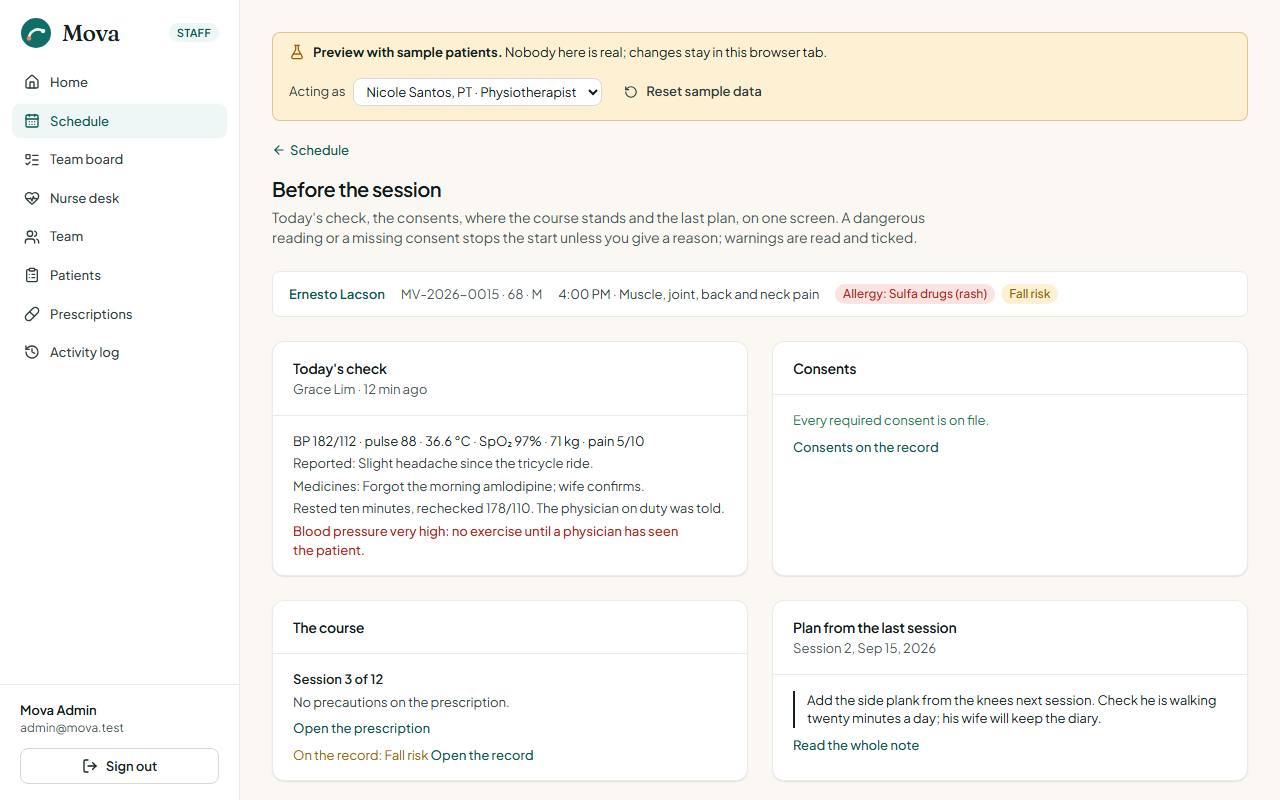
It shows, on one screen:
- Today's nurse check with anything out of range, or that no check was done, with a link to do one.
- The consents, and whether every required one is on file.
- The course: session 6 of 12, its precautions, and whether it was stopped or completed.
- The plan from the last signed note, to pick up where it left off.
- The record's precautions, allergies and red flags.
- Re-evaluation due, if it is.
- Arrived late, if the patient did.
Two kinds of finding:
- Blockers stop the start: a reading that is dangerous for exercise (very high blood pressure, fever, low oxygen), or a required consent missing. Start session stays disabled. Start anyway needs a reason, which is recorded on the record as an override.
- Warnings are read and ticked: a missing check, a stopped or complete course, the precautions, a red flag. Then Start session.
Writing and signing a note
Kinds of note
| Note | Written by | When |
|---|---|---|
| Consultation | Physician | The first assessment, or a new problem |
| Session | Physiotherapist | Each therapy session |
| Progress | Physician or physiotherapist | A re-evaluation with outcome measures |
Writing
Start a note from Before the session (it carries the visit) or from the record's Notes tab. There is one note per visit; arriving at the session twice opens the same note.
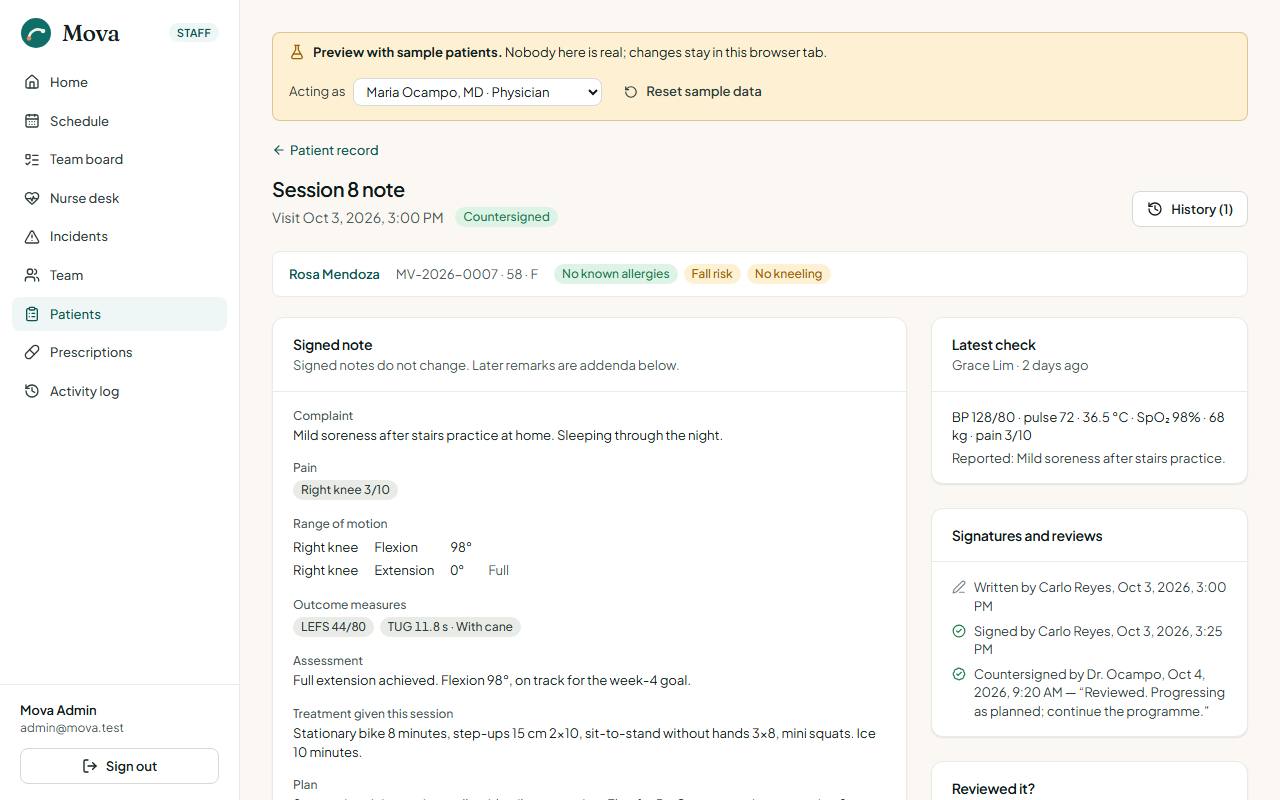
The note has the complaint and history, pain by body site out of 10, range of motion by joint and movement, function, outcome measures (NPRS, PSFS, ODI, NDI, LEFS, DASH, SPADI, TUG, Berg balance, 6-minute walk), the assessment, the treatment given, the plan, and the summary the patient sees, written for them in plain words. It saves as you type.
Starting from the last note
A session or progress note started from Before the session is filled in from the last signed note of the same kind: the pain sites with their scores, the range-of-motion rows with the degrees left blank, the outcome measures, the treatment and the plan. Each carried value shows what it was ("was 5/10") until you change it. One button clears everything carried.
If you sign a note in which nothing was changed from the last one, Mova asks "Nothing changed since session 5?" first, so a copied note needs a deliberate second press. Consultation notes never carry forward.
Signing
Signing seals the note: it can no longer be edited, and its summary reaches the patient's portal. Every version before signing is kept in the note's history. After signing:
- Countersign: a physician countersigns a physiotherapist's note where the clinic needs it. Notes waiting are counted on the physician's home.
- Mark reviewed: a clinician records that they read the note.
- Addendum: something to add after signing goes in an addendum, dated and signed, beneath the note.
Each note shows its trail: written by, last edited by, signed by, countersigned by, reviewed by.
Prescriptions
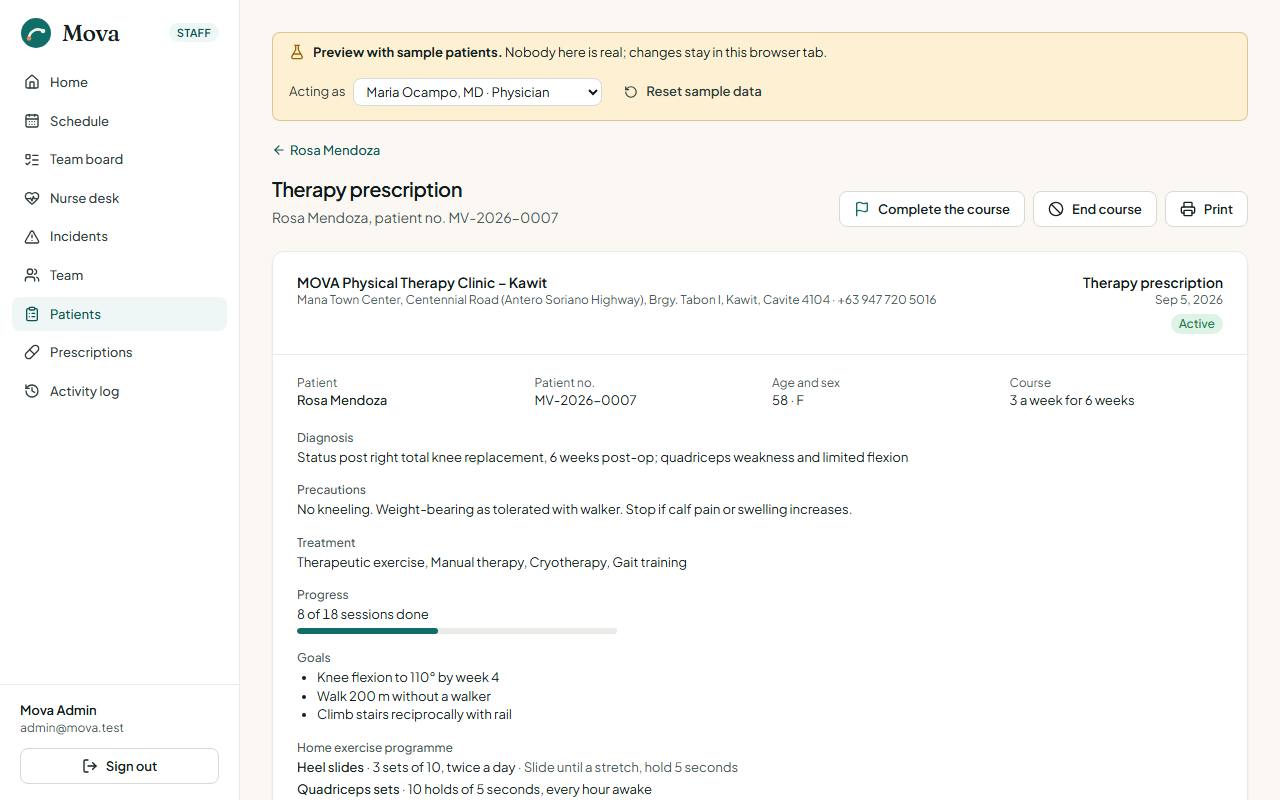
From the record: Prescribe medicines or Prescribe therapy. Physicians only.
Medicines
Each medicine: generic name (required), brand if any, strength, form, dose, frequency, duration, quantity and instructions. The prescription prints on the clinic's paper with the physician's PRC and PTR numbers, for the pharmacy.
Therapy
The diagnosis, precautions, modalities (therapeutic exercise, manual therapy, gait and balance training, TENS, ultrasound, heat, cryotherapy and others), sessions a week for how many weeks, the goals, and the home exercise programme: each exercise with its dose and notes.
After prescribing
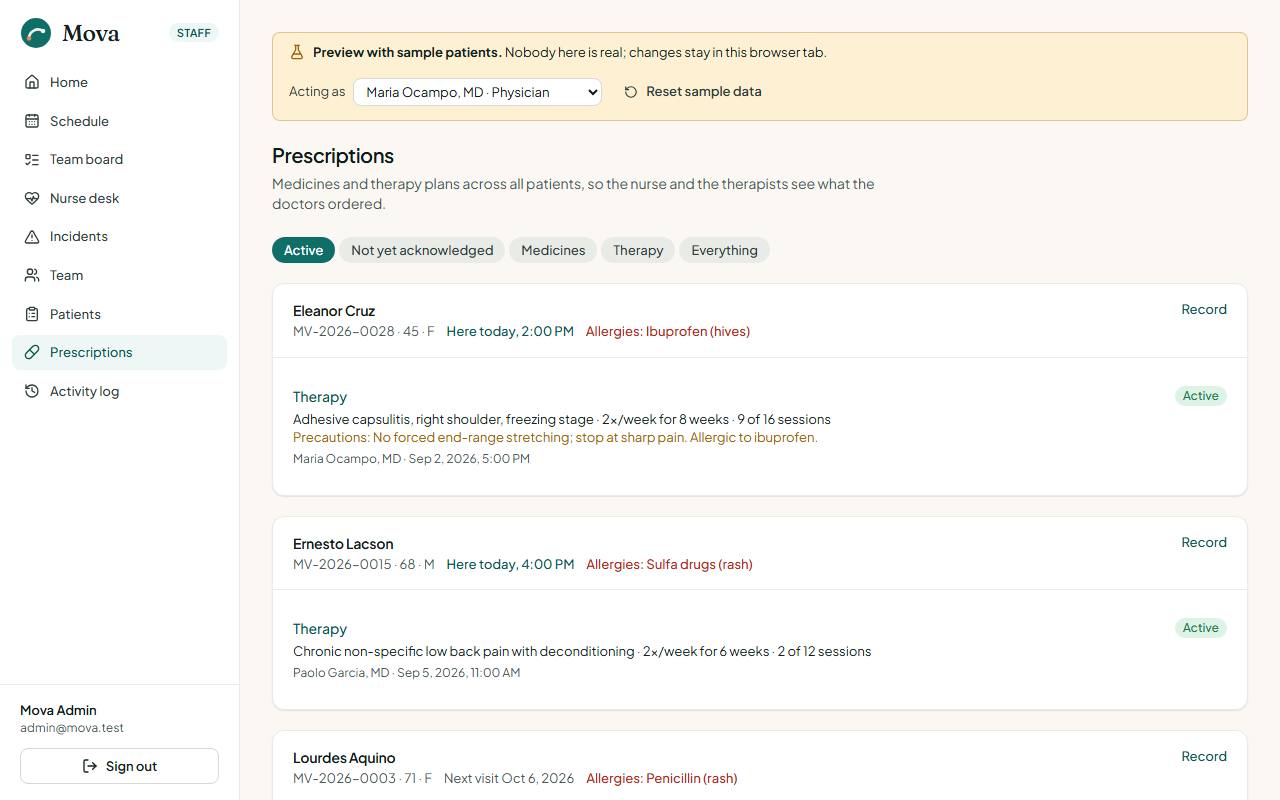
- Prescriptions in the menu lists every prescription across patients, today's patients first. Nurses and physiotherapists acknowledge a new one to say they have seen it.
- The physician can stop a prescription, with a reason. The patient sees in the portal that it was stopped and why.
- The patient sees their medicines and therapy plan in the portal under Your treatment.
The home programme handout
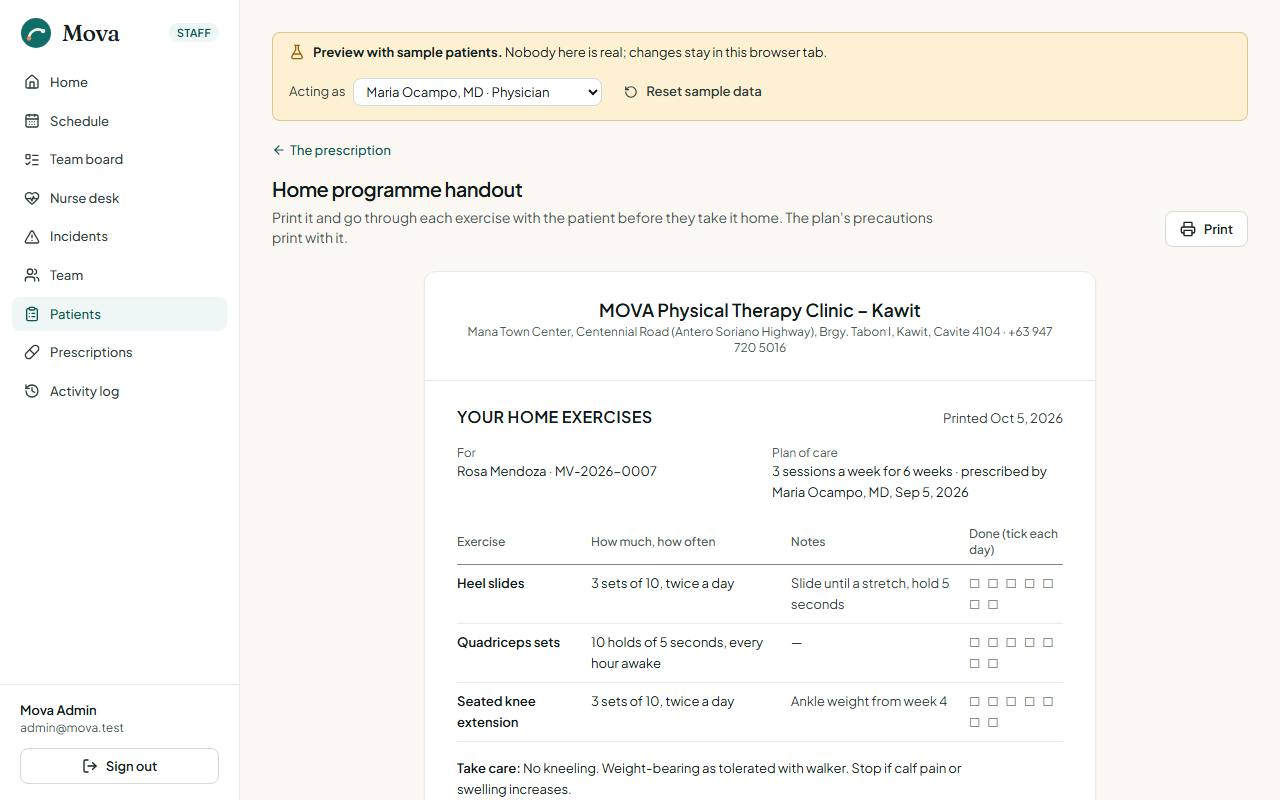
On a therapy prescription, Print the handout puts the home exercises on the clinic's paper: the patient and number, the plan, each exercise with its dose and notes and boxes to tick each day, the precautions, and when to stop and call the clinic. Anyone who can open the prescription can print it, so the desk can hand it over at checkout.
Progress and outcome measures
The record's Progress tab, built from signed notes only.
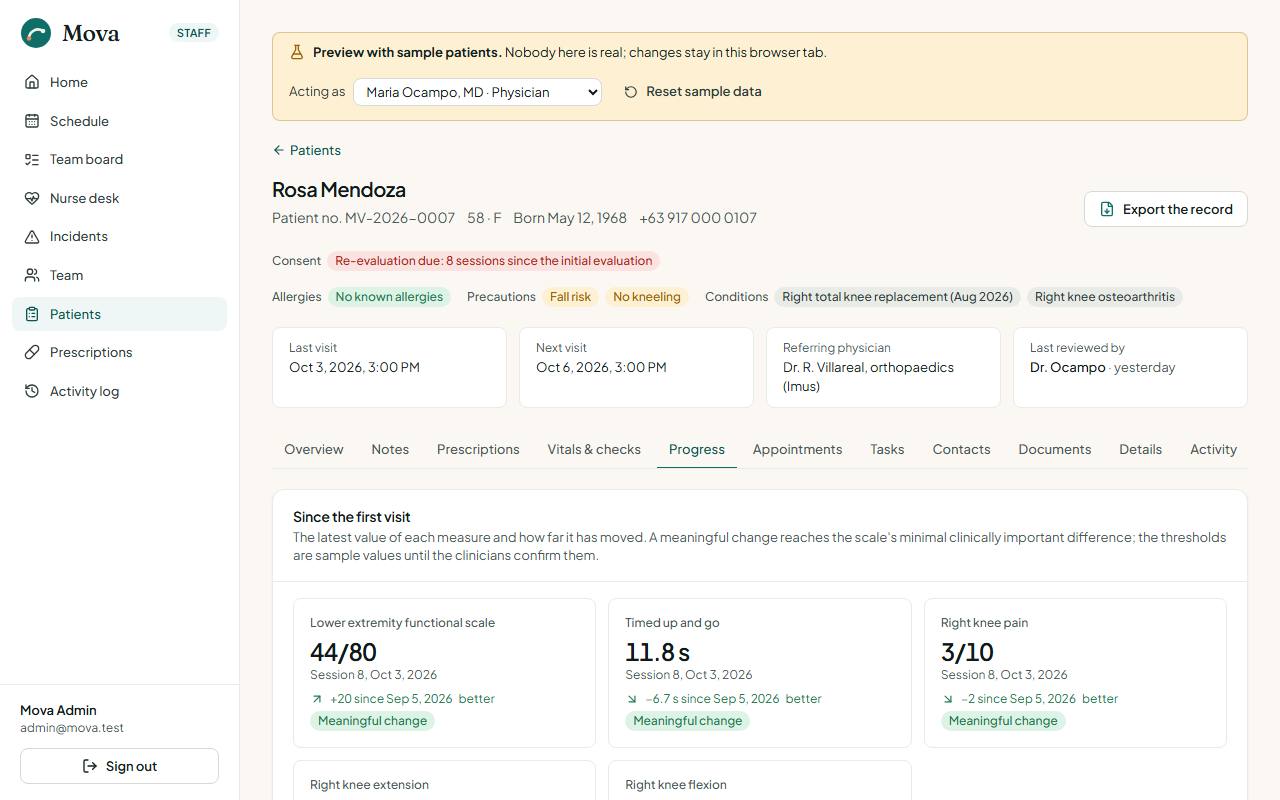
- One tile per measure: the latest value, the change since the first measurement, and whether that is better or worse. Meaningful change marks a change large enough to matter for that scale.
- A chart per measure over visits, with a table view behind every chart.
Re-evaluation
A course of therapy is re-evaluated, with outcome measures and a progress note, every 6 sessions or 30 days, whichever comes first. The administrator can change both numbers in Settings.
- Re-evaluation due shows in the record header for everyone, so the desk can book a longer slot or the physician.
- It is a warning on Before the session.
- The staff home's Due a re-evaluation today tile names today's patients who are due.
- Signing a progress note resets the count.
Completing a course
On the therapy prescription, Complete the course. Physicians and physiotherapists.
- How each goal ended: met, partly met, or not met.
- The discharge summary, which can be filled in from the signed notes and the prescription, then edited.
- What comes next: home programme, a review, back to work or sport.
- Issue a treatment summary is ticked by default: a numbered treatment summary with the same text goes to the patient's portal.
The prescription closes as completed. The patient is asked in the portal how their care went, and reminded once, a week later, if they have not answered.
Documents
From the record's Documents tab: Issue a document.
| Document | Issued by | What it holds |
|---|---|---|
| Medical certificate | Physicians | Diagnosis, findings, the period covered, and unfit, fit for light duties, or fit to return |
| Referral letter | Physicians | To a named clinician: history, findings and what is asked of them |
| Treatment summary | Physicians, physiotherapists | The course, the latest measures and the plan, for a doctor, an insurer or the patient |
- A treatment summary can be filled in from the signed notes and the therapy prescription.
- Each kind is numbered per year: MC-2026-0031, RL-2026-0009, TS-2026-0012. The sheet carries the letterhead, the clinician's name, title, PRC and PTR, and a verification line.
- Printing is logged. The desk and the nurse can open and print issued documents.
- Voiding keeps the document with its number and reason, marked VOID.
- Released to the patient by default, shown in their portal. Untick it for a letter meant only for the receiving clinician.
Exporting a copy of the record
For the patient's own request under the Data Privacy Act, a transfer of care, or an HMO or insurer at the patient's request. From the record, export a copy: the details and HMO, consents, every prescription and course, the progress measures, every signed note with its countersignature and addenda, and the documents issued. Drafts never leave the clinic. Choose the purpose; printing records the export with who, when and why. Physicians, physiotherapists and nurses prepare it.
For nurses
The nurse desk
Nurse desk in the menu.
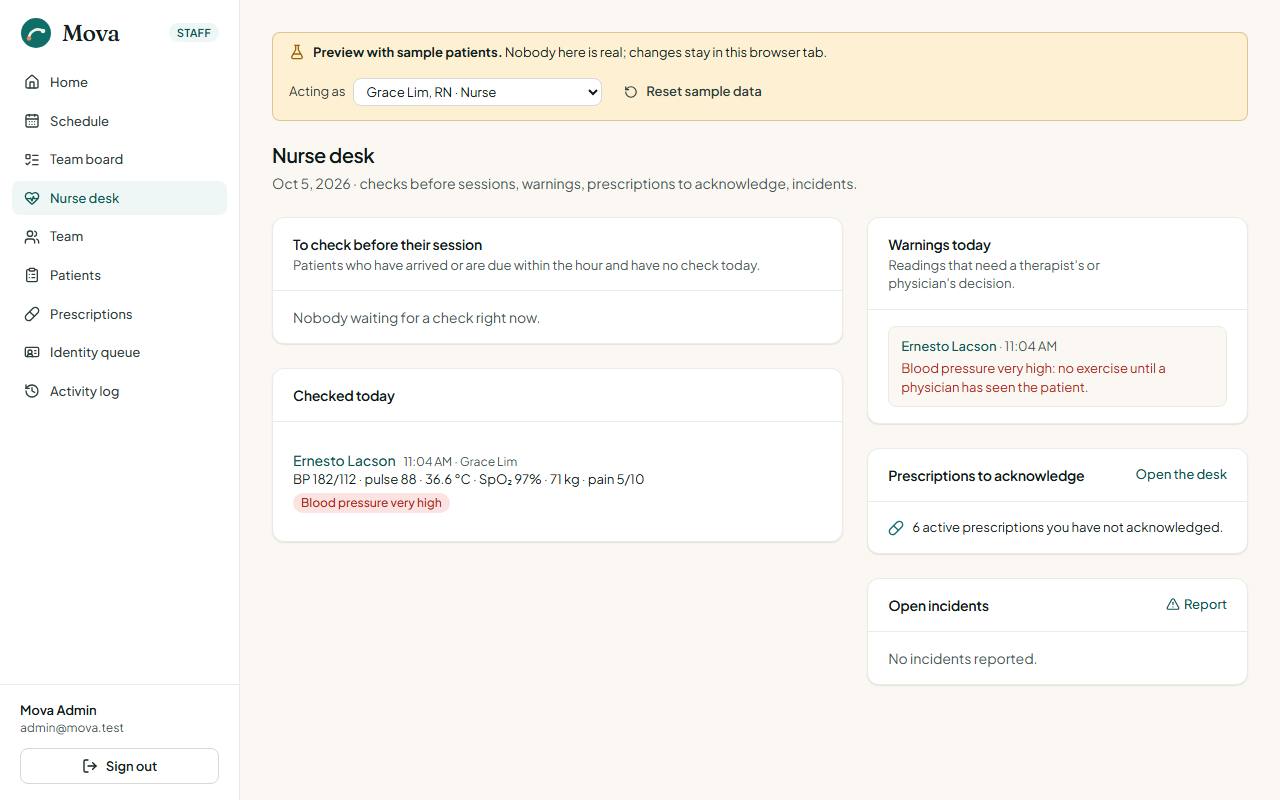
- To check before their session: arrived, in session, or due within the hour, with no check today, with their allergies and precautions.
- The checks done today.
- Warnings that need a therapist's or physician's decision.
- Prescriptions not yet acknowledged.
- Open incidents.
The pre-session check
From the nurse desk or the record. Blood pressure, pulse, temperature, oxygen saturation, weight and pain, then four questions: new symptoms, falls or near-falls, medicine changes, feeling unwell. A note for the therapist.
Warnings appear as you type. A reading that should stop the session saves as flag for the physician: it blocks Start session on Before the session, and the clinician either sees the patient first or starts anyway with a recorded reason. The last check is shown beside it for comparison.
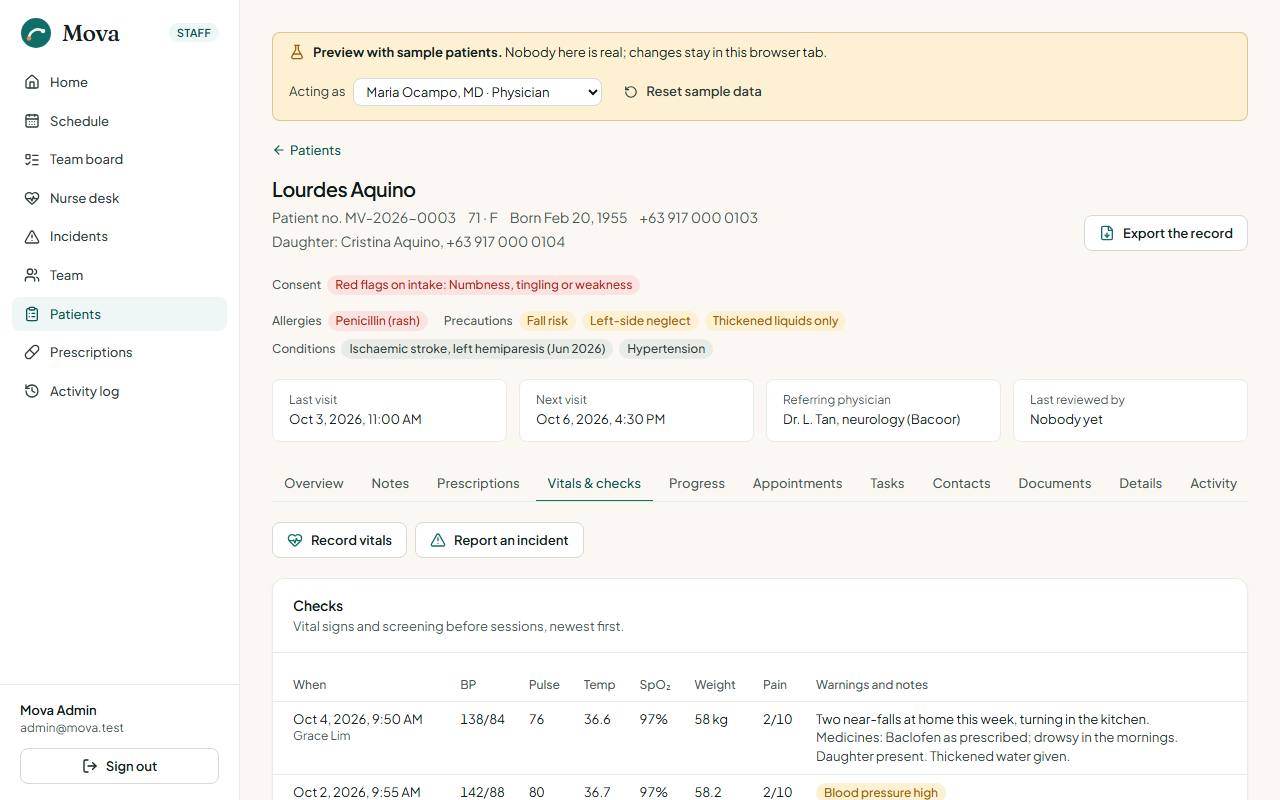
Vital signs over time
The record's Vitals & checks tab: every check in a table, and each vital sign as a chart over the checks that recorded it, with who took each one.
Running the clinic
Settings, the team, the reports, practitioner pay, and the messages that go to patients. This page is for the clinic administrator. The administrator also does everything on the Front desk and Billing pages.
The team
Team in the menu.
- Invite staff: their name, work email and employee number. Mova emails them an invitation to set up the authenticator app and a password, as in Your first sign-in.
- Assign a role to a staff member, at a branch, with a reason. Remove a role the same way; past roles are kept on their page. You cannot change your own roles, and you can only grant the roles your own role allows.
- Deactivate account when someone leaves. They are signed out at once and can no longer sign in. Their name stays on everything they wrote.
Inviting, changing roles and deactivating ask you to confirm it is you first.
Resetting a lost authenticator
When a staff member loses their phone, open the sign-in administration at auth.clinic-dev.sentianx.com/admin, sign in with the administrator account for it, choose the mova-staff realm, then Users, find the person, open Credentials, and delete their authenticator (OTP). At their next sign-in they set up the app again. The same page can send a new password-setup email.
Settings
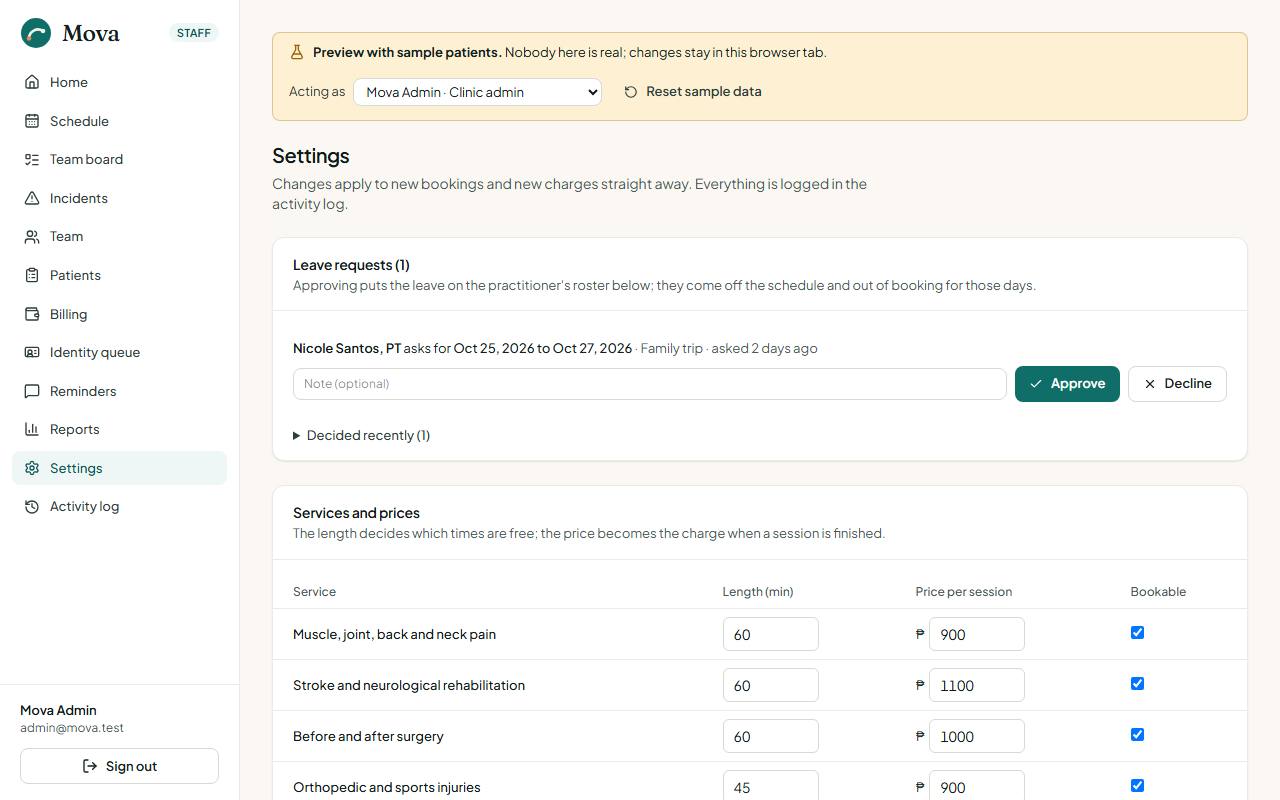
Settings in the menu. Changes apply to new bookings and new charges straight away, and every save is recorded in the activity log.
| Section | What it changes |
|---|---|
| Leave requests | Practitioners asking for time off: approve or decline, with a note. Approved leave takes them off those days, and a task to rebook their patients appears if they had visits. |
| Services and prices | Each service's length in minutes (which decides the free times), its price per session (which becomes the charge), and whether it can be booked. |
| Practitioners' hours, leave and services | For each practitioner: the days they work and the hours within the clinic's, their leave, and the services they take. Booking offers only the practitioners who take a service. |
| Closures | Days the clinic is closed beyond its regular week: holidays, maintenance. Nothing can be booked. |
| Treatment rooms | The rooms patients are called to from the waiting room, one to twelve, in the order the desk sees them. |
| Check-in kiosk | Lets patients check themselves in on a tablet at the door. Off until the clinic has a tablet. |
| Late arrivals | Minutes past the booked time before an arrival counts as late; 15 by default. |
| Confirmations | The hour from which a task to ring tomorrow's unconfirmed bookings appears; 3:00 PM by default. |
| Practitioner pay | How each practitioner is paid per visit. Off until the clinic settles it. See Practitioner pay. |
| Receipts | The business name and TIN on receipts, the receipt prefix, and the next number. |
| Re-evaluation | How often a course is re-evaluated: every so many sessions or days, whichever comes first. |
| Clinic | The clinic's name, address, phone and hours, as on the website. |
Messages to patients
Reminders in the menu has the templates on the right. Only the administrator changes them.
| Template | Sent when | Placeholders |
|---|---|---|
| SMS and Viber reminders | The set number of hours before each visit, 24 by default | {name} {day} {time} {practitioner} {service} {phone} |
| Running late, and its Tagalog version | When the desk texts the patients still to come | {name} {practitioner} {minutes} {time} {newtime} |
| Questionnaire reminder | Once, a week after a course ends with no answer | {name} {therapist} |
Each template shows a preview on a real upcoming visit. Saving re-queues reminders that have not gone out yet. Patients whose message language is Tagalog get the Tagalog version where one exists.
Reports
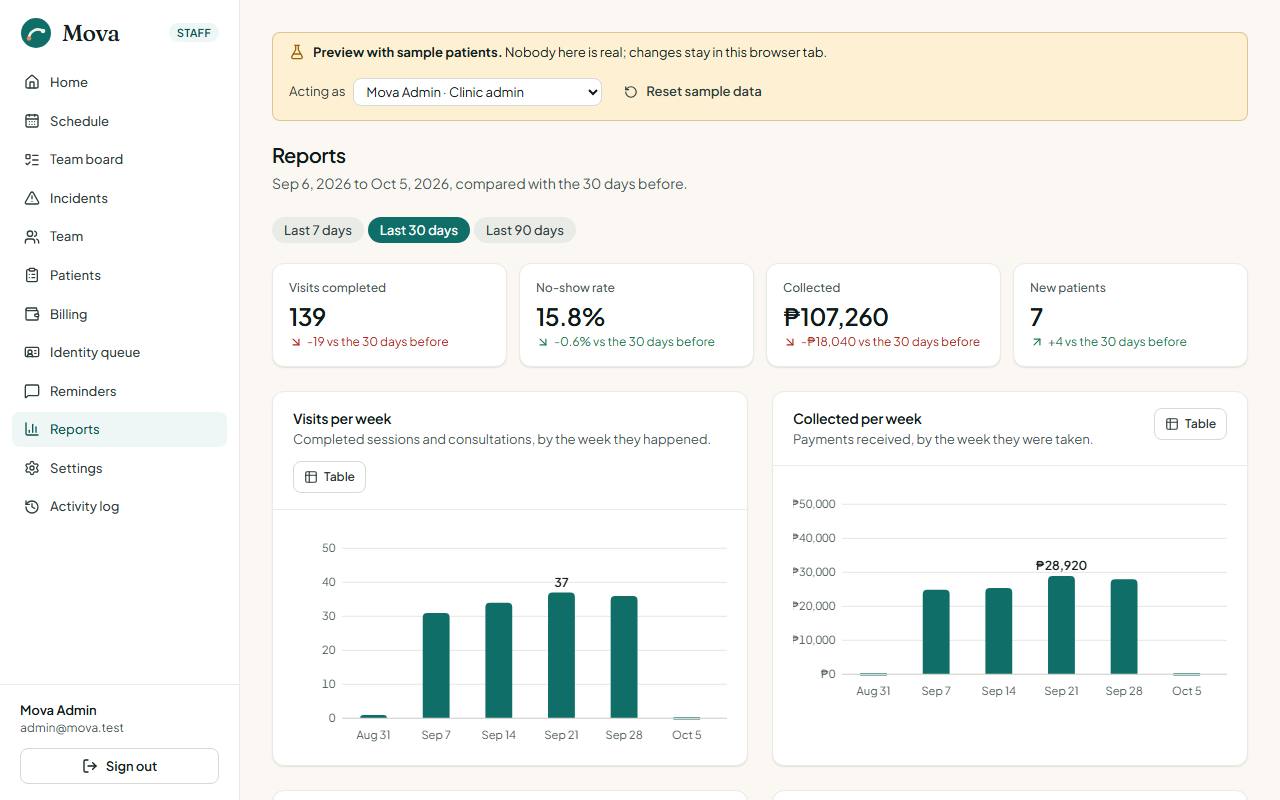
Reports in the menu. Everything follows the period chosen at the top, the last 7, 30 or 90 days, compared with the period of the same length before it. Every chart has a table view.
The headline
Visits completed, the no-show rate, money collected, and new patients, each against the previous period. Then visits per week, money collected per week, visits by service, and how busy each practitioner was as a share of their working hours.
Outcomes
How patients moved on the scales recorded in signed notes, across patients, never by name: how many were measured twice or more, the share who improved meaningfully, courses completed and the share of goals met, and the average change per scale.
What patients said
The questionnaire patients answer in the portal after a course ends: responses, the average rating out of 5, the share who would recommend the clinic, how many asked for a call, how the problem was at the end, the ratings, the average by therapist, and the comments in the patients' own words, without their names. A patient who asked for a call is a task for the desk.
Pay owed
Shown only when practitioner pay is switched on. See Practitioner pay.
Operations and safety
- Money: collected, paid out and the net, and spending by category.
- The board and the waitlist: tasks created and finished, the median days to finish, waitlist entries added, booked and removed.
- Documents, contacts and incidents by kind.
- Day closes: every close with who closed it, the cash expected against the cash counted, and the difference.
- Where patients came from: visits by referring physician.
- Senior citizen and PWD discounts: the record the accountant needs, with the patient, the kind, the ID number, the date, the receipt, the list price, the discount and the net, with totals.
Practitioner pay
Off by default. When the clinic has settled how each practitioner is paid, switch it on in Settings, Practitioner pay.
The arrangements
For each practitioner, one of:
- Per session: a fixed amount for each completed visit.
- Share of the visit: a percentage of what the visit was worth.
- Not paid per visit: salaried, or the owner.
Each arrangement applies from a day. To change a rate from next month, set the new rate with that day: visits before it keep the old rate, so past statements do not change.
What a visit is worth: its charge before any senior or PWD discount; a package visit, its share of the package price; an HMO visit, the amount billed; a waived visit, nothing.
Statements and payouts
In Reports, the Practitioner pay section shows what is owed to each practitioner for the period, with a Statement link.
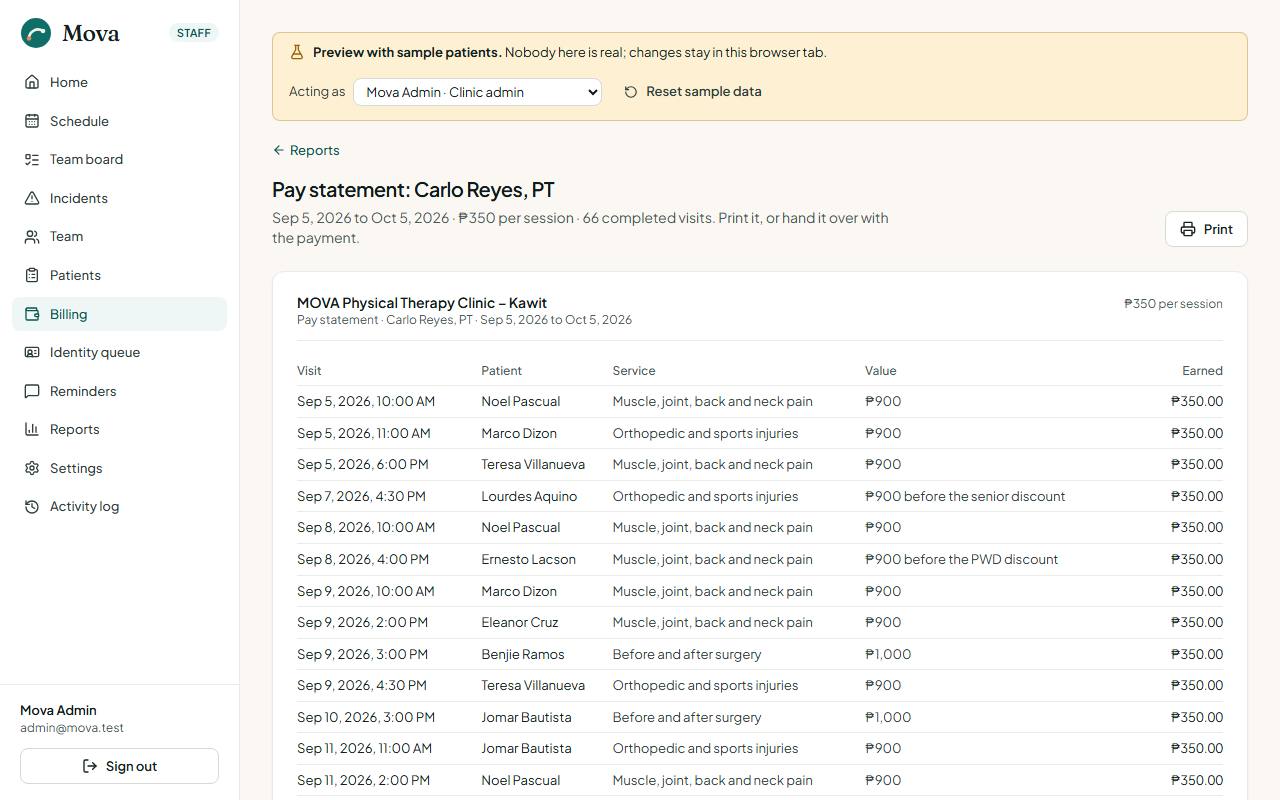
- The statement lists every completed visit in the period, with the patient, the service, how the value was arrived at and what it earned, and the total. Print it, or hand it over with the payment.
- Mark as paid, under the statement, records the day it was paid, how (bank transfer, GCash, cash) and a note. The reports then show the period as paid.
It is not payroll: tax and contributions are the clinic's to apply.
Incidents
Incidents in the menu, for physicians and the administrator. Every reported incident with its kind, severity and what happened. Review each with a statement; the reports show the share reviewed.
The patient portal
The portal is where patients book and manage their visits, prepare for them, follow their treatment and exercises, see their bills and documents, and see who opened their record. This page is written for patients, and for the desk explaining the portal to them.
On a phone, the five most-used pages are in the tab bar at the bottom: Home, Appointments, Book, Treatment and Profile. The rest are in the menu.
Signing up and signing in
- Sign up at
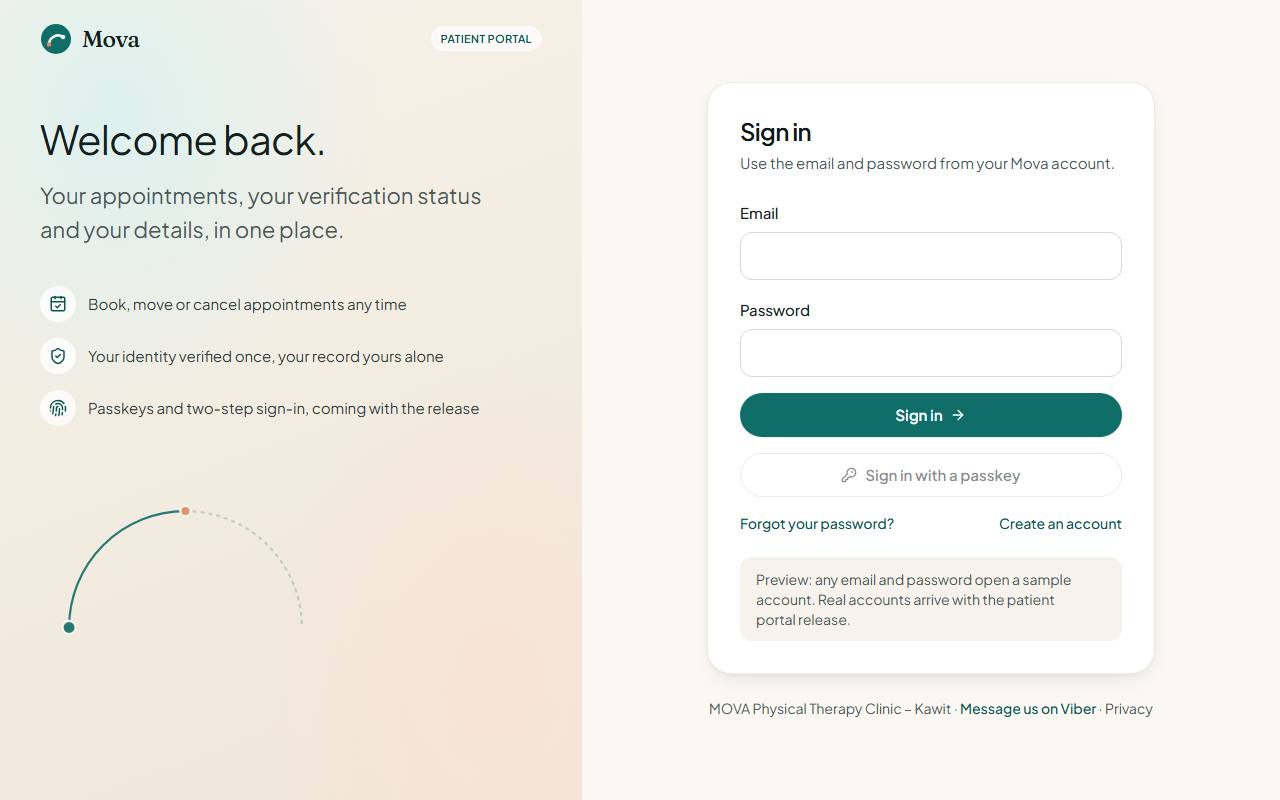
portal.clinic-dev.sentianx.com/portal/sign-up: email, mobile, a password, and agreeing to the terms and the privacy notice. - Sign in with the same email and password.
Verifying your identity
Before you can book freely, the clinic verifies who you are, once, so your record is yours alone.
- Verification in the menu. Online, the clinic accepts the PhilSys National ID only.
- Take front and back photos of the card: good light, the whole card in frame, no glare. The page checks the quality before you send it.
- A person at the clinic reviews it, usually within one business day, and you are told the outcome by SMS and email.
- If something needs fixing, the page says what. No PhilSys ID? Verify in person at the clinic with any government ID.
While you wait, you can hold one booking; it is confirmed once you are verified.
Your home page
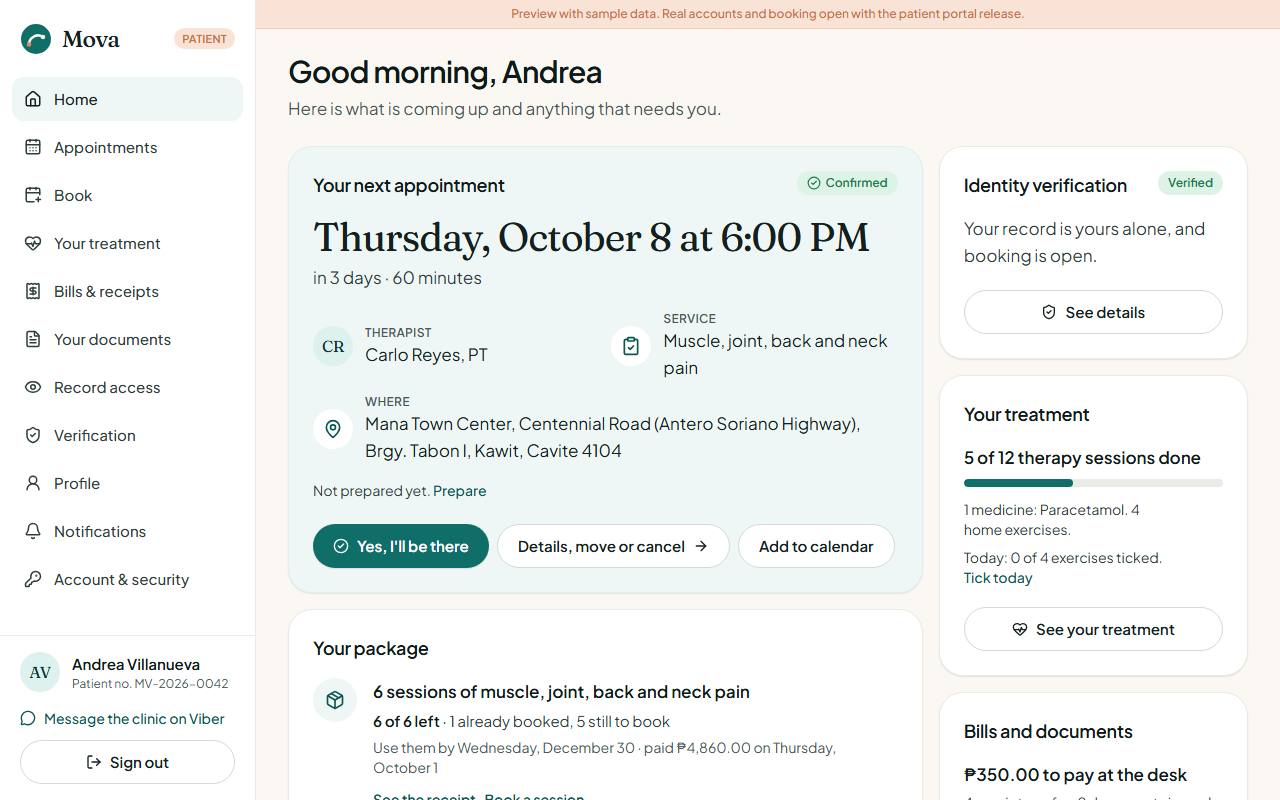
- Your next appointment: when, with whom, the service and where. Prepare opens Before your visit. Yes, I'll be there tells the clinic you are coming. Details, move or cancel opens the visit.
- Your package, if you bought one: sessions left, how many are already booked, until when to use them.
- How was your care?, when a course of care has ended and you have not answered yet.
- Identity verification, Your treatment, and Bills and documents at a glance.
- Recent updates: reminders, confirmations and messages from the clinic.
Booking a visit
Book. Four steps:
- The service.
- The therapist, or "any" for the first one free.
- The date and time. Times are at least an hour ahead, within the clinic's hours.
- Review and confirm. The review shows the cancellation policy and, if your package covers the service, that there is nothing to pay at the desk.
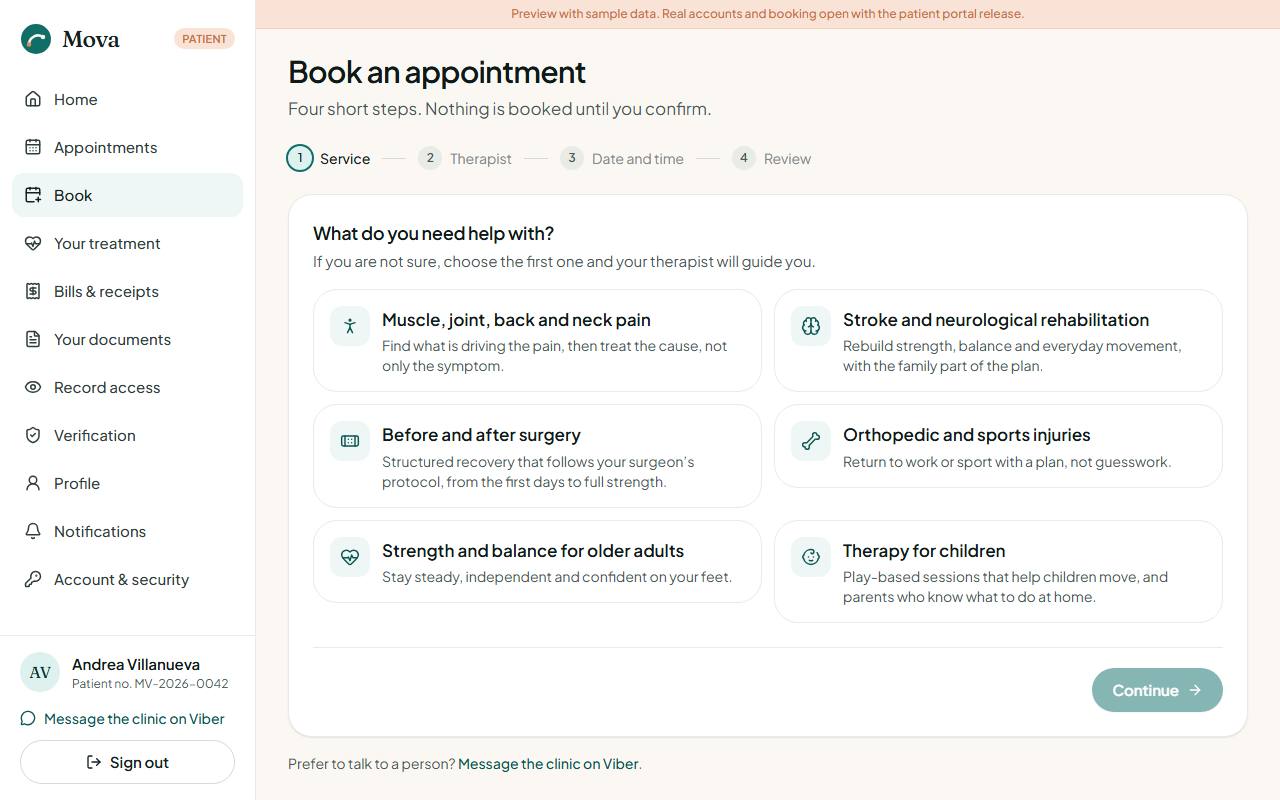
If someone books the same time a moment before you, the page offers the nearest free times.
Your appointments
Appointments: upcoming visits and your history. Open one for its details.
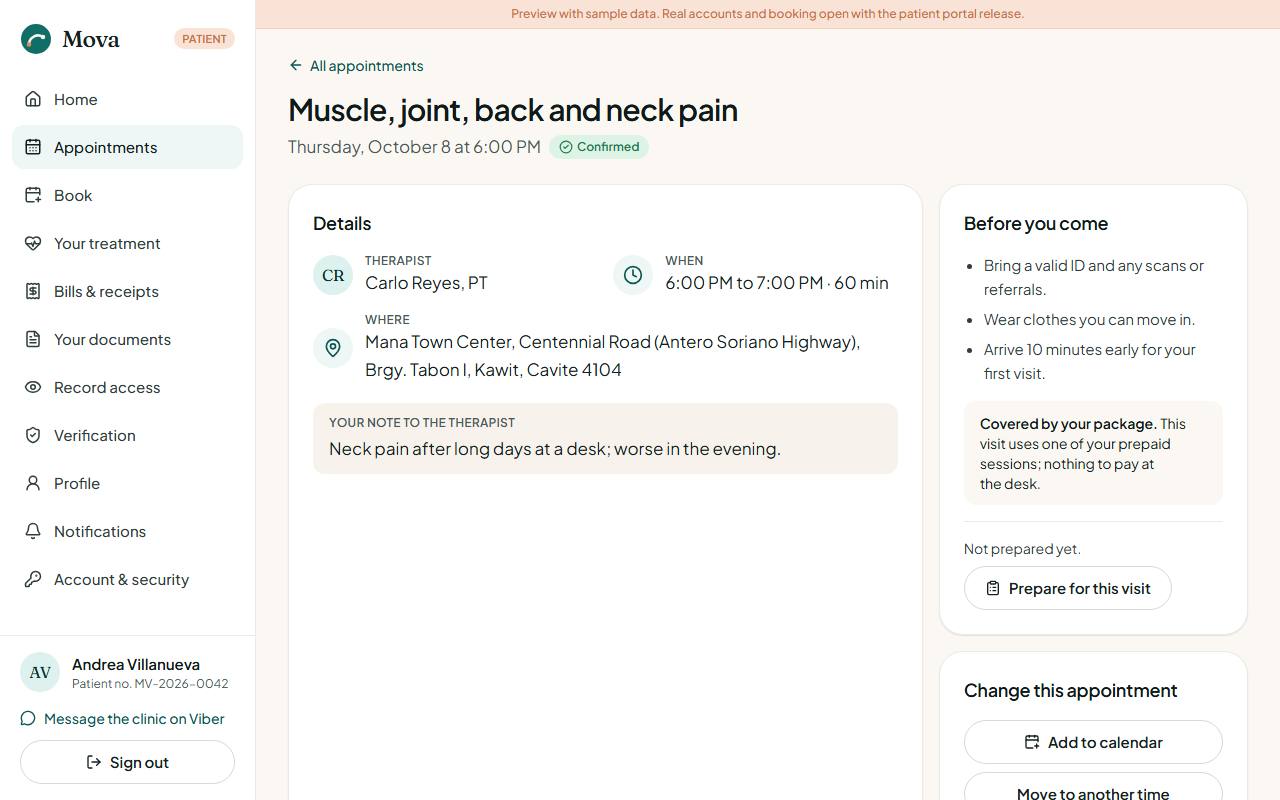
- Add to calendar puts it in your phone's calendar.
- Move to another time and Cancel are free up to 24 hours before the visit. The page says until when.
- Within 24 hours, the clinic moves visits for you: the page shows Call to move it with the clinic's number. Cancelling then counts as a session: it uses one session of your package if it covers the service, or a bill at the session price.
- Covered by your package shows on visits your package pays for.
Before your visit
From your next appointment, Prepare. A short sheet for each visit, so your therapist knows what changed.
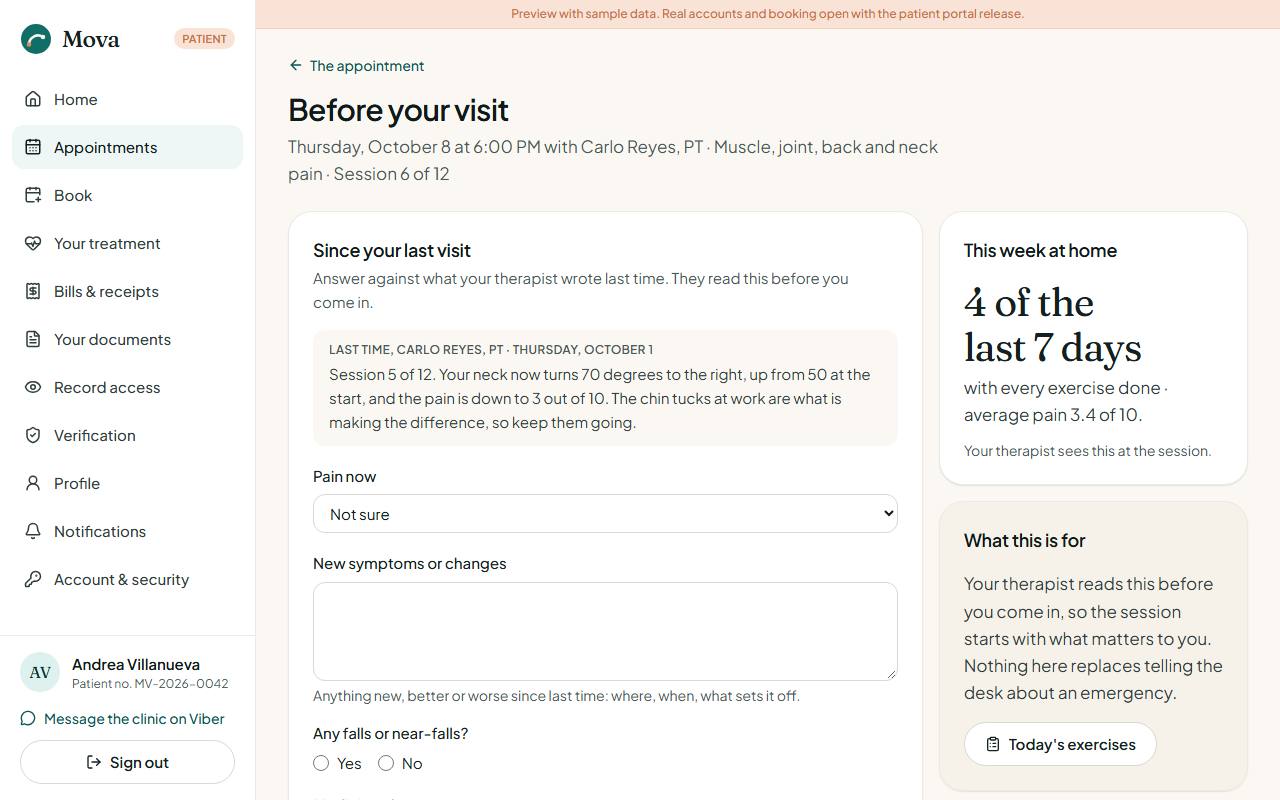
- Since your last visit: your pain now (0 to 10), any new symptoms, falls or near-falls, changes to your medicines, and whether you feel unwell. These are the same questions the nurse asks before your session.
- Your questions for the therapist: add as many as you like. Tick one once it is answered. Unanswered questions follow you to your next visit.
- This week at home: how many days you did all your exercises, and your average pain.
If you tick a fall or feeling unwell, the page asks you to tell the clinic before you come and to stop the exercises until a clinician has spoken to you.
Your treatment
Your treatment: what your clinicians prescribed, what to do at home, and how you are doing. Only signed notes and issued prescriptions appear here.
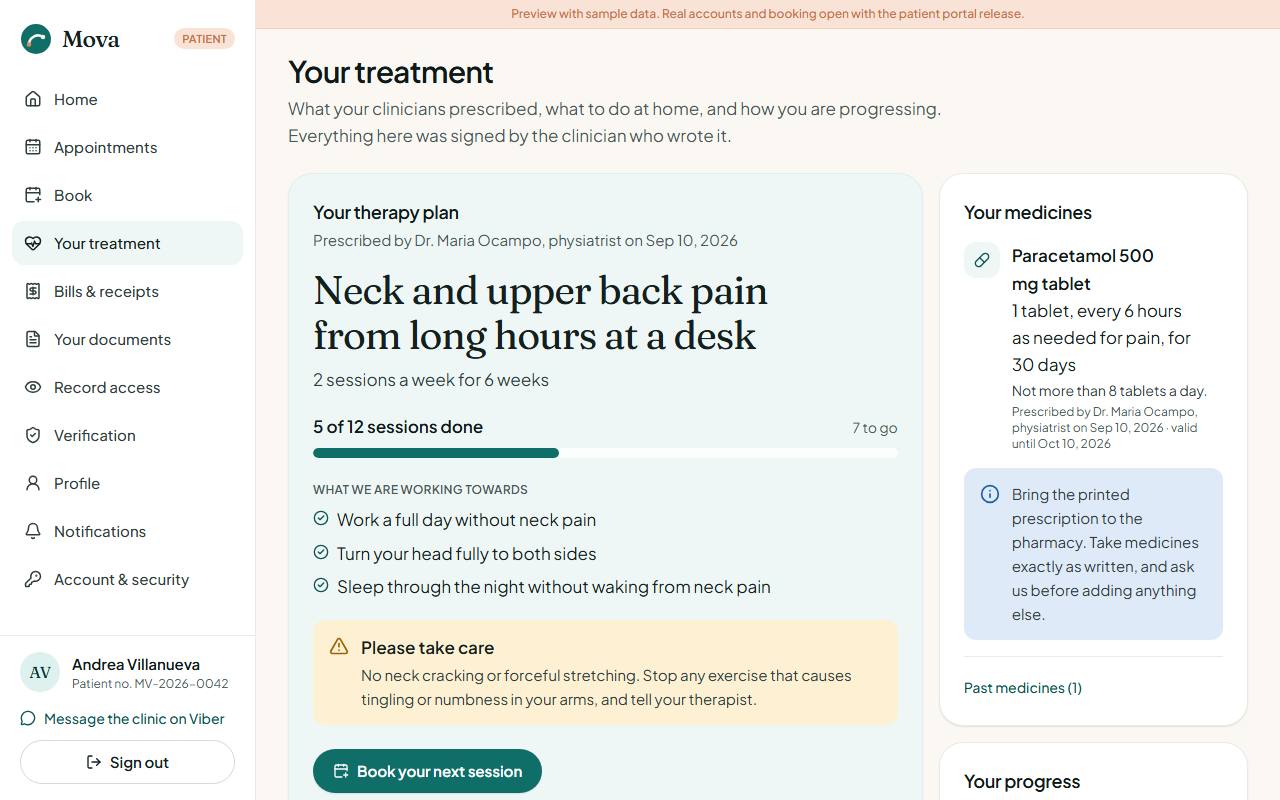
- Your therapy plan: the condition, sessions a week for how many weeks, how many are done, your goals, and precautions to take care with.
- Today's exercises: tick each exercise you did today, rate your pain, add a note for your therapist, and Save today. The last seven days show as a row of markers, with your streak of full days. Your therapist sees this at your next session.
- Your home exercises: the list with doses and notes. Print this list prints it.
- From your visits: what your clinician wrote for you after each visit.
- Your medicines: what to take, how often, for how long, and who prescribed it. Past medicines show why they were stopped.
- Your progress: your measures over time, and whether they are better or worse.
- Earlier courses of care: courses that have ended, with your clinician's closing words.
How was your care?
When a course of care ends, the clinic asks how it went. From the home page card or from Earlier courses of care:
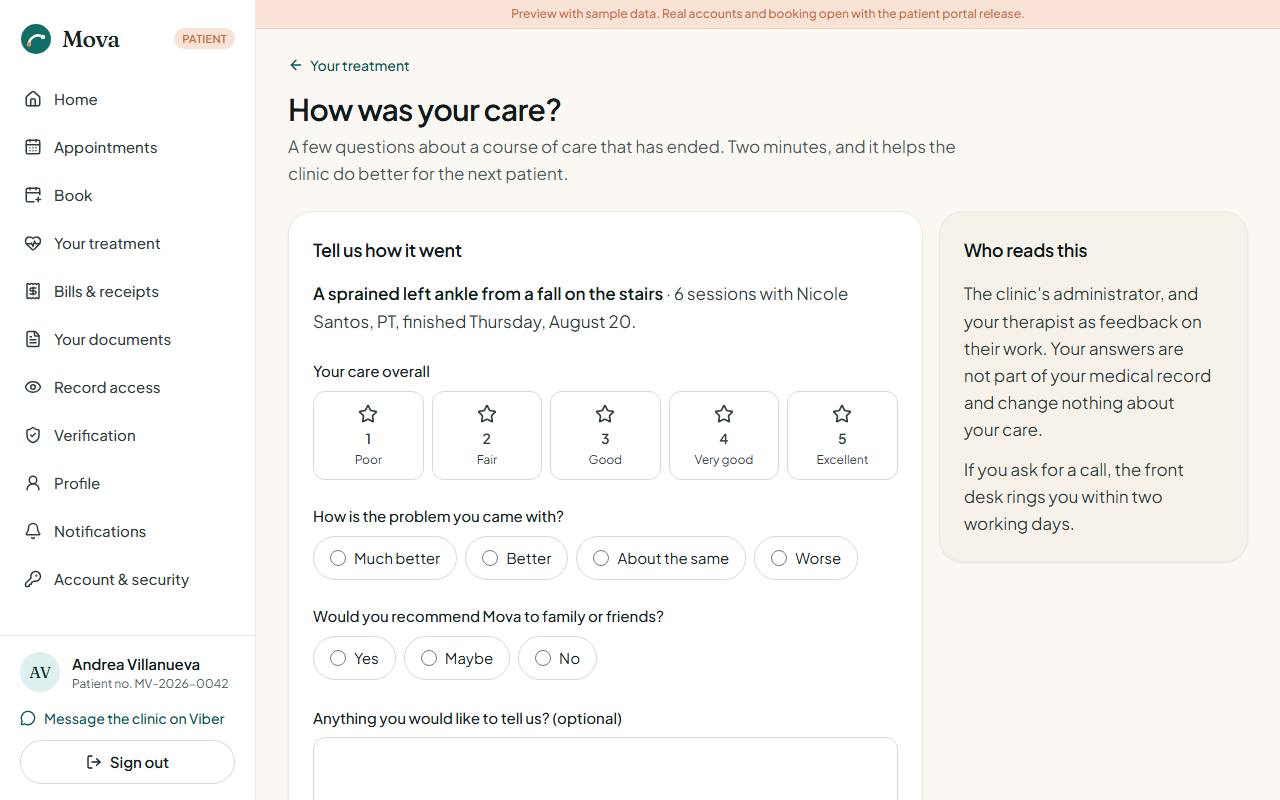
- Rate your care overall, from 1 (poor) to 5 (excellent).
- Say how the problem you came with is now.
- Say whether you would recommend Mova.
- Add anything you would like to tell the clinic, if you wish.
- Tick the box if you would like someone to call you about it.
- Send your answers. You can send them once.
Your answers go to the clinic's administrator and your therapist as feedback. They are not part of your medical record and change nothing about your care.
Bills and receipts
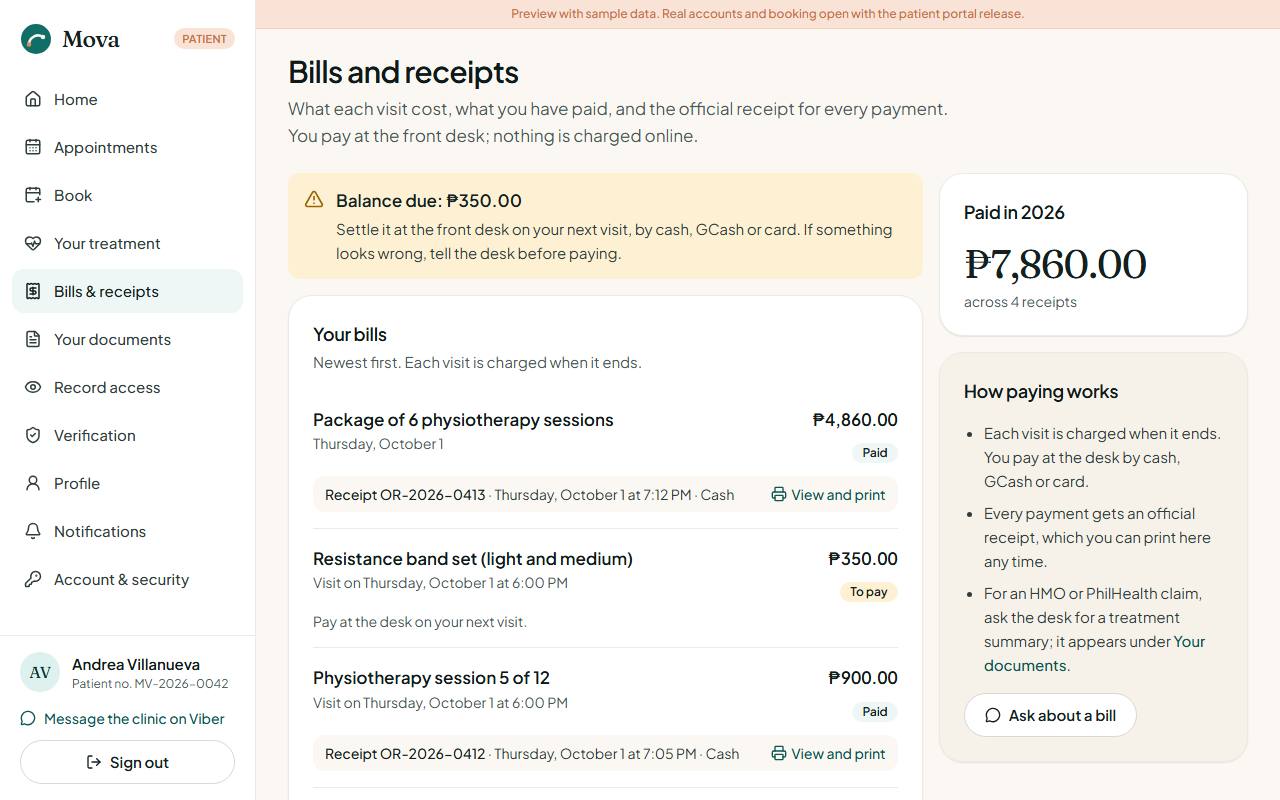
Bills & receipts: what each visit cost, what was paid and how, and anything still owed. Every payment has its official receipt, ready to print. Bills sent to your HMO say so and are not part of what you owe. Payments are made at the desk, by cash, GCash or card.
Your documents
Your documents: medical certificates, referral letters and treatment summaries the clinic released to you, with what each is for and a printable copy.
Who opened your record
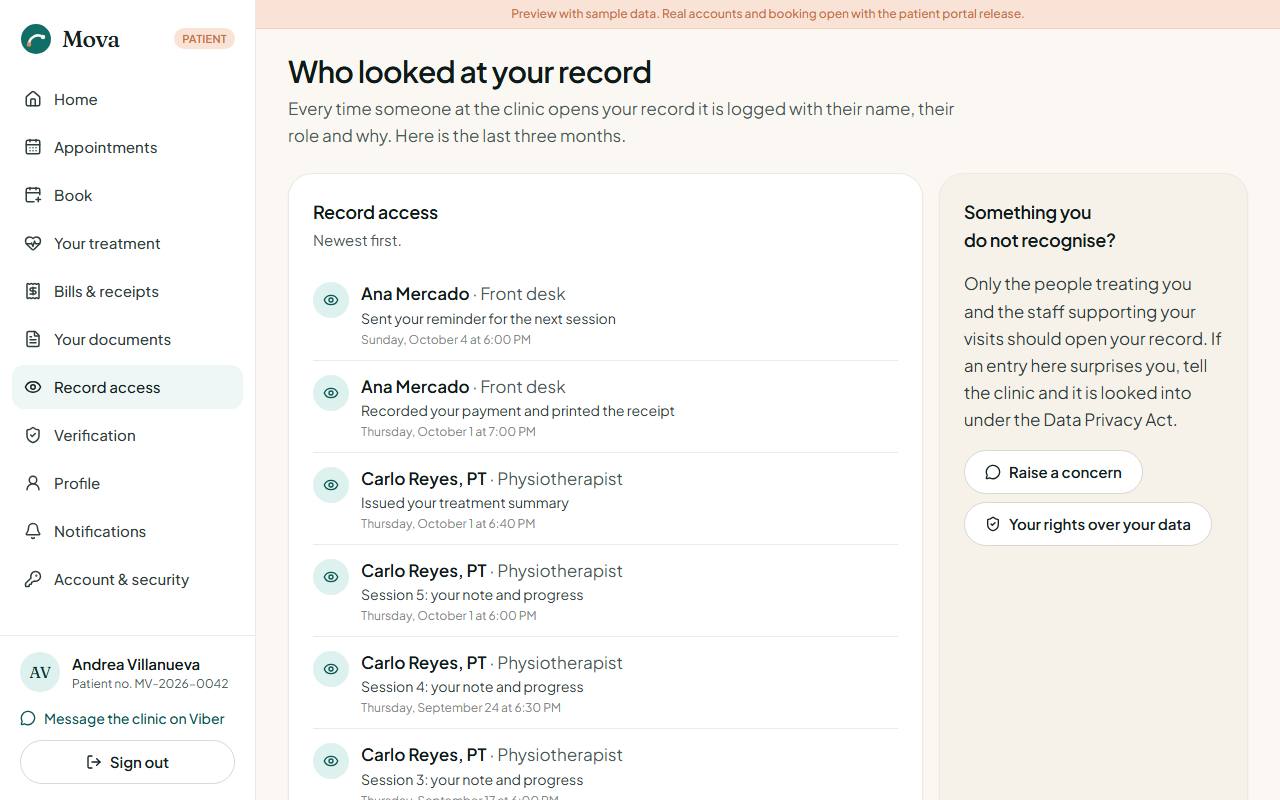
Record access: every time someone at the clinic opened your record in the last three months, with their name, their role and why. If something looks wrong, message the clinic: concerns are looked into under the Data Privacy Act.
Your profile and settings
- Profile: your contact details and emergency contact. Your name and date of birth cannot be changed here once you are verified; ask the desk.
- Notifications: updates from the clinic, and how you want appointment reminders: by SMS, by email, or both. Messages about your visits always go out; marketing messages are off unless you turn them on.
- Account & security: your password, your sessions, and requests for a copy of your data or a report of who accessed it.
Questions and troubleshooting
Common questions
My changes disappeared. In the trial, the sample data lives in your browser tab. A new tab starts fresh, and closing the tab throws changes away. See About this trial. At the clinic, everything is saved on the clinic's server.
I cannot find a menu item someone else has. The menu follows your role. The front desk does not see clinical screens; clinicians do not see billing. If you need something your role does not include, ask the administrator.
A page says "Not available with your roles". Your role does not allow that screen. The menu hides it, but a typed or shared address can still lead there.
I was signed out. After 30 minutes without activity Mova signs you out, with a warning three minutes before. After 12 hours, everyone signs in again.
Mova asks me to confirm it is me. Some changes, such as inviting staff or changing roles, need a fresh sign-in in the last ten minutes. Confirm, and you return to the same page.
The six-digit code is refused. Make sure your phone sets its time automatically, and wait for the next code. After five wrong tries the account locks for a while.
I have a new phone. Ask the administrator to reset your authenticator. You set it up again at your next sign-in.
Why is a patient shown as "Booked" and not "Confirmed"? Visits more than two days ahead wait for the patient to confirm. See Confirmations.
Why did a late patient go after someone who arrived later? A patient checked in after the grace period is seen after those who came on time, so one late arrival does not delay everyone. See Late arrivals.
Why can I not start the session? Before the session found a blocker: a dangerous reading or a missing consent. Read it, then either deal with it or choose Start anyway with a reason. See Before the session.
Why can I not edit a signed note? Signing seals a note. Add an addendum beneath it instead.
Were the reminders sent? At the clinic, reminders go out on their own at the set time. In the trial, nothing is sent; Send now only marks a message as sent.
Where is the waiting-room display, or the kiosk? On the schedule: Waiting-room display, and Check-in kiosk once the administrator has switched the kiosk on.
How do I print? Day sheets, receipts, documents, prescriptions, handouts, consent forms and pay statements each have a Print button. Printing removes the menus and buttons from the page.
What time zone does Mova use? Manila time, everywhere, whatever the computer's setting.
Glossary
| Term | Meaning |
|---|---|
| Addendum | Something added to a note after it was signed, dated and signed itself |
| Blocker | A finding on Before the session that stops the start without a recorded reason |
| Booked | In the schedule, waiting for the patient to confirm |
| Confirmed | The patient said they will come, or booked within the last two days |
| Countersign | A physician's second signature on another clinician's note |
| Course | A series of therapy sessions prescribed together, such as twice a week for six weeks |
| Day close | Counting the cash drawer at the end of the day against what was taken |
| HMO | A health maintenance organisation that pays for covered visits |
| Intake | The first-visit questions, with the red-flag screening |
| LOA | Letter of authorisation from the HMO for a visit |
| MFA | Signing in with a password and a code from your phone |
| Package | A number of sessions of one service, paid up front at a saving |
| Patient number | The number on every receipt, such as MV-2026-0042 |
| PWD | Person with disability; a PWD ID gives a 20% discount |
| Re-evaluation | A progress note with outcome measures, due every 6 sessions or 30 days |
| Red flag | An intake answer that may point to something serious |
| Senior citizen | Aged 60 or over; a senior citizen ID gives a 20% discount |
| Step-up | Confirming it is you before a sensitive change |
| Variance | The difference between the cash counted and the cash expected at the day close |
| Waitlist | Patients waiting for a slot, offered the next cancellation that suits them |
Getting help
- Using Mova: ask the clinic administrator.
- Something looks wrong: note the screen, what you did and what you expected, take a screenshot, and send it to the administrator. In the trial, send it to the person running the trial.
- A privacy concern: tell the administrator. Patients can message the clinic from the portal.