Front desk
Everything the desk does through the day: the schedule, booking, registering patients, checking them in, running the waiting room, confirming tomorrow's visits, the waitlist, the call list and the messages that go to patients. Nurses and the administrator can do all of it too. Billing has its own page.
The schedule
Schedule in the menu. Today opens by default.
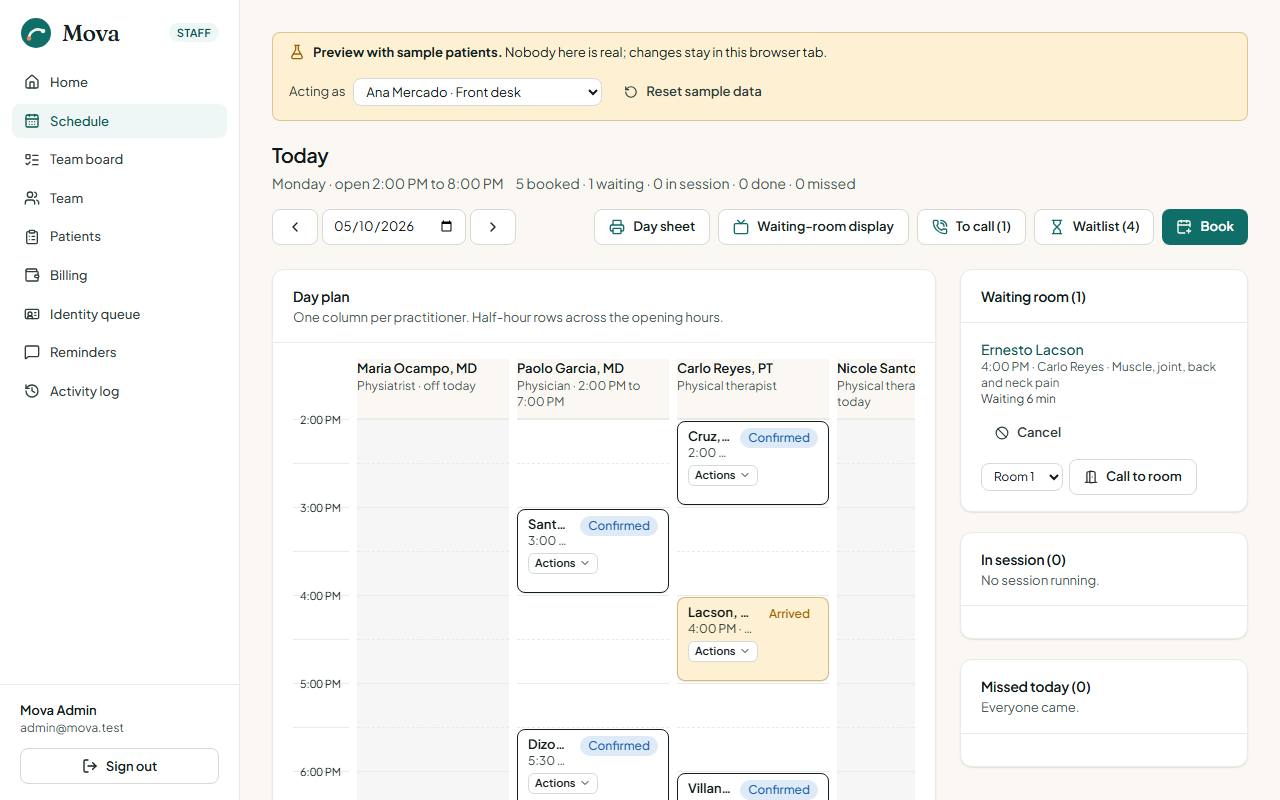
- The day plan has one column per practitioner and half-hour rows across the opening hours. Each appointment is a card spanning its length, with the patient, the time, the service and its status. A line marks the current time. Hours a practitioner does not work are shaded, and a practitioner on leave says "off today".
- Moving between days: the arrows go a day back or forward, the date box jumps to any day, and Today comes back.
- Physicians and physiotherapists open on their own column. Mine and Everyone switch between that and the whole clinic.
- On a phone, the plan becomes a list per practitioner.
- The buttons above the plan: Day sheet, Waiting-room display, To call with its count, Waitlist with its count, and Book.
What the statuses mean
| Status | Meaning |
|---|---|
| Booked | In the book, but the patient has not confirmed yet |
| Confirmed | The patient said they will come, or it was booked within the last two days |
| Arrived | Checked in and waiting |
| In session | With the practitioner now |
| Done | The session is finished and the charge is made |
| No-show | The time passed and the patient did not come |
| Cancelled | Cancelled, with the reason kept |
Acting on an appointment
Each card has an Actions button. What it offers depends on the status and your role:
- Check in when the patient arrives.
- Confirmed by reply when a Booked patient answers the reminder. See Confirmations.
- Wants to move when the patient asks to change the time.
- Move opens booking with the same service, to pick a new time.
- No-show once the time has passed and they did not come.
- Cancel asks for the reason. Afterwards, Offer this slot to the waitlist finds who could take it.
- Physicians and physiotherapists see Start on a checked-in patient, and Done during a session.
Every action is recorded on the patient's record.
Booking an appointment
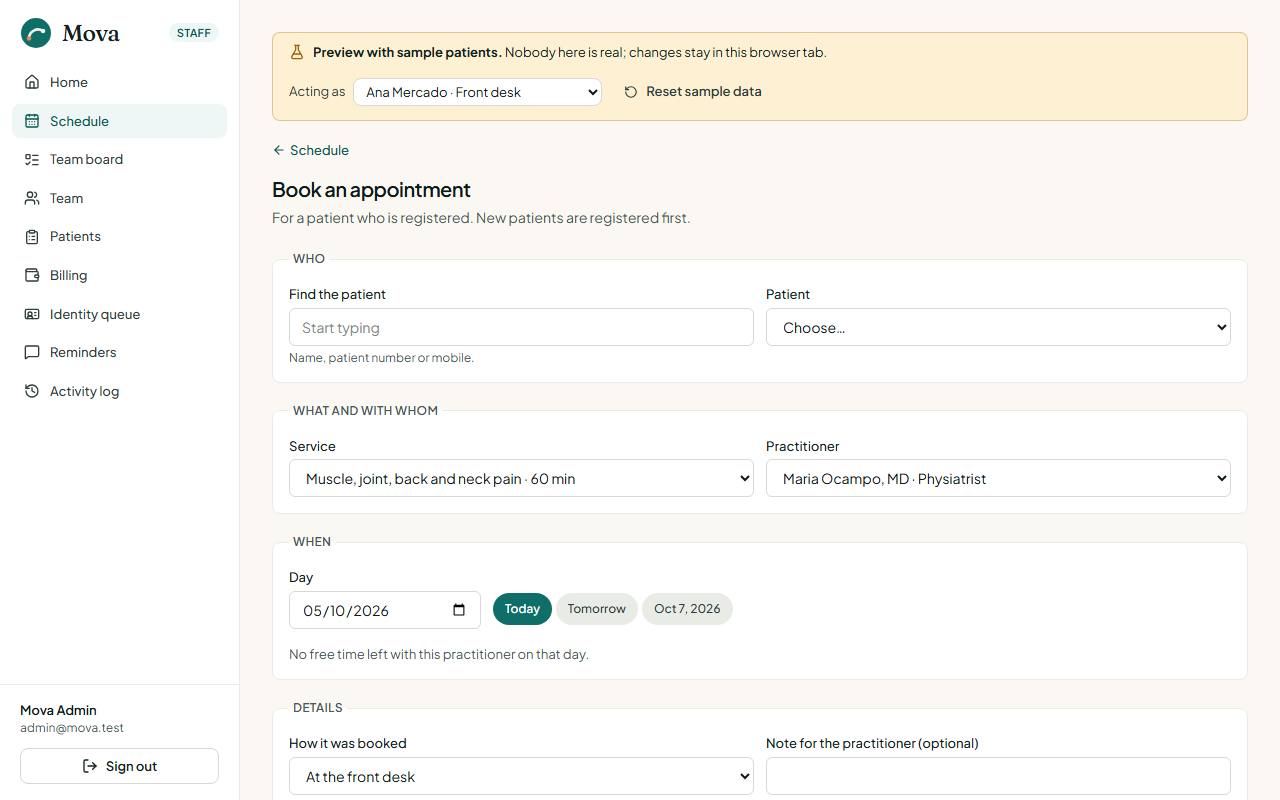
- Choose Book on the schedule, or Book from a patient's record, the waitlist or the call list, which fills in the patient.
- Find the patient by name or number. A new patient is registered first.
- Choose the service. The list of practitioners shows only those who take it.
- Choose the practitioner and the day. The free times come from that practitioner's hours and the length of the service. Days the clinic is closed show no times.
- Pick a time and book. If the patient's identity is not verified yet, the screen says so; the booking still goes through.
A visit booked within two days is Confirmed straight away. Further out it starts as Booked and the reminder asks the patient to confirm.
Booking a whole course
When a physician prescribes a course of therapy, the desk books it in one go.
- Open the patient's record, Appointments tab. Each course shows how many sessions a week for how many weeks, how many are done, how many are booked ahead, and how many are still to book. No diagnosis is shown to the desk.
- Choose to book the course. Pick the days of the week, the time, the practitioner, the start day and how many sessions.
- Find times walks the calendar: the wanted time where it is free, the nearest free time that day where it is taken, and a skip with the reason where the clinic is closed or the practitioner is full. Skipped days do not count.
- Untick any you do not want and book the rest together. Reminders are queued for each.
Registering a new patient
Patients, then New patient.
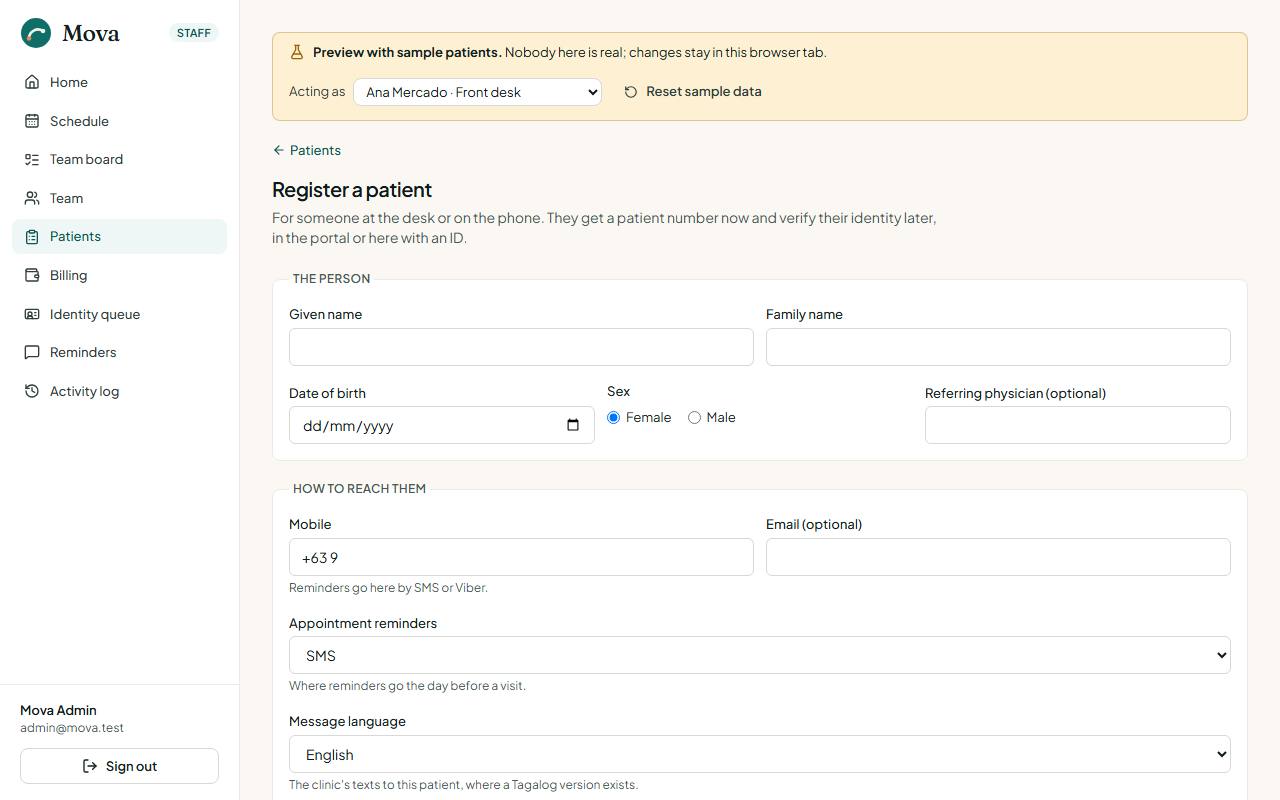
- Name, date of birth, sex. A patient under 18 needs a parent or guardian.
- Mobile in the Philippine format, and email if they have one.
- Address, emergency contact, referring physician if any.
- HMO, if covered: the HMO, the member number and until when.
- Senior citizen or PWD ID, if they have one. Their charges then carry the 20% discount from the start.
- Appointment reminders: SMS, Viber, both, or no reminders.
- Message language: English or Tagalog, for the messages that have a Tagalog version.
- The privacy notice: explain it and tick that the patient agreed.
As you type, Mova compares the name, date of birth and mobile with everyone already registered. If someone may be the same person, it shows them with their number and a link. Open their record instead, or tick that this is a different person and register anyway. The patient gets a number straight away, such as MV-2026-0042; it is on every receipt.
Changing a patient's details
The record's Details tab, for the desk, the nurse and the administrator. It also shows how they registered, whether their identity is verified, and where each consent stands.
Checking in
When the patient arrives, find their card on the schedule and choose Actions, then Check in. They move to the Waiting room panel beside the plan.
Late arrivals
A patient who arrives more than 15 minutes after their time (the administrator can change this) is checked in as late:
- The waiting room tags them Arrived 25 min late.
- They are served after those who came on time, in the order they turned up, so a latecomer does not push everyone back. The display shows the same order without saying who was late.
- The therapist sees it on the Before the session screen, to shorten the session or rebook rather than run into the next patient.
The waiting room
The panel beside today's plan.
- Waiting room lists who is checked in, in the order they will be seen, with how long each has waited. When a therapist is running behind, each row adds when they will likely start.
- In session lists who is with a practitioner now and since when.
- Missed today lists the no-shows, with a Call link to their mobile.
Calling a patient to a room
- In the waiting room, pick the room beside the patient's name. The administrator names the rooms in Settings.
- Choose Call to room. The row says "Called to Room 2 at 4:05 PM", and the waiting-room display shows Please go to: Ernesto L. → Room 2 for ten minutes.
- Call again changes the room. Once the session starts, the row says "In Room 2".
The desk, the nurse and the clinicians can all call patients.
When a therapist is running late
Mova works out how far behind each practitioner is, from the session running over its time and the patients queued after it.
- From ten minutes behind, the waiting room says, for example, "Nicole Santos is running about 20 min behind", and the display tells the waiting room the same, with an apology.
- Text the 3 patients still to come with Nicole Santos queues a message to everyone booked with her later today, each with their own likely new time, in their language. A patient with no reminder channel is counted, not texted; nobody is texted twice within an hour.
- The messages wait in Reminders, marked Running late, ready to send.
Confirmations
Bookings more than two days ahead start as Booked. The reminder the day before asks the patient to reply 1 to confirm, or 2 or call to move or cancel.
- When they reply 1, or confirm by phone: Actions, then Confirmed by reply. The card turns Confirmed.
- When they reply 2 or ask to move: Actions, then Wants to move. A task to call them appears on the board, and the card notes the request. Their slot stays theirs until you rebook it.
- Patients can confirm in the portal with Yes, I'll be there. The card turns Confirmed.
- The staff home shows Unconfirmed for tomorrow with the first names, or for the next clinic day when tomorrow is closed.
- From 3:00 PM, a task Ring the 3 unconfirmed for Monday appears on the team board, naming who has not answered. The administrator can change the hour.
The day sheet
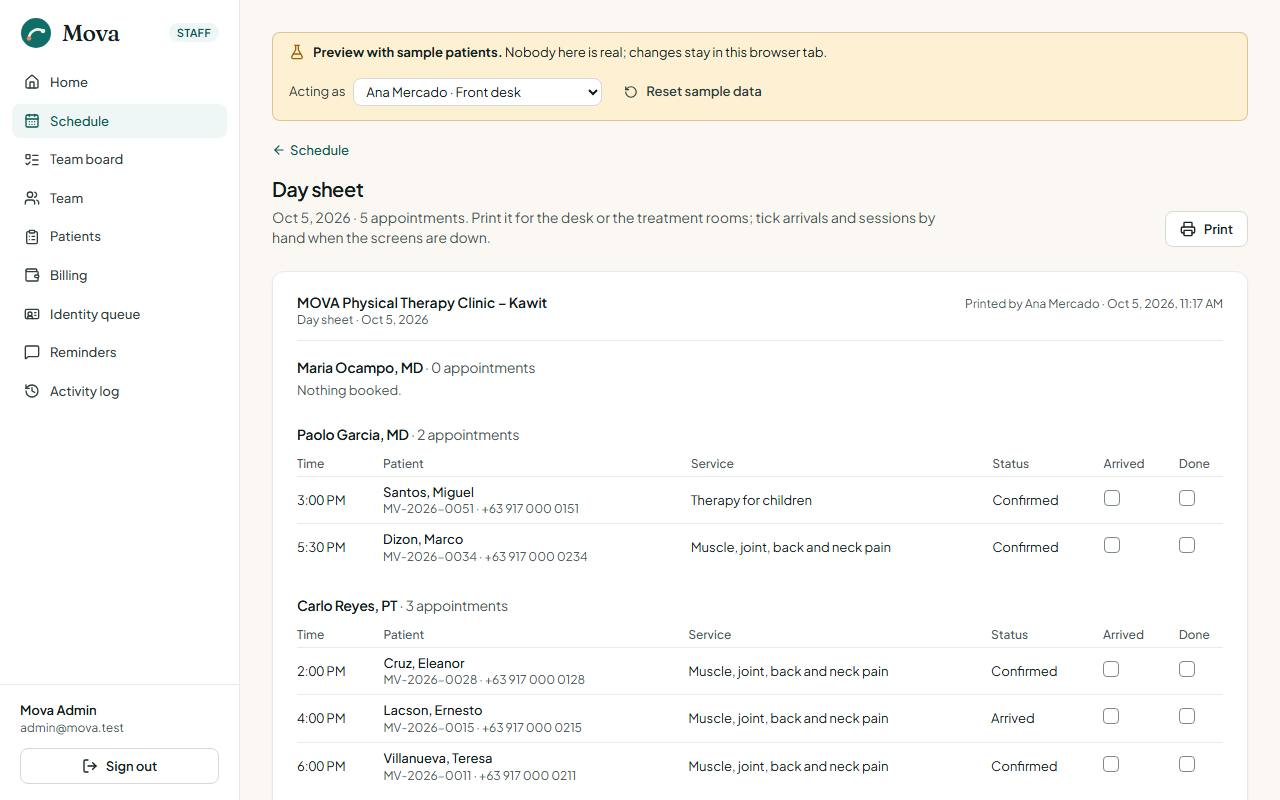
Day sheet on the schedule prints the day on paper: one block per practitioner, a line per appointment with the time, patient, number, service and status, and boxes to tick arrivals and finished sessions by hand if the screens go down. The desk's sheet includes mobile numbers; a clinician's does not. Print it each morning.
The waiting-room display
A screen facing the waiting room that says who is being seen and who is next.
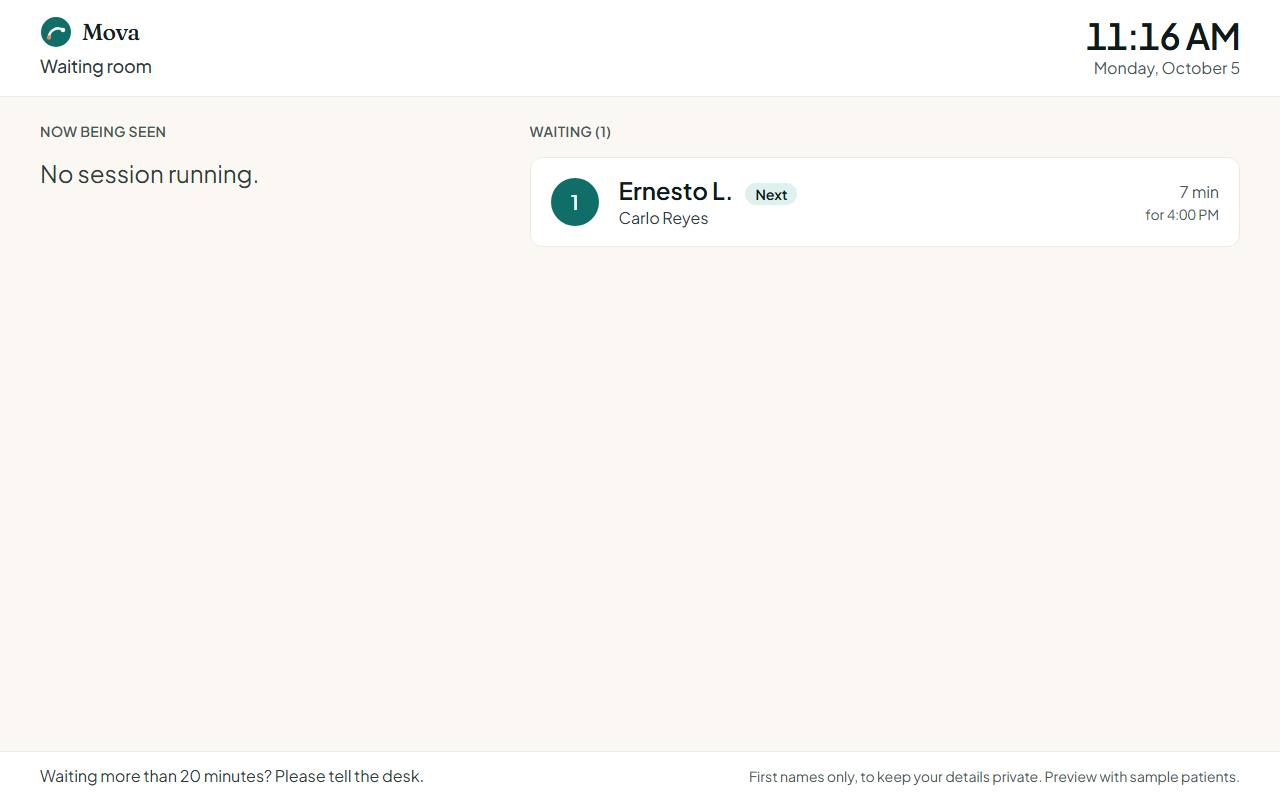
- On the computer connected to the waiting-room TV, sign in to the staff app.
- On the schedule, choose Waiting-room display. It opens in a new tab; drag it to the TV and make it full screen.
The display shows the time, Now being seen with each practitioner, and Waiting in the order patients will be seen, the first marked Next. A wait over 20 minutes turns amber, and the footer asks patients to tell the desk. When a therapist is running late, an amber line says so. It refreshes every 15 seconds.
Privacy: the display shows first names and an initial only, never the service, a diagnosis or a number.
The check-in kiosk
A tablet at the door where patients with a booking check themselves in with their patient number and birthday. It is switched off until the clinic has a tablet; the administrator turns it on in Settings. When it is on:
- On the tablet, sign in to the staff app and choose Check-in kiosk on the schedule.
- The patient types their patient number and picks their birthday. Mova checks them in for today's visit, greets them by first name, and asks them to take a seat.
- A wrong number or birthday gets one message that names nobody. No visit today, or a first visit, sends them to the desk.
Kiosk check-ins are tagged Checked in at the kiosk in the waiting room.
The waitlist
Waitlist on the schedule. People waiting for a slot: the patient, the service, a particular practitioner or whoever is free first, the days and times that suit, a note, and urgent or not. Urgent comes first, then whoever has waited longest.
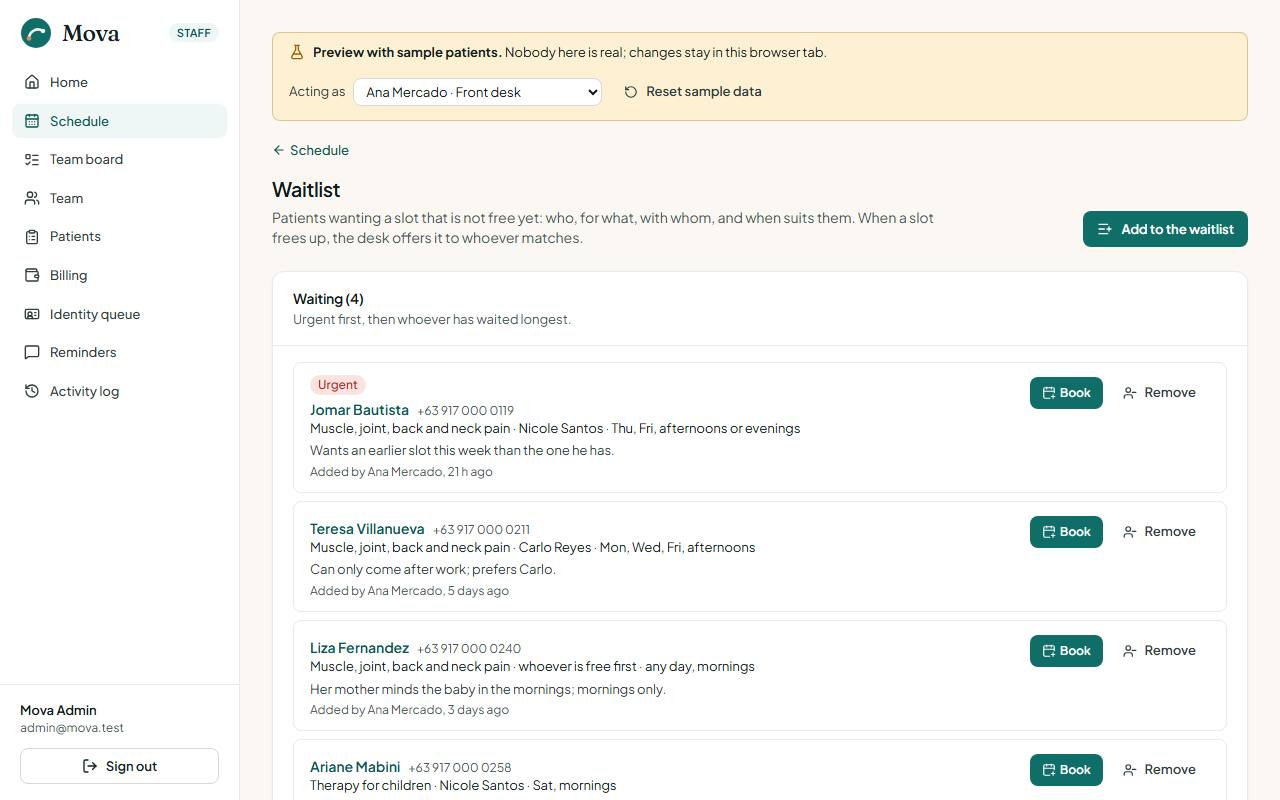
- Adding: choose the patient, the service and when suits them. The same patient cannot be on the list twice for the same service.
- Offering a cancelled slot: after cancelling, choose Offer this slot to the waitlist. The freed slot is on top and the people it suits are marked.
- Book fills in the patient; once booked they leave the list. Remove asks for a reason.
Patients to call
To call on the schedule. Patients whose course of therapy has had no visit for two weeks with nothing booked, and patients who missed a visit this week with nothing rebooked, longest gap first.
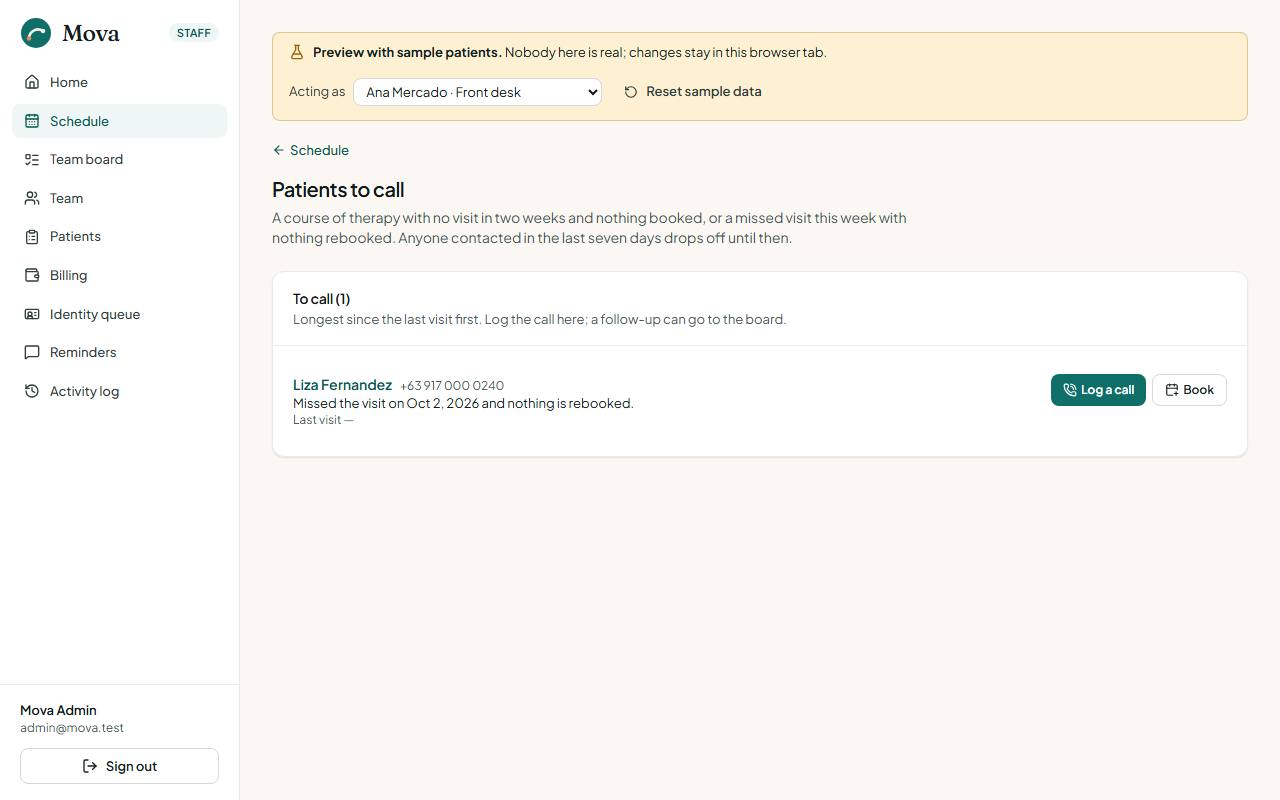
- Book fills in the patient.
- Logging a call takes the patient off the list for seven days.
Logging a contact
The patient's Contacts tab, or from the call list: Log a contact. The channel (phone, Viber, SMS, email, in person), which way it went, the outcome (reached, no answer, left a message, will call back) and a line on what was said. Keep clinical detail in the notes. You can put a follow-up on the board for tomorrow in the same step.
Reminders
Reminders in the menu, for the desk and the administrator.
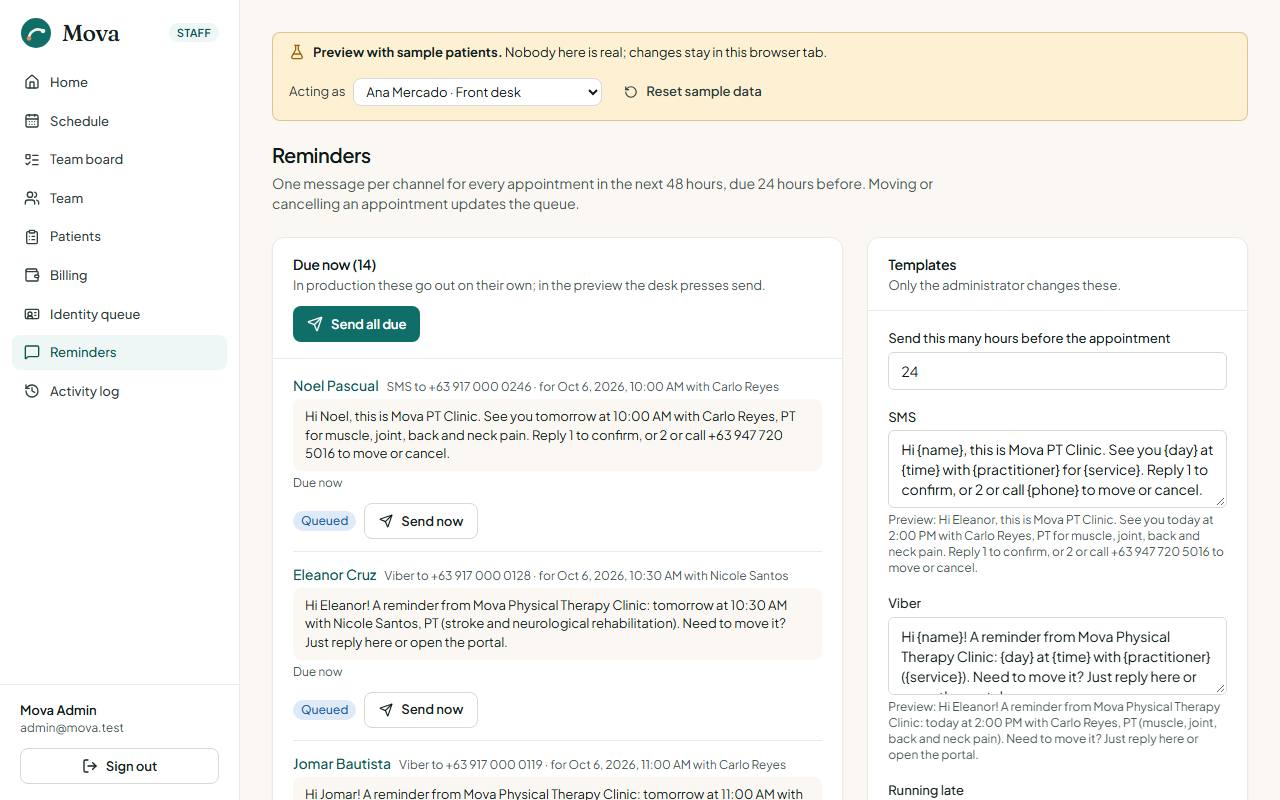
- Due now, Scheduled, Sent. One message per channel for every booked or confirmed visit in the next two days, due 24 hours before by default, or at once when booked later than that. Each shows the text, the mobile and the visit.
- Send now sends one; Send all due sends the lot. Each is recorded on the patient's record.
- The queue follows the schedule: booking adds reminders, moving replaces them, cancelling cancels them.
- Running late and Questionnaire messages sit in the same outbox, marked.
- Templates are the administrator's: see Messages to patients.
A patient who chose no reminders gets none. Reminders are about their visits only; the clinic never uses them for marketing.
Identity verification
Identity queue in the menu. Patients verify their identity in the portal before they can book freely.
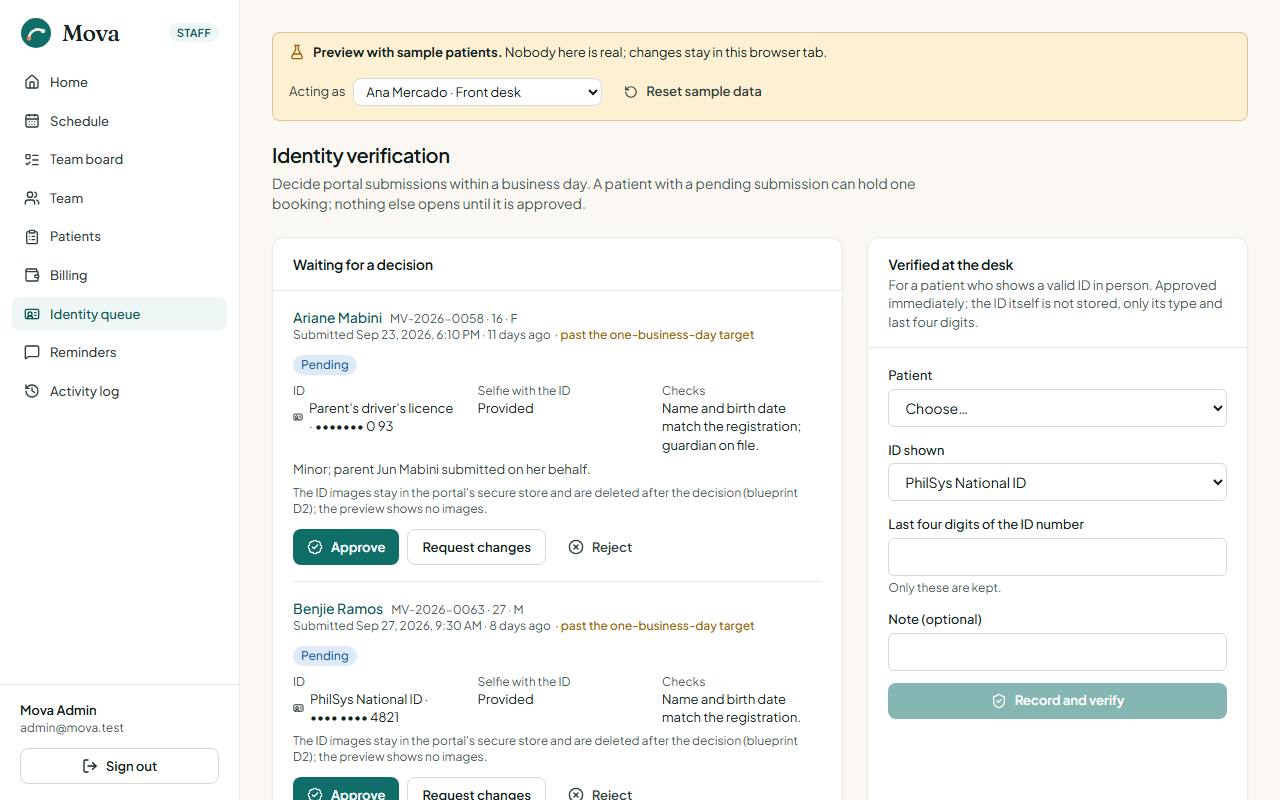
- Waiting for a decision: the ID type and a masked number, whether a selfie with the ID was sent, the registration checks, and how long it has waited. Aim to decide within one business day. Approve in one press; request changes or reject with a reason the patient reads in the portal.
- Verified at the desk: for a patient who shows a valid ID in person, record the ID type and the last four digits, and they are verified at once.
- Decided: every decision, with who made it and when.
Consents
The record's Details tab, for everyone. Four consents, each with a version:
| Consent | Needed |
|---|---|
| Privacy notice (Data Privacy Act of 2012) | Everyone |
| Assessment and treatment | Everyone |
| Parent or guardian | Patients under 18 |
| Photos and video for the clinical record | Optional |
Each shows whether it is current, on older wording, withdrawn, missing or not asked, with who gave it, when, how, who witnessed it and who recorded it. A required consent that is missing, withdrawn or on older wording shows as a red chip at the top of the record for everyone, so the clinician sees it before treating.
- Record a consent the patient signed. For a minor, the guardian is filled in from the record.
- Withdraw keeps the record and asks for the patient's reason.
- Print the form on the clinic's paper for the patient to sign.
Leave and closures
Physicians and physiotherapists ask for leave from the schedule: the days and a reason. The administrator approves or declines in Settings. Approved leave takes them off those days and out of booking, and if they had visits booked, a task to rebook those patients appears on the board. Clinic closures, such as holidays, are set by the administrator and work the same way.