Signing in
Every staff sign-in needs two things: your password, and a six-digit code from an authenticator app on your phone. This keeps patient records safe even if a password leaks.
Your first sign-in
The clinic administrator invites you from the Team page. You receive an email from Mova Physical Therapy Clinic.
- Open the link in the email and choose Click here to proceed.
- Set up the authenticator app. Install one on your phone if you do not have one: Google Authenticator, Microsoft Authenticator, Aegis and 1Password all work. Scan the QR code on the screen, or choose to enter the key by hand.
- Type the six-digit code the app shows, give the device a name such as "My phone", and save.
- Choose a password. At least 12 characters, not your email, and not one of your last five. A short sentence you can remember works well.
- The page says your account has been updated. Go to the staff app and sign in.
Signing in every day
- Go to
staff.clinic-dev.sentianx.com/staffand choose Sign in. - Type your work email and password.
- Type the six-digit code from your authenticator app. Codes change every 30 seconds; if one is refused, wait for the next.
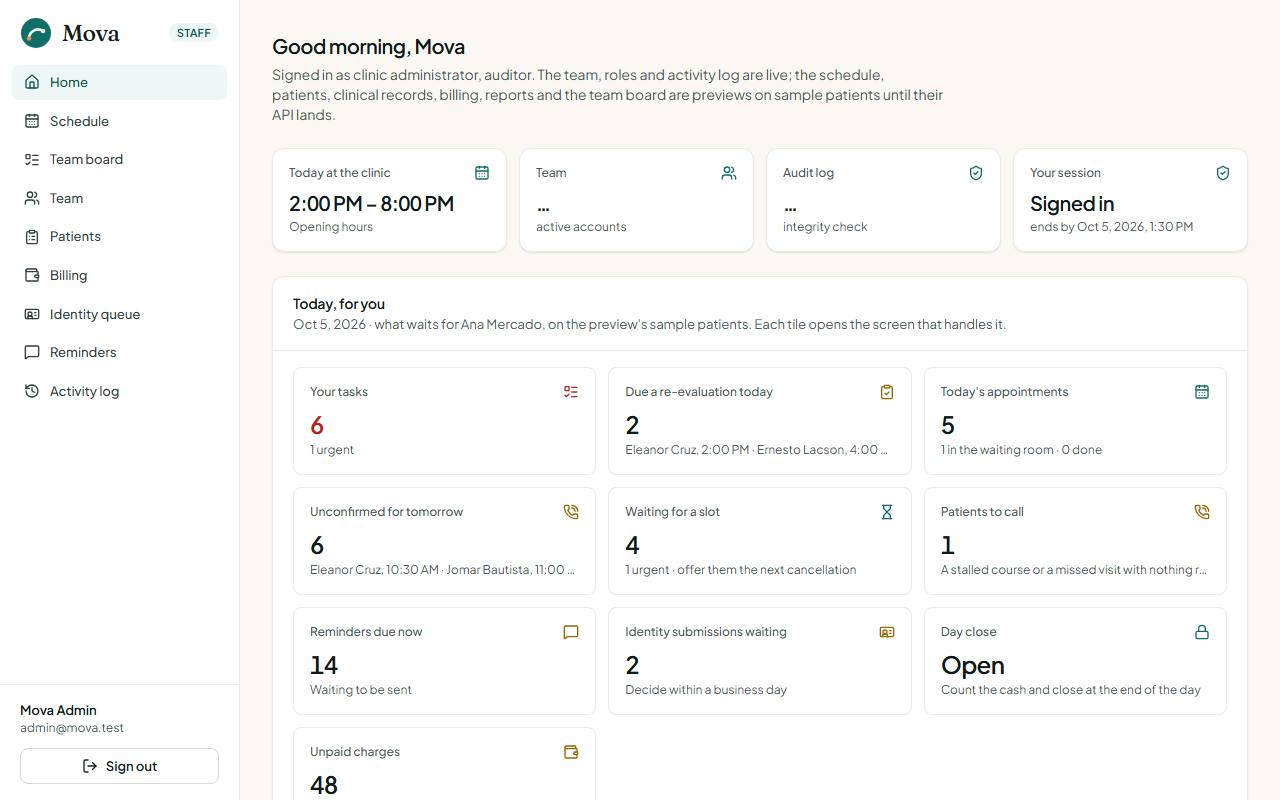
- You arrive on the staff home.
Staying signed in, and signing out
- After 30 minutes without activity Mova signs you out, so a computer left on at the desk does not stay open. Three minutes before, a message offers Stay signed in.
- After 12 hours you sign in again, whatever you were doing.
- Sign out is at the bottom of the menu. It also signs you out of the sign-in page, so the next person cannot use your session. On a shared computer, close the browser afterwards.
"Confirm it is you"
Some changes need you to have entered your password and code in the last ten minutes: inviting staff, changing roles, deactivating an account. Mova asks you to confirm it is you before the form opens, and brings you back to the same page afterwards, so nothing you typed is lost.
If something goes wrong
| Problem | What to do |
|---|---|
| The code is refused | Check the phone's time is set automatically. Wait for the next code. |
| Too many wrong tries | After five, the account locks for a minute, and longer if it continues, up to 15 minutes. Wait, then try again. |
| A new phone, or a lost one | Ask the clinic administrator to reset your authenticator. You set up the app again at the next sign-in. |
| Forgot the password | Ask the clinic administrator to send a new setup email. |
| "Not available with your roles" | Your role does not include that screen. If you need it, ask the administrator. |
Patients signing in
Patients use the portal, with their own accounts. See The patient portal. Staff accounts and patient accounts are separate: a staff account does not open the portal.