The staff home, the board and the log
Three screens everyone uses, whatever their role: the staff home that says what is waiting for you, the team board where tasks and handovers live, and the activity log.
The staff home
The home opens after you sign in. Its main panel, Today, for you, is a row of tiles, one for each queue that belongs to your role. Each tile shows a count and a short hint, and opens the screen that handles it.
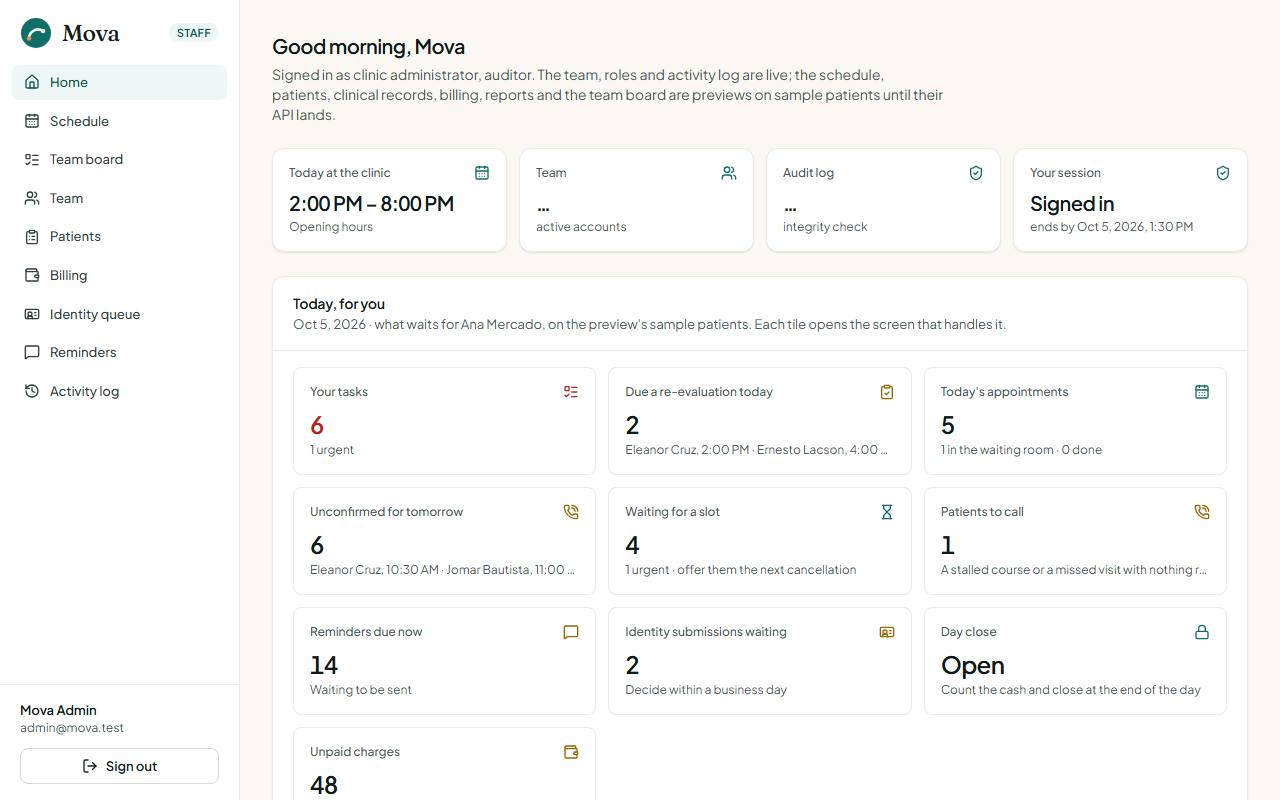
| Tile | Who sees it | What it counts |
|---|---|---|
| Your tasks | Everyone | Tasks on the board for you by name or for your role, with the urgent ones counted |
| Your appointments today | Physicians, physiotherapists | Your own visits today, done and still to go |
| Due a re-evaluation today | Clinicians, the desk | Patients seen today whose course is past its re-evaluation point |
| Awaiting your countersignature | Physicians | Notes waiting for you to countersign |
| Prescriptions to acknowledge | Nurses, physiotherapists | New prescriptions you have not seen yet |
| To check before their session | Nurses | Patients arrived or due within the hour with no check today |
| Today's appointments | The desk | The clinic's day: who is waiting, who is done |
| Unconfirmed for tomorrow | The desk | Tomorrow's bookings nobody has confirmed yet, with the first two names |
| Waiting for a slot | The desk | People on the waitlist |
| Patients to call | The desk | Patients whose course has stalled or who missed a visit |
| Reminders due now | Desk, administrator | Messages waiting to be sent |
| Identity submissions waiting | Desk, nurse, administrator | Patients who sent their ID from the portal |
| Unpaid charges | Desk, administrator | What is still owed, with the amount |
| Day close | Desk, administrator | Whether today is closed yet |
| Leave requests waiting | Administrator | Practitioners asking for time off |
Below the tiles, clinicians see their next few appointments and everyone sees their own tasks.
The team board
Team board in the menu. It is where the clinic leaves itself notes that need doing: a report to chase, a patient to call back, a supply to reorder, a handover for the next shift.
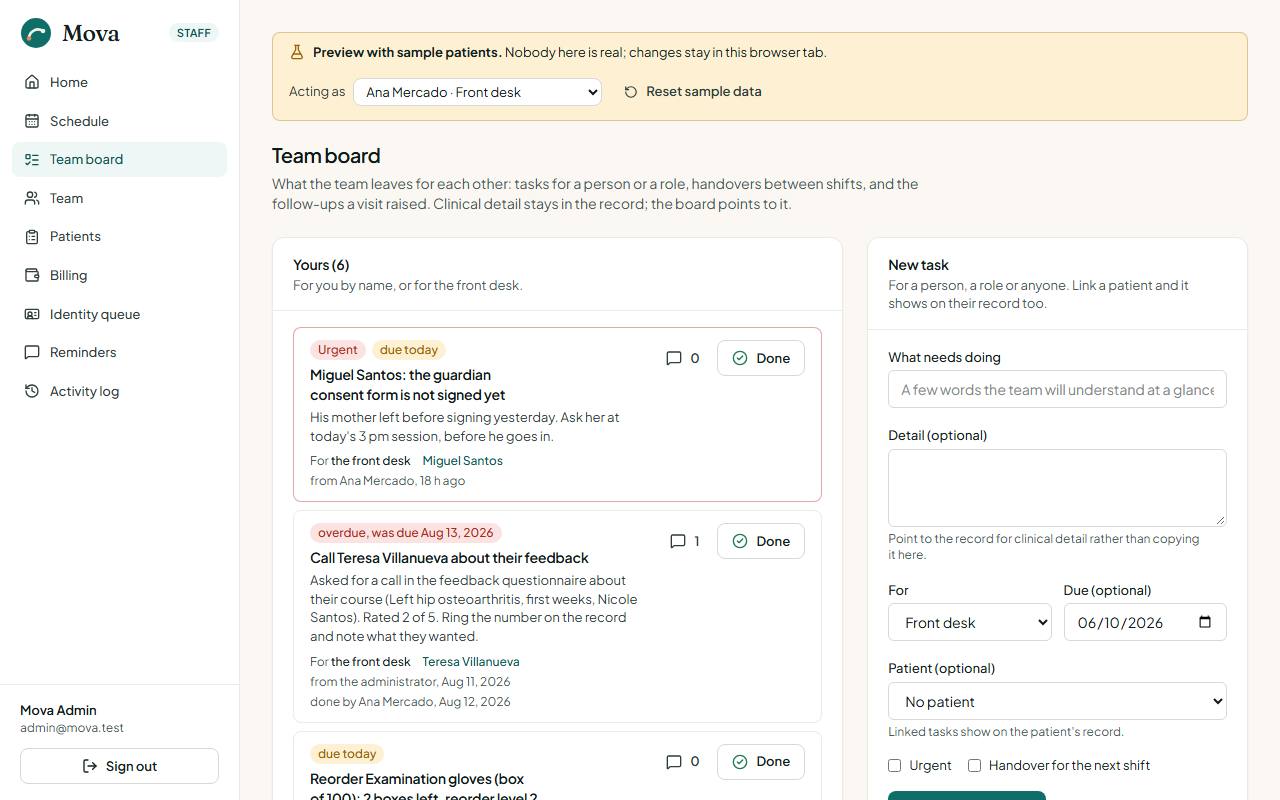
Adding a task
- Choose New task on the board, or New task about this patient on a patient's Tasks tab to tie it to that patient.
- Give it a title and, if useful, a few lines of detail. Keep clinical detail in the notes; the task can point to them.
- Choose who it is for: one person, everyone in a role (whoever is at the desk, the nurse on duty), or anyone.
- Add a due day if it has one, and tick Urgent if it cannot wait.
- Tick Handover for something one shift leaves for the next. Handovers carry a chip so they stand out in the morning.
Working through tasks
- Yours lists what is for you by name or for your role. Across the team lists the rest, with filters for urgent, due today or overdue, handovers, and tasks for anyone.
- Comments stay with the task, so whoever picks it up sees the whole story.
- Done and Reopen are one press each. The card says who finished it and when.
Tasks Mova adds for you
Some tasks appear on their own, so nothing falls through the cracks:
- Reorder a supply that has reached its reorder level.
- Call a patient who missed a visit, from the day close.
- Call a patient whose HMO claim was denied, to collect or appeal.
- Call a patient who asked for a call in the feedback questionnaire.
- Call a patient who replied that they want to move their visit.
- Ring the unconfirmed for tomorrow, from 3:00 PM by default.
- Rebook patients when approved leave or a closure lands on their visit.
Reporting an incident
Anyone on duty can report an incident: a fall, an injury, a reaction to treatment, a broken piece of equipment, or a near miss. Open the patient's record and choose Report an incident, or report one without a patient. Give the kind, how serious it was, what happened and what was done. Physicians and the administrator review incidents on the Incidents page and write a statement.
The activity log
Activity log in the menu. Every sign-in and every change in the system is recorded, newest first, and cannot be edited or deleted. Everyone sees their own actions. The clinic administrator and anyone with the auditor role see the whole log, can filter it by category and outcome, and can run the integrity check, which recomputes the chain that links each entry to the one before it and shows that none was changed or removed.
Each patient record has its own Activity tab for clinicians, with every opening of the record and every change to it. Patients see who opened their record in the portal, under Record access.